

HazardTheDutchAD
Muted
- Sep 24, 2016
- 7,217
- 21,922
Hey everyone,
This is another Tutorial by Hazard this time explaining how you can change your Xbox avatar for free! The first thing you will need to do is search in your app store or the Windows store for an app called Xbox (BETA) This is the Beta app for Xbox Live which has new various features which Xbox should soon be adding to it's main system.
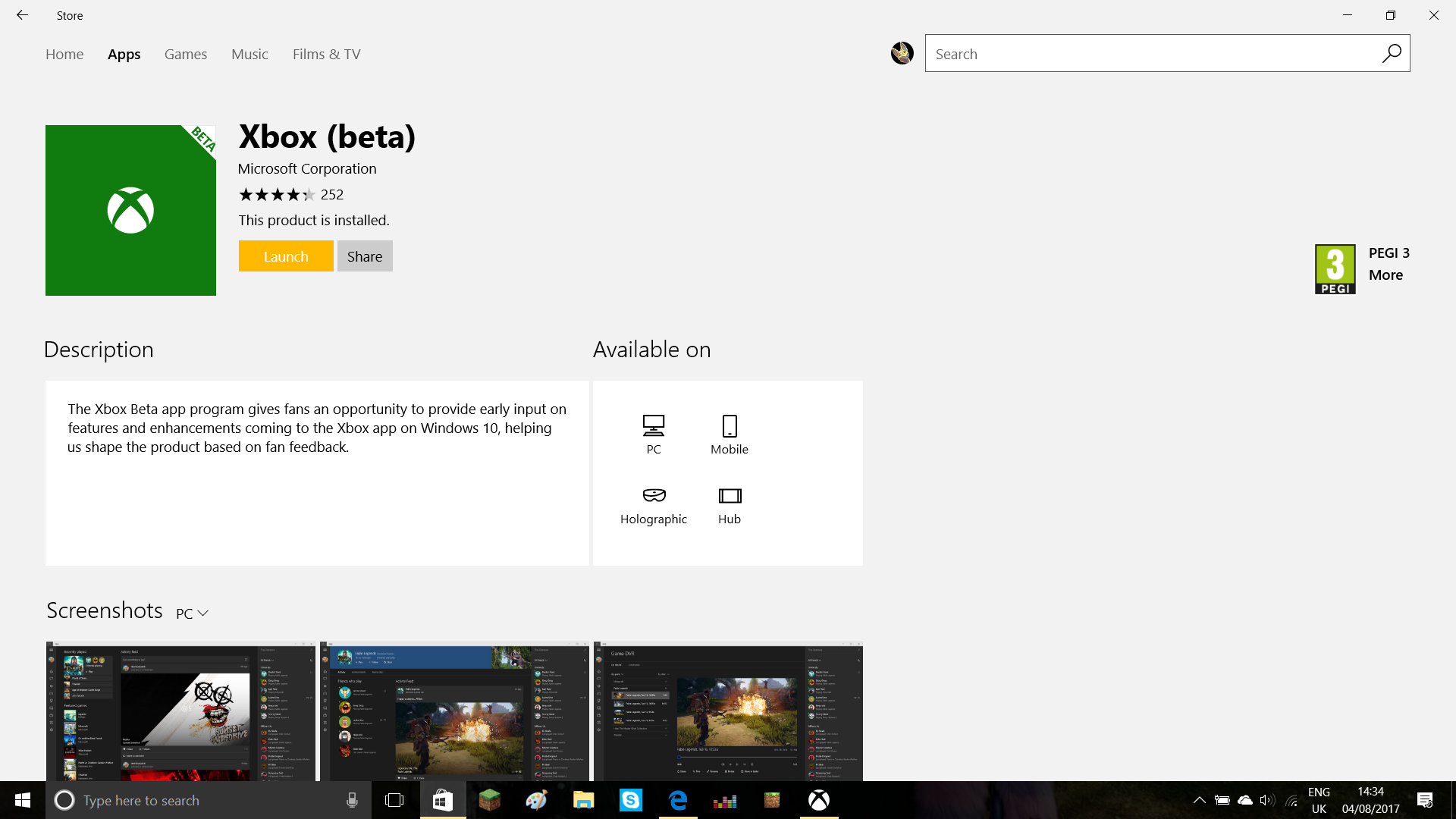
Once you have this app you will be asked to sign into your Xbox Live account. sometimes it will also request you to put in a code from your email to confirm the account belongs to you. Once you have the app it will look something like this depending on the device you use.
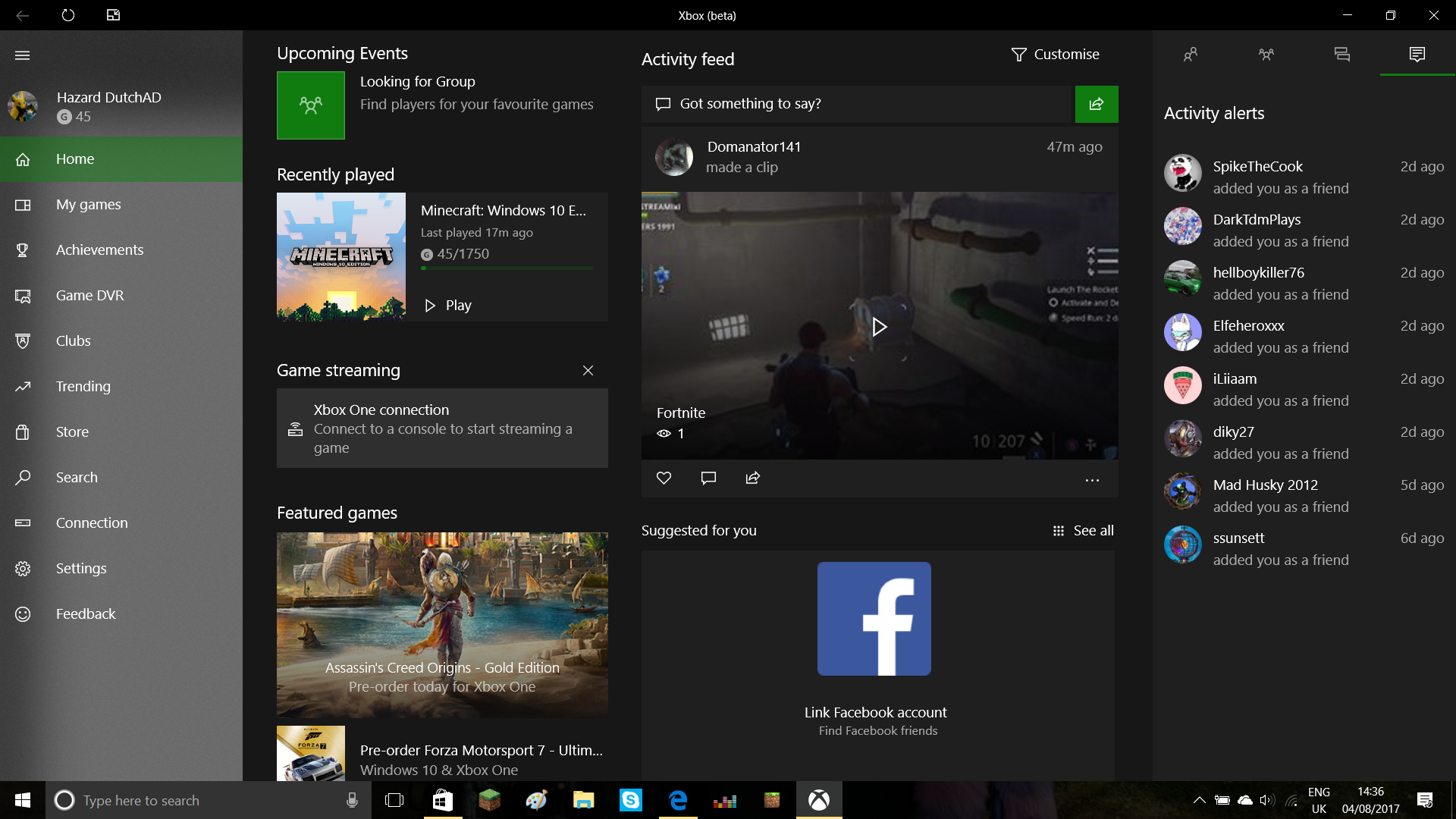
Then you will need to go to your profile which can be found by tapping on your Xbox Gamertag as I have done here:
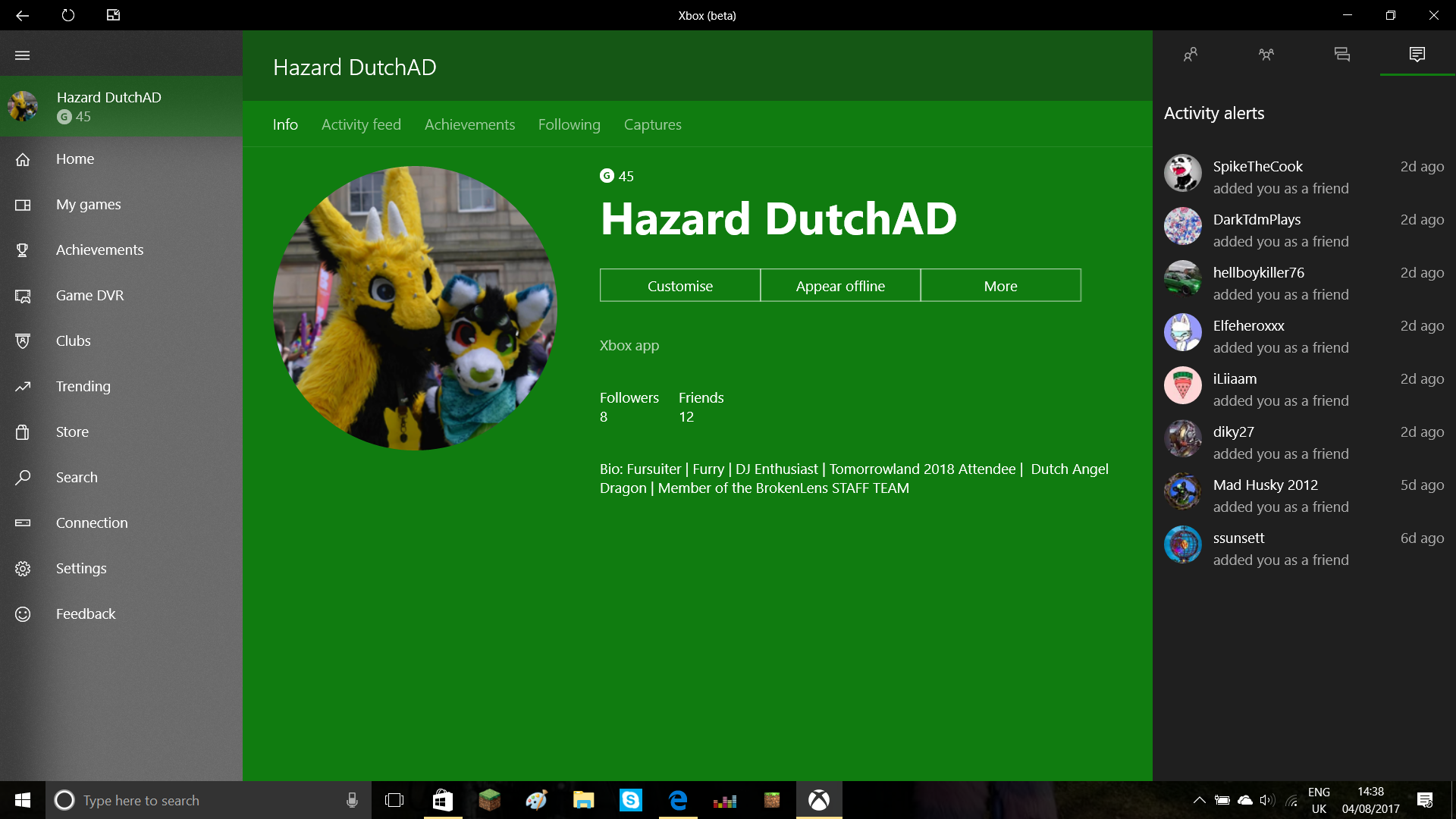
Yours will look different either having a default profile picture and no bio or location set. Mine looks like this because I have already edited my profile to my liking. You can edit your own profile by selecting the customise option which once you tap on this it should look something like this:
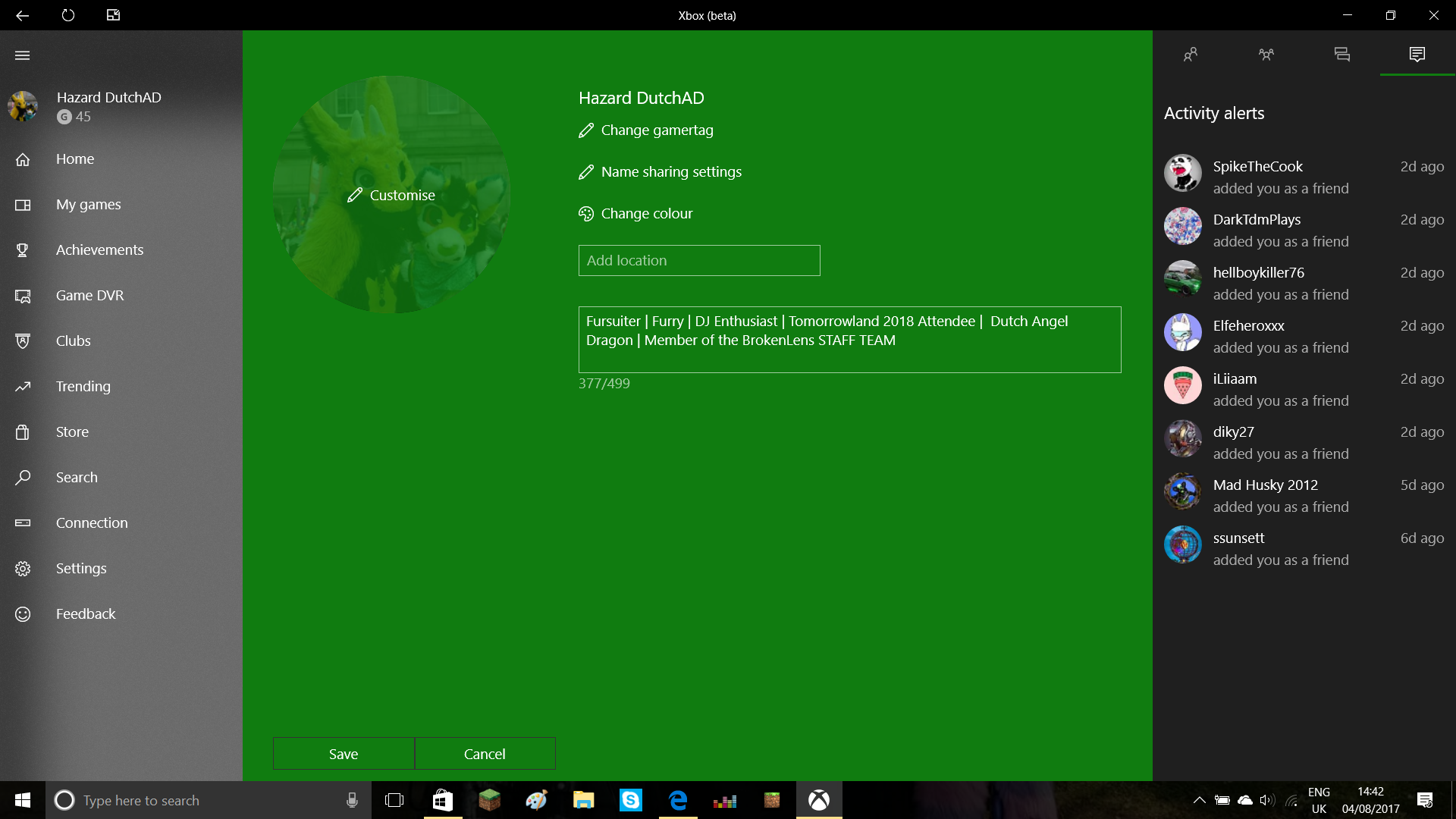
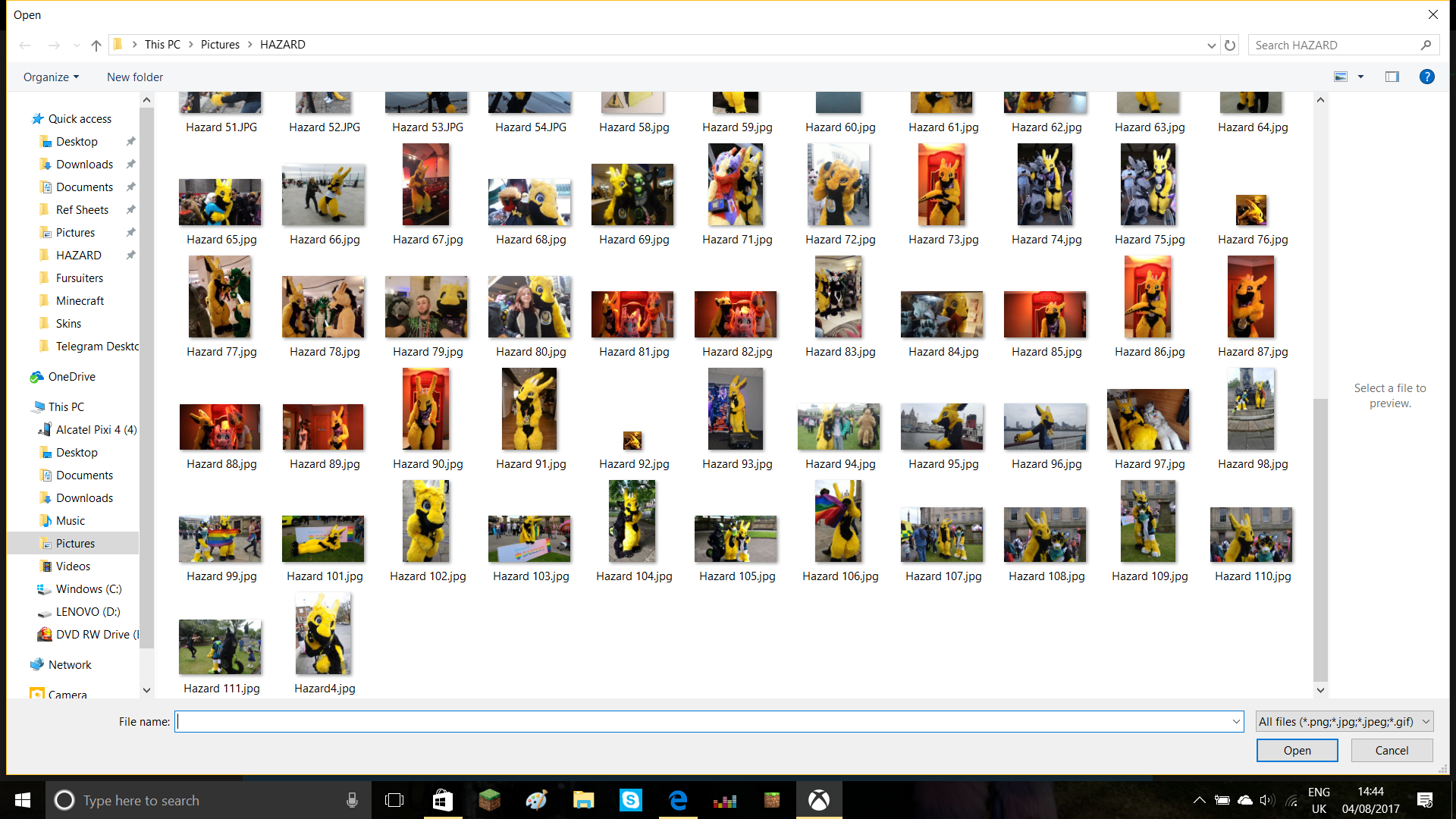
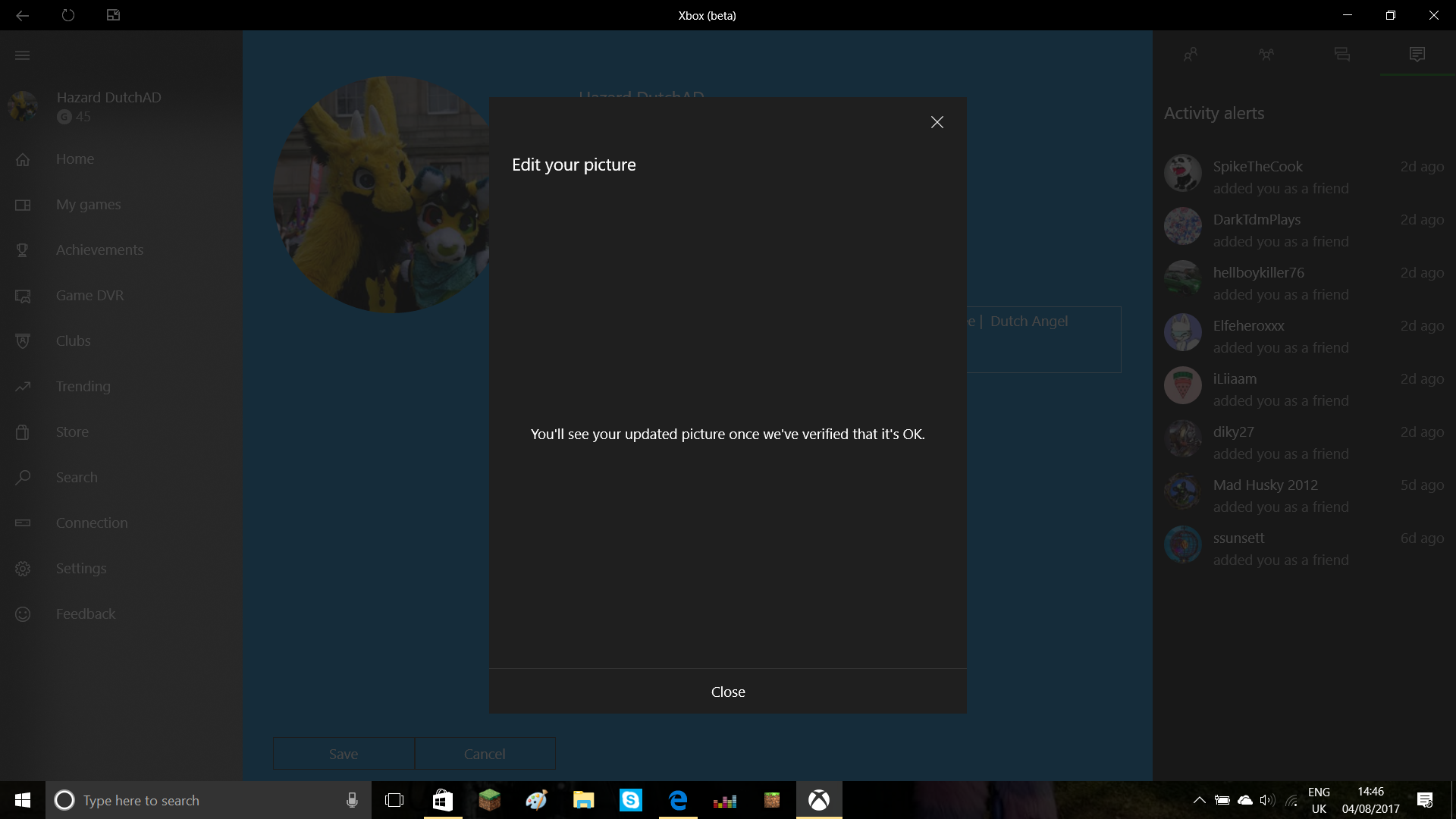
In this section you can customise your profile to the fullest adding your own avatar, adding your own bio location and who can see your gamer tag or not. once you are finished you can just click save. All avatar changes have to go through Microsoft before they are actually set which normally just takes a few seconds. Once you select a photo it might ask you to crop the photo and once cropped it will confirm you profile photo.
And there you go! you should have a completely customised Xbox Live account! I felt like this guide would be extremely useful since Xbox is becoming a main part of Minecraft PE & Windows 10 Edition and it's nice to have a profile you can customise!
Hope this was useful and don't forget to leave your comments
on any other guides you want to see me do next or just in general.
This is another Tutorial by Hazard this time explaining how you can change your Xbox avatar for free! The first thing you will need to do is search in your app store or the Windows store for an app called Xbox (BETA) This is the Beta app for Xbox Live which has new various features which Xbox should soon be adding to it's main system.
Once you have this app you will be asked to sign into your Xbox Live account. sometimes it will also request you to put in a code from your email to confirm the account belongs to you. Once you have the app it will look something like this depending on the device you use.
Then you will need to go to your profile which can be found by tapping on your Xbox Gamertag as I have done here:
Yours will look different either having a default profile picture and no bio or location set. Mine looks like this because I have already edited my profile to my liking. You can edit your own profile by selecting the customise option which once you tap on this it should look something like this:
In this section you can customise your profile to the fullest adding your own avatar, adding your own bio location and who can see your gamer tag or not. once you are finished you can just click save. All avatar changes have to go through Microsoft before they are actually set which normally just takes a few seconds. Once you select a photo it might ask you to crop the photo and once cropped it will confirm you profile photo.
And there you go! you should have a completely customised Xbox Live account! I felt like this guide would be extremely useful since Xbox is becoming a main part of Minecraft PE & Windows 10 Edition and it's nice to have a profile you can customise!
Hope this was useful and don't forget to leave your comments
on any other guides you want to see me do next or just in general.


