Using the Forum for Beginners

SpikeTheHugger

Notable Member
Emerald Member
Joined
Jul 10, 2016
Messages
9,787
Reaction score
57,344
Using the BrokenLens Forum
Introduction
This guide is for people who want to know how to use the forums here at BrokenLens, which may extend to other forums using the same base code. But for the purposes of this guide, being as I have absolutely no wish to get an earful for advertising, we'll not mention any other site here. BrokenLens forever and whatnot.

For anyone looking to use more complex BBCode, you're welcome to consult the BBCode guide here:
http://www.brokenlens.xyz/forums/index.php?help/bb-codes

This guide will be about simpler methods of doing this, so you don't have to write all those complex tags out :p
If you have any questions about any steps on this guide, please comment below and I will try to answer them as soon as I can.

Levels of Difficulty are shown. This is my own opinion, and to some people things I consider harder may be easy, please note that this guide is generalised for all players :)

Contents
This is all in order, so you can scroll down until you find it!

Formatting Text
Colouring Text
Bold, Underlined, Italic
Resize
Font
Text Alignment
Linking

Adding Organisation to Text
Bullet Points
Emojis

Adding Organisation to Text
Bullet Points
Emojis

Finishing a New Thread
Creating/Submitting
Uploading Files
Previewing

Adding Images
Adding Videos

Additional Features
Quote
Spoiler
Code
Strike-through

Emergency Features
Undo
Redo
Remove Formatting
BB Code Editor

Other Features
Reporting
Reply
Edit
Delete

FINISH :D

Difficulty: Beginners

Formatting Text

This will probably be the easiest thing I will be explaining here. Editing and Formatting text is just a simple matter of mashing buttons together until a dull paragraph becomes a work of art.

To colour text, all you have to do is highlight the text you wish to colour and press this button:
2016-10-17 15.39.14.png

Choose the colour you wish to have and boom, your text should be magically coloured.

To make text Bold, Underlined or Italic, highlight the text you wish to format, use these buttons here:
Oqock3N.png

B stands for Bold, I stands for Italic and U stands for Underline.

To resize text, highlight the text you wish to resize, and use this button:
o6I6VU8.png

The numbers displayed are font sizes.
Size 1, Size 2, Size 3, Size 4, Size 5, Size 6

To change the text font, highlight the text you wish to re-font, and click this button:
oXuAjkw.png


To change the alignment of text, highlight the text you want to align and click this button:
sRcELx1.png

It will tell you where in the page the text will be aligned. This section is currently aligned as Center.

To make text interactive, linking to another page, highlight the text you want to link, and press the first button here:
ONTOS4V.png

The second of these buttons unlinks highlighted text, in-case you change your mind.

Adding Organisation to Text

Organising your text makes it easier for people to read. A solid paragraph of test with 2 full stops and an emoji is going to make people go... "Oh, but I don't wanna read that!"

To make a paragraph... Only kidding, you guys know how to do that!

Adding bullet points should be done before writing text, but you can still highlight text to make it into a list. When you want to begin a bullet point list:
2016-10-17 15.51.58.png


Emojis! Easy peasy :p. When you want an Emoji, press mr. smiles:
72CXwQA.png

I will put below all the colon tags for emojis so that you can write them in on Mobile if necessary. Make sure to remove the spaces in between the tags, I had to put them to prevent them from registering.

:) - : )
;) - ; )
:( - : (
:mad: - : mad :
:confused: - : confused :
:cool: - : cool :
:p - : p
:D - : D
:eek: - : eek :
:oops: - : oops :
:rolleyes: - : rolleyes :
o_O - o _ O
:alien: - : alien :
:barefoot: - : barefoot :
:cautious: - : cautious :
:coffee: - : coffee :
:cry: :'( - : cry :
:devilish: - : devilish :
:geek: - : geek :
:giggle: - : giggle :
:inlove: - : inlove :
:laugh: - : laugh :
:ninja: - : ninja :
:notworthy: - : notworthy :
:lmao: - : roflmao :
:sick: - : sick :
:sleep: - : sleep :
:speechless: :x - : speechless :
:thumbsdown: - : thumbsdown :
:thumbsup: - : thumbsup :
:unsure: - : unsure :
:whistling: - : whistling :
:x3: - x3

Finishing a New Thread
2016-10-17 16.10.15.png

To submit a new thread, all you have to do is press the Create Thread button shown above.
It will then create a brand new thread for that section of the forum!

To upload a file attachment to your thread, press the upload file button shown above.
It will then ask you to select the file you wish to upload, which other users can download.
You can use this to upload images, but if you want to display an image, consult the 'Adding Images' section of this guide as it will look better.
Please note that sending malicious/inappropriate files may result in a severe punishment.

To preview your post full size before submitting, press the 'Preview' button shown above.
You'll see what it would look like after you post it, as it may look slightly different than the writing box when full size on a page.

Difficulty: Intermediate
 

Attachments

  • 2016-10-17 16.26.08.png
    2016-10-17 16.26.08.png
    20.2 KB · Views: 3
  • 2016-10-17 16.27.30.png
    2016-10-17 16.27.30.png
    111.3 KB · Views: 2
  • 2016-10-17 16.36.40.png
    2016-10-17 16.36.40.png
    13.1 KB · Views: 2
  • 2016-10-17 16.36.18.png
    2016-10-17 16.36.18.png
    30.5 KB · Views: 2
  • 2016-10-17 16.41.29.png
    2016-10-17 16.41.29.png
    14.3 KB · Views: 3
Adding Images
This is probably one of the most asked questions I have seen on the forums. So for this, an entire topic is dedicated to it!

REQUIREMENT: You need a website that hosts images for you. I recommend using a site known as Imgur.
I will be using Imgur as an example in this section.
Step 1: Upload your image to your website that hosts images. For this I will use Imgur.
fa0fpz.png

SvdsOxu.png

Step 2: Click on the picture that you just uploaded, to bring up the Links screen. If you're not using Imgur, you'll have to find this link yourself.
You need to find a Direct Link, which should end in the file type of the image.
2a4tndf.png

Step 3: Click on the forums, where you want the image to be located. Then press this button:
YbJRGKJ.png

You will then be shown this screen:
jhsx0g.png

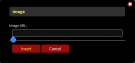
Step 4: On the screen above, input the direct link you retrieved in Step 2, and click Insert.
And that's all there is to it!

Adding Videos
Way easier than images. But, sadly, it will probably take longer.
Upload your video to YouTube. Unlike the images system, videos are only accepted from trusted sites, so I recommend YouTube as it is easy to use and has good quality for resizing to the forums.
Click where you want the video to go, and press this button:
XLeOVkf.png

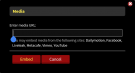
You will then see a screen like this:
353e4om.png

Put in the video link to your video in the box, and press 'Embed'
You'll see [MEDIA] tags there, but when you press 'Preview' or 'Post' it will show up as the video.

Difficulty: Hard(ish)

Using Additional Features:
1zlt9op.png

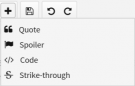
Quote is a copy and paste version of the 'Reply' button. But instead of you getting an immediate quote and ID of the player you're quoting, you just get a box that looks like a quote that doesn't come from anyone. This can be helpful if you're quoting another site or another thread on BrokenLens.

Pressing it makes these in chat:
D4edOv3.png

To use them, put whatever text in you want to quote, and it'll appear as a quote box on your actually message!
Now we're going to show how you quote a player and a thread, which is helpful if you're quoting another thread in a reply. See this: QUOTE="SpikeFeedYouTub, post: 86841, member: 6822"

First part, the user's name, easy.

Second part, the post ID which is found in the link to a post, like so: http://www.brokenlens.xyz/forums/index.php?threads/using-the-forum-for-beginners.8129/ The code for this thread from this link, is displayed after the dot there. So it is 8129!

Third part, is the member ID, to make sure the user name can be linked. Again, it is in the link to the user's profile. Like mine: http://brokenlens.xyz/forums/index.php?members/spikefeedyoutub.6822/
My code is 6822!

Make sure to format it like the tag example above, you can copy it and edit out the details if you wish!

Still think it is easy o_O
-----------------------------------------------------------------
Spoiler is a feature that hides text, so that it requires the user to actually click the spoiler to view it's content. You use this so it doesn't spoil anything, unless the user wants to know.
All you have to do for this, is highlight the text, click the spoiler button and enter a title. If you just want the button to show without the custom title, leave it blank and press 'Continue'.
-----------------------------------------------------------------
Code is a feature that shows you a programming language is being used. It helps to format the code so it doesn't look all ugly as plain text. You can select the type of code to show, or leave it blank.
To use this, click where you want the code box to display, select a programming language (it can be left to general) and enter the code. It is better for formatting if you copy the code from the software you used to code it, so that it is not edited in transit.
-----------------------------------------------------------------
Strike-through is a feature that strikes through your text. In fairness, this is really easy, but it fits better here for formatting. Just highlight the text you want to strikethrough, and press the button.
The Emergency Features

These are for convenience mainly. If you accidently removed something, or did something wrong, you can undo it! Just press the first button above, the one that looks like a spiral arrow going backwards. That's the Undo button.

Redo is the Undo of Undo... If you did Undo accidently and need to get something back, press the second button above known as Redo.

Remove Formatting quickly eliminates ALL text formatting you have done. That means colours, features or fonts, anything that formats your text! If you press this accidently, use the Undo button. This button is the third button above and looks like an eraser (sort of).

BB Code Editor. If you know how to use BB Code (I actually don't) then this is your button! As you guessed, fourth button above. If you want to know how to do this, there are a lot of guides on it that can help you out!

Other Features

Reporting a thread is easy. You can report a thread for anything that violates the BrokenLens rules. Find the thread or comment you feel needs to be brought to a Moderator's attention, press the 'Report' button and enter the reason for your report (e.g Advertising, Ban Appeal in Wrong Section).

To get your thread deleted or locked, report your own thread and a Moderator can easily handle it for you! Just know that a Moderator WILL review your thread for content you may want removed, and won't ignore anything:p

The 'Reply' button automatically quotes a player/comment in your reply bar for you, to save all the programming tags and whatnot. Just press it, and it should show you the addition to the reply bar automatically.

The 'Edit' button is a feature that can ONLY be used on your own threads. Press it to edit the content of your comment or message in a small pop-up screen. Please note, if the thread is locked before you edit it, your edit will be rejected by the system.

The 'Delete' button allows you to delete YOUR COMMENTS in a thread. You cannot delete your own thread, you have to report your own thread saying "Please can you delete my thread." But you can delete your comments. Again, if the thread is locked, you cannot delete your comment.

Don't worry, it's over!

Created by SpikeFeedYouTub - It was a lot of time and effort, but if it helps you out then it was worth it!

Thanks for reading this! :D
Wait... I get Trial Rank? Ok, I'm active :) Hmm idk
View reply.
 
Last edited:
Sorry. it says "Please enter a message with no more than 10000 characters."
View reply.
 
good.
View reply.
 
Last edited:
seriously m8? you are getting wayyy to desperate .-.
View reply.
 
I don't know why but I feel kind of annoyed about you trying to become a moderator by being too helpful...
View reply.
 
Overhelpful-ling
View reply.
 
I am getting a little bit annoyed...no offense...I'm not mad...but some of the posts you posted...it's been posted.
View reply.
 
#WayToDesperate. You already had your chance at LB. Stop trying to get another one while some people haven't ever even had one chance.
View reply.
 
It's good but we know your only doing this to be staff.. Like I Said Its Good Anyways.
View reply.
 
And ya toooo desperate like SOO manes people are saying (Not To Be Rude)
View reply.
 

Users Who Are Viewing This Thread (Total: 0, Members: 0, Guests: 0)

Back
Top