

- Jan 19, 2018
- 13,449
- 50,466
So since some people are unsure of how to add gifs into their threads and signatures, I've decided to make a tutorial about it.
I'm sorry if a thread about gifs has already been posted - I'm just too lazy to check (^v^)
I also wasn't sure if this was the right section to post this - if not, I'll allow any staff member to move this thread somewhere else.
What is a Gif?
A gif is an image that supports action/movement, yet it's not a video.
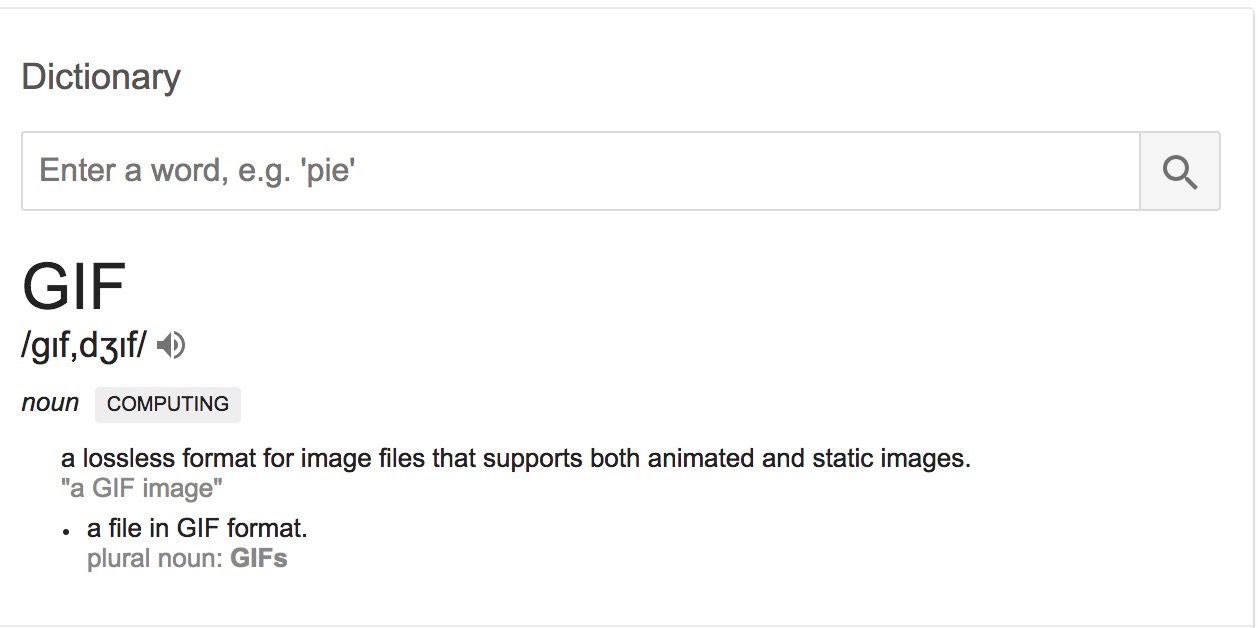
For a clearer understanding, the Dictionary's definition is also posted here.
How Do I Add a Gif to My Thread?
There are many ways to add a gif to a thread. So far I know of two ways that both work. I'll explain the other way in the next section of this thread.
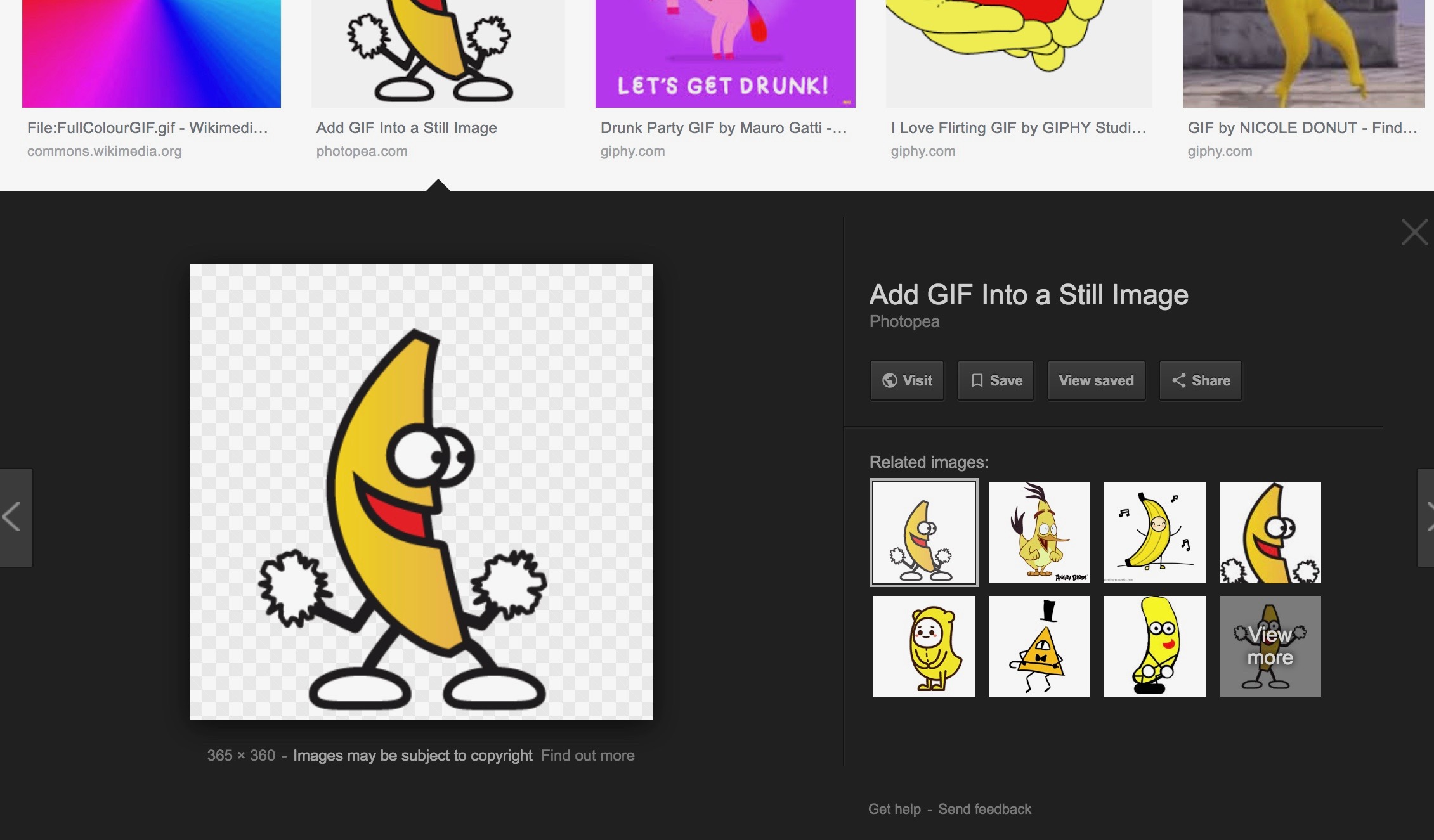
1. Find a Gif - search for a gif of your choice and click on it so that this pops up:
2. Downloading the Gif - Next you would want to download or save the gif on your device. I'll include instructions on both iOS and Macbook.
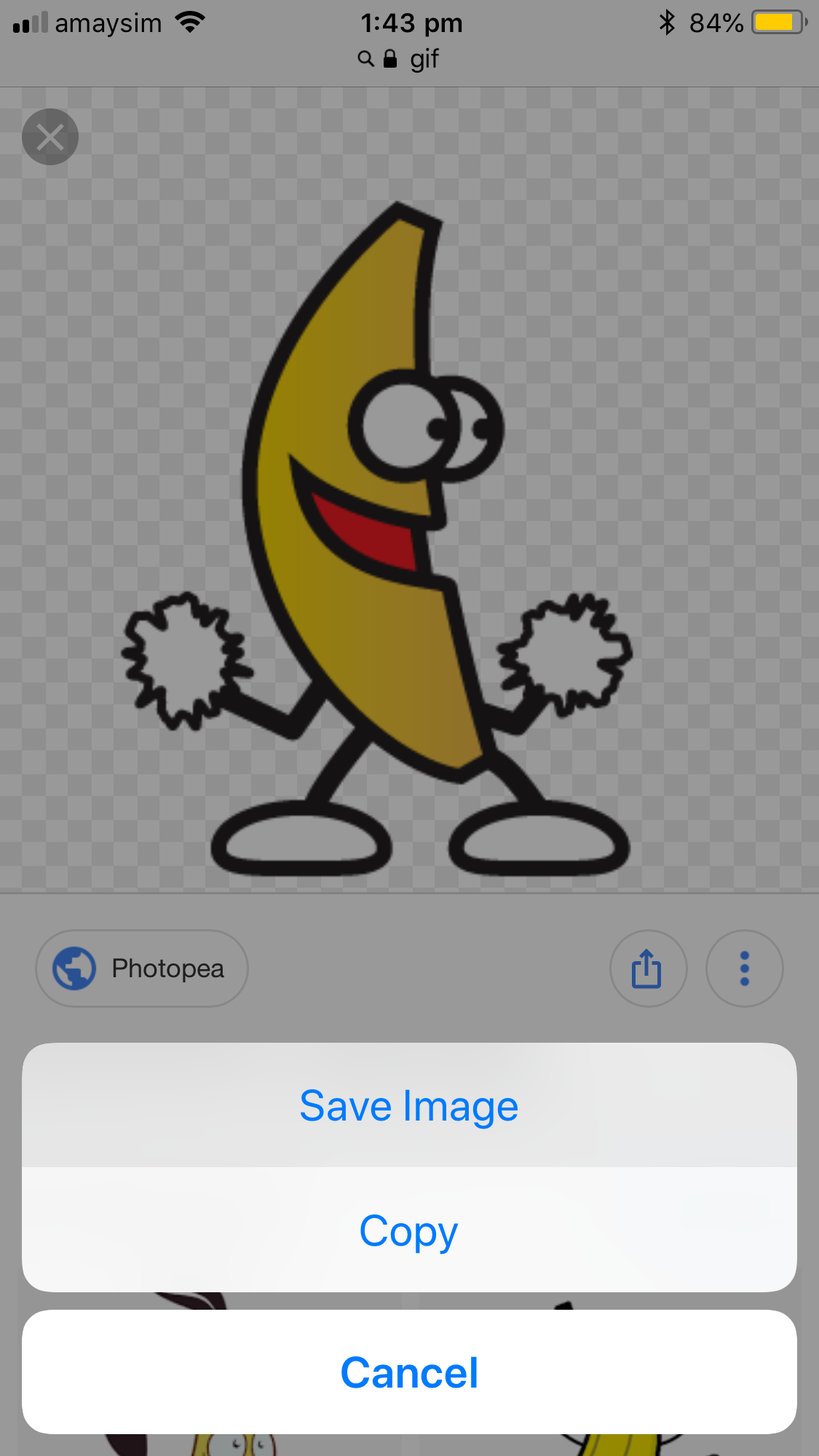
~ iOS: Hold your finger on the image until a bar of options pops up. Click the 'Save Image' option. It should look like this:
~ Macbook: There are two ways to save a gif to your Mac. I'll include both options below.
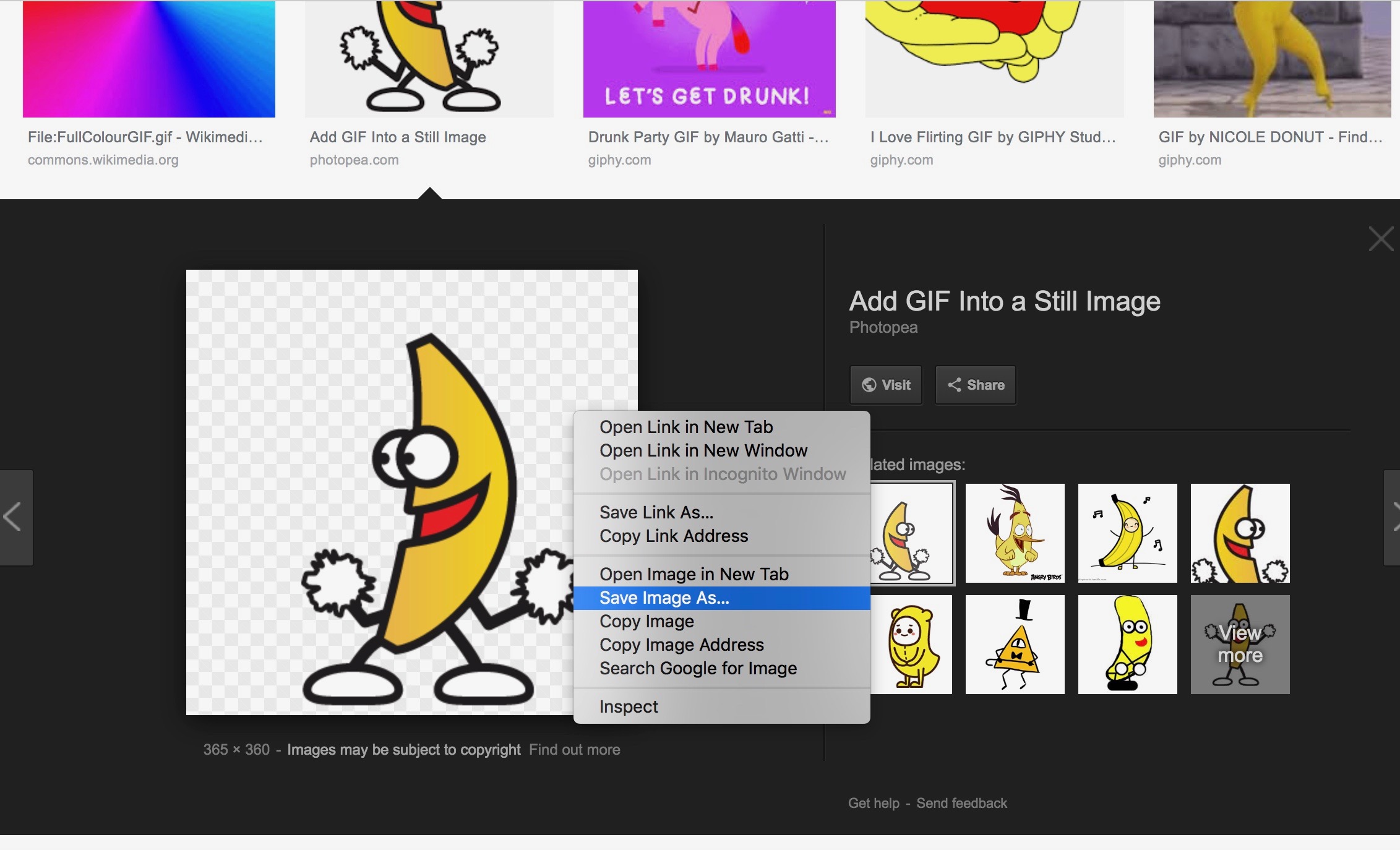
First Option: Left-Click the gif so that a list of options pops up. Select the 'Save Image As' option.
Save the gif to anywhere you want. I just saved this to my Desktop as an example.
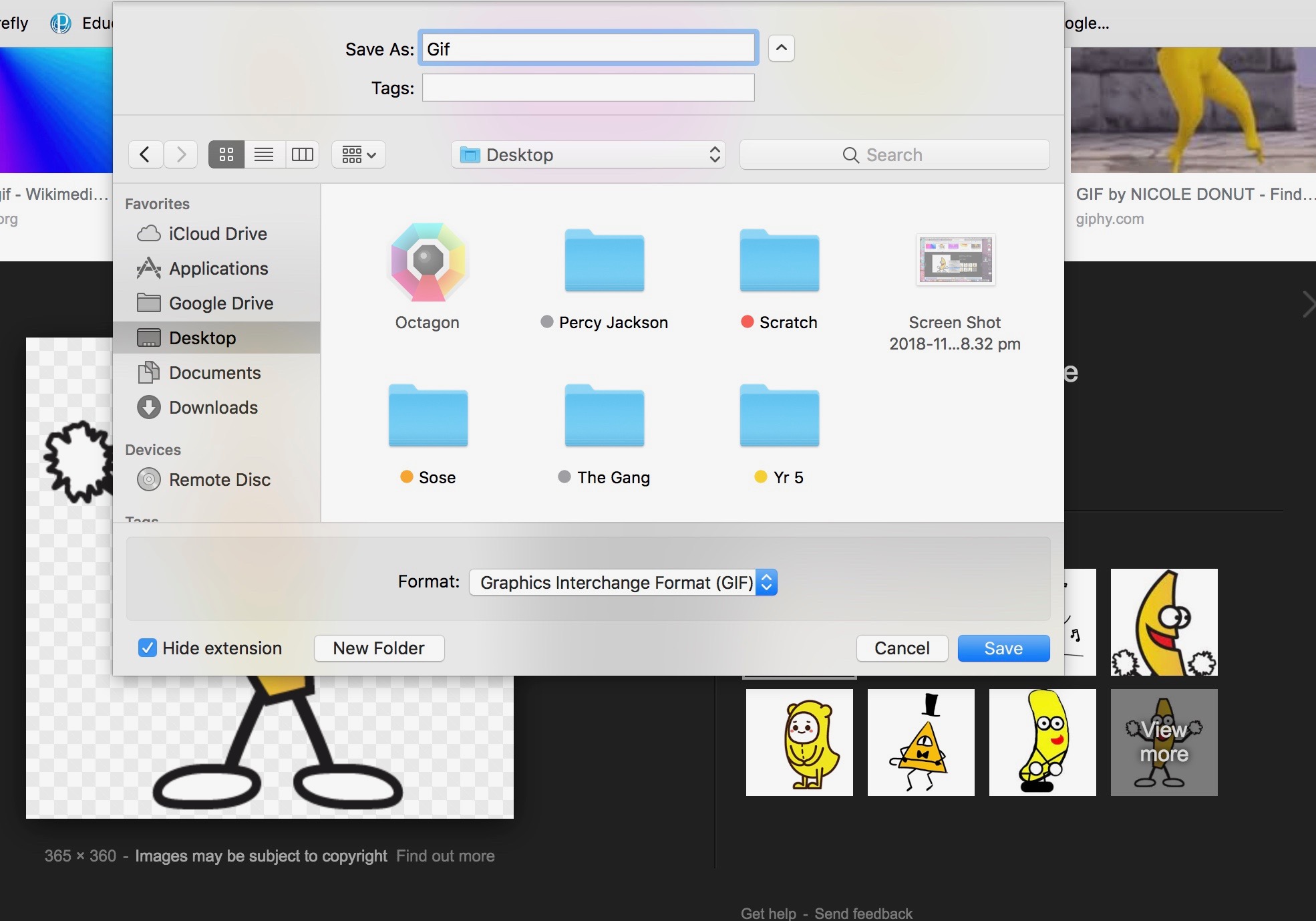
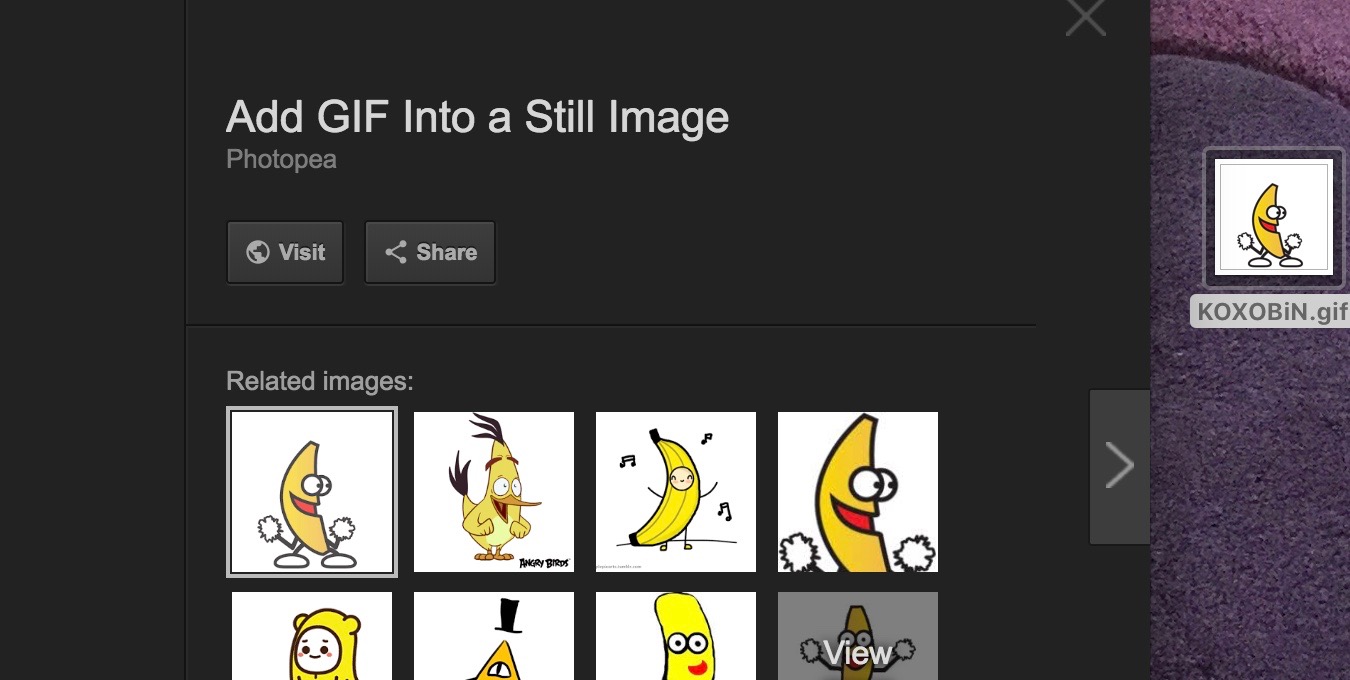
Second Option: Click and hold the gif and drag it to your background/desktop.
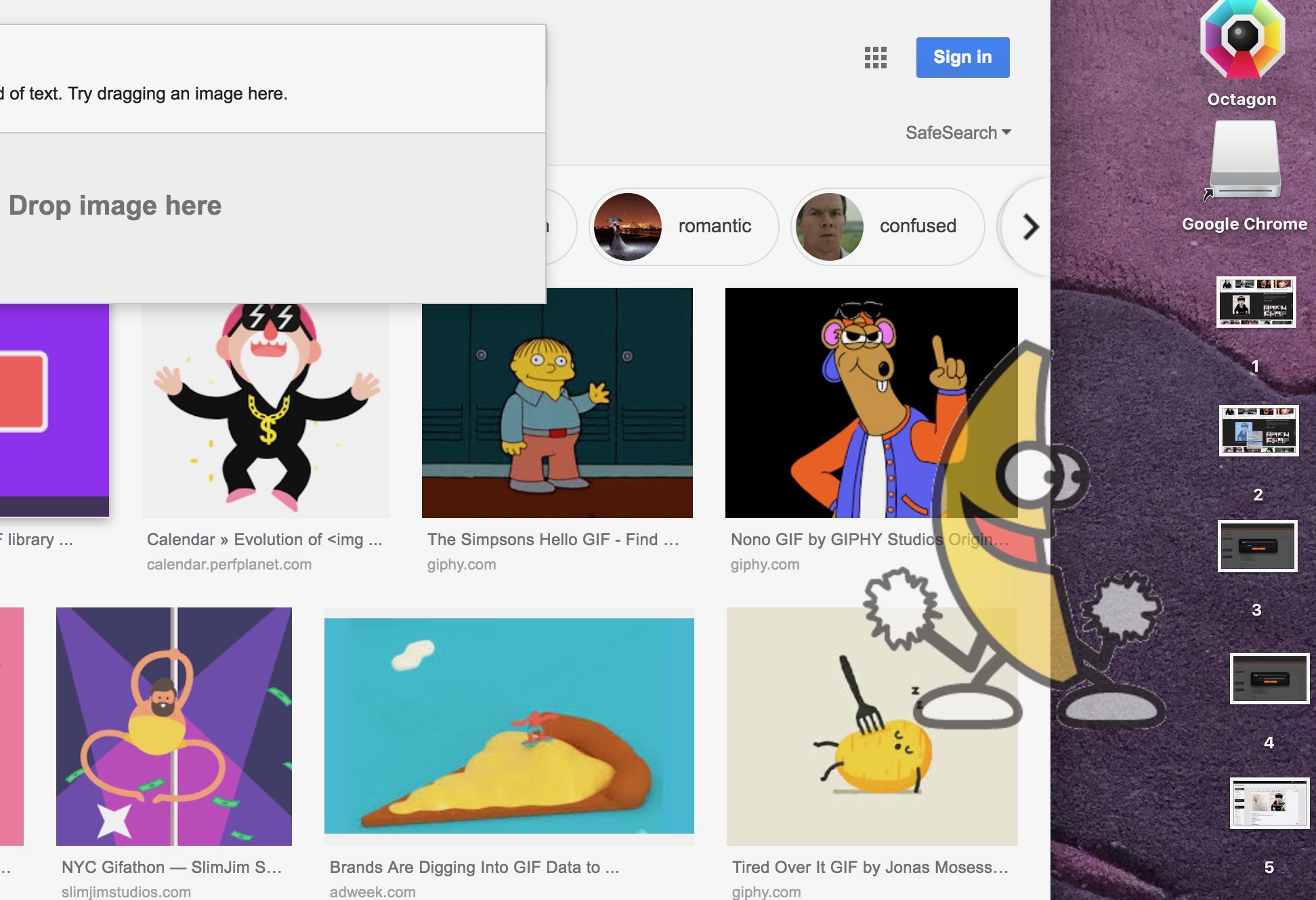
It should appear like this:
3. Uploading the Gif - After you downloaded/saved the gif to your device, the next step is to upload it to your thread. I'll also include the iOS and Macbook instructions here.
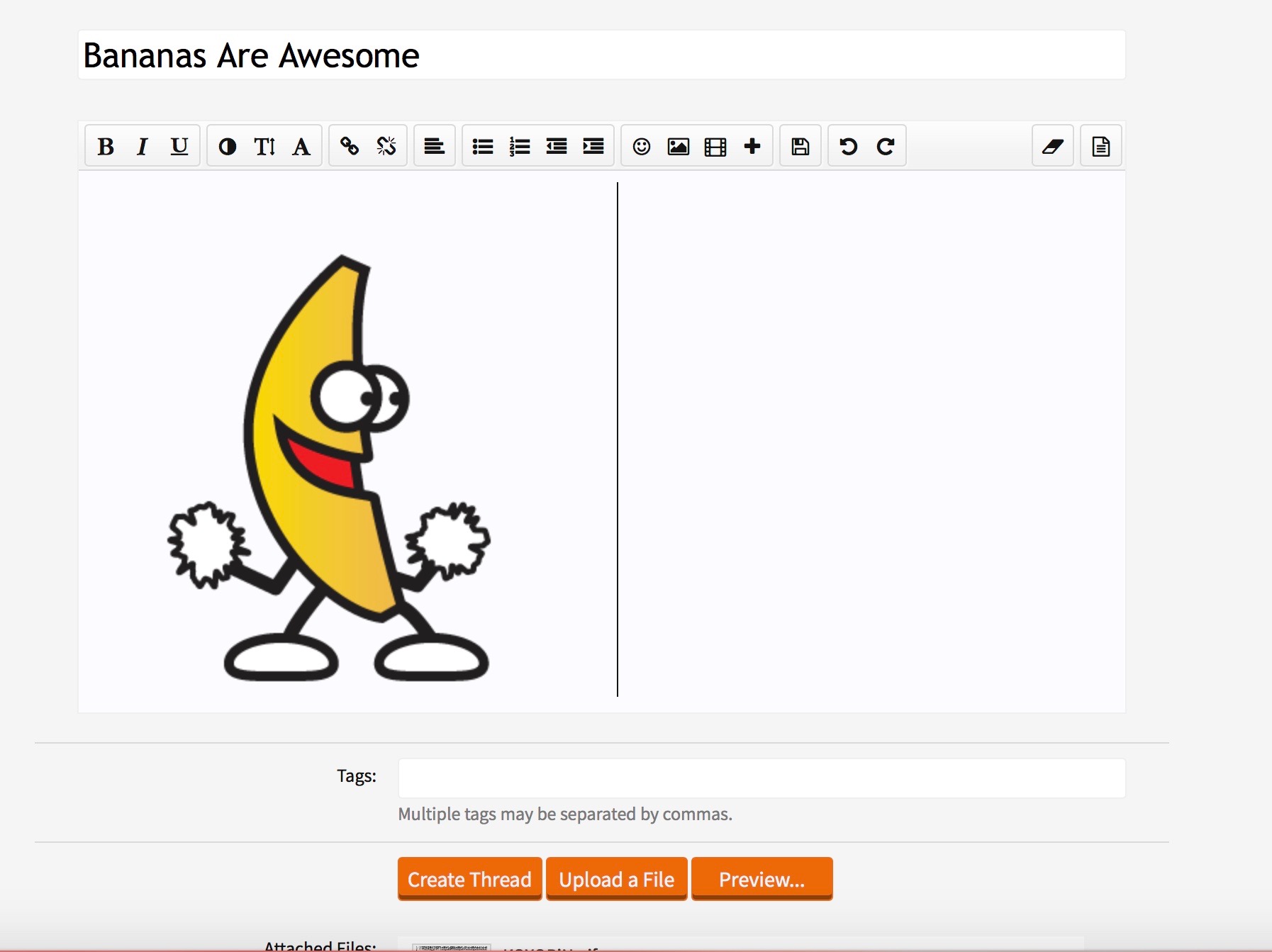
~ iOS: Select the 'Upload File' option, located below the Tags section.
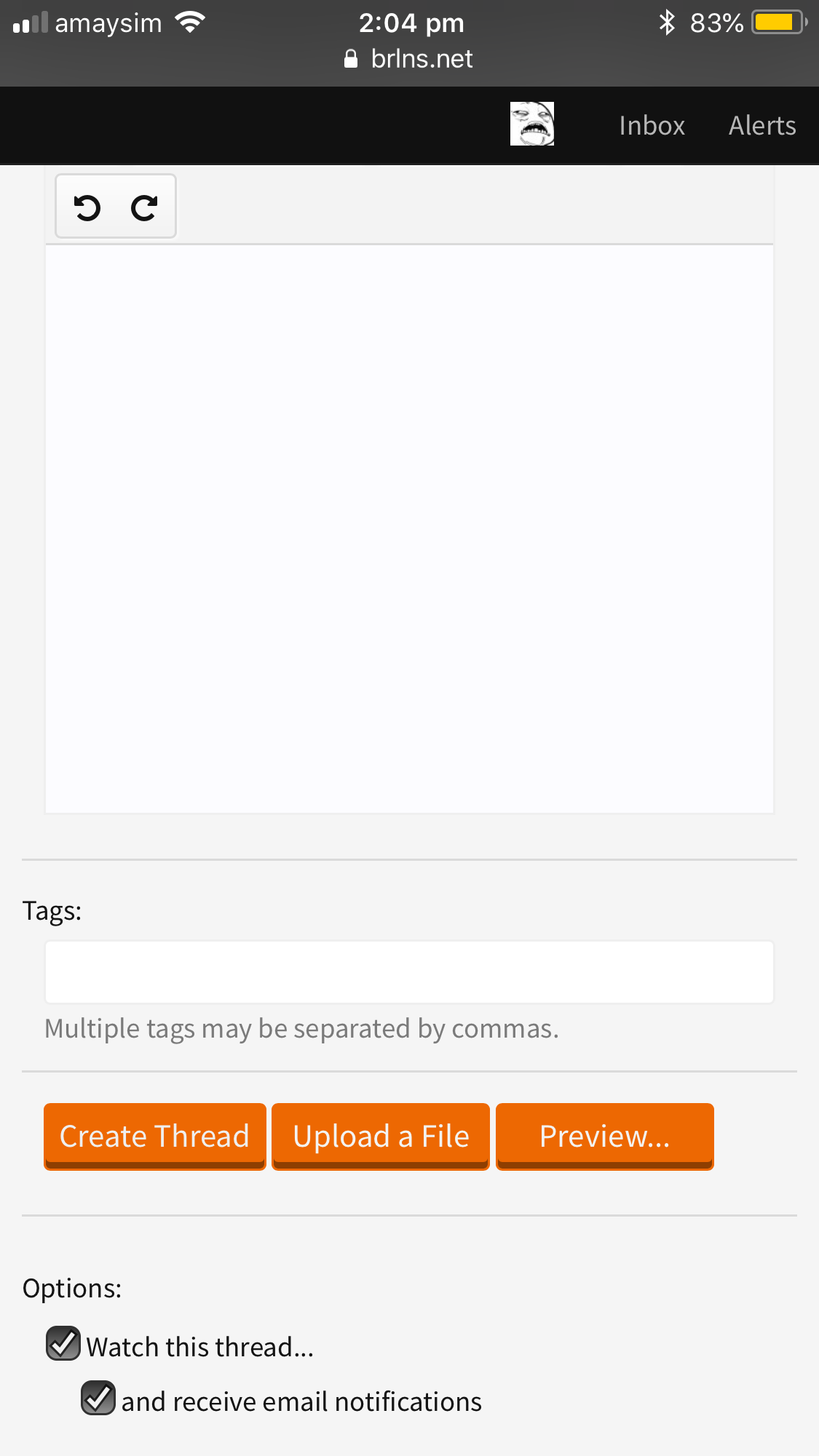
Once you pressed it, some options will pop up. Select the 'Photo Library' option.
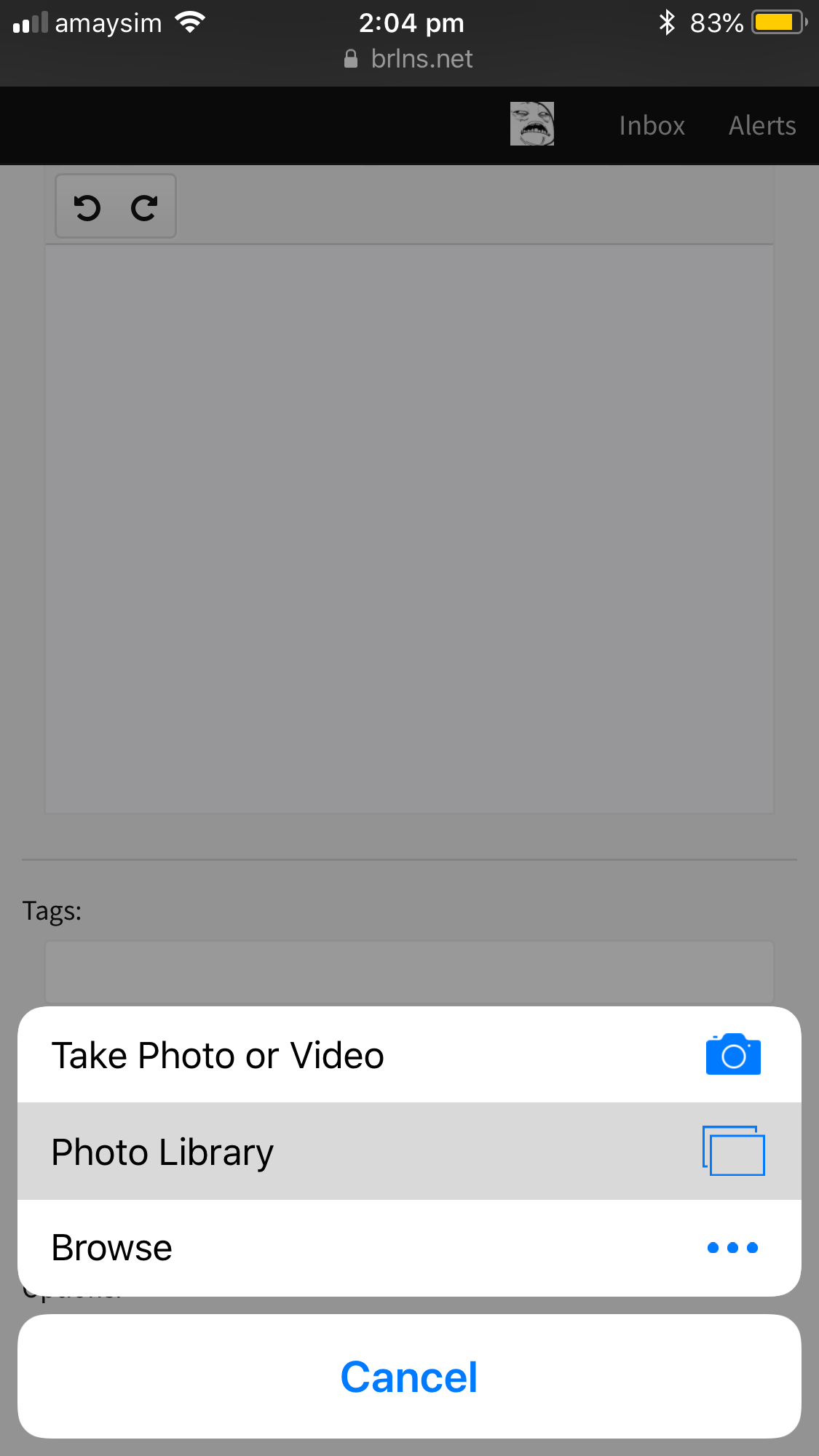
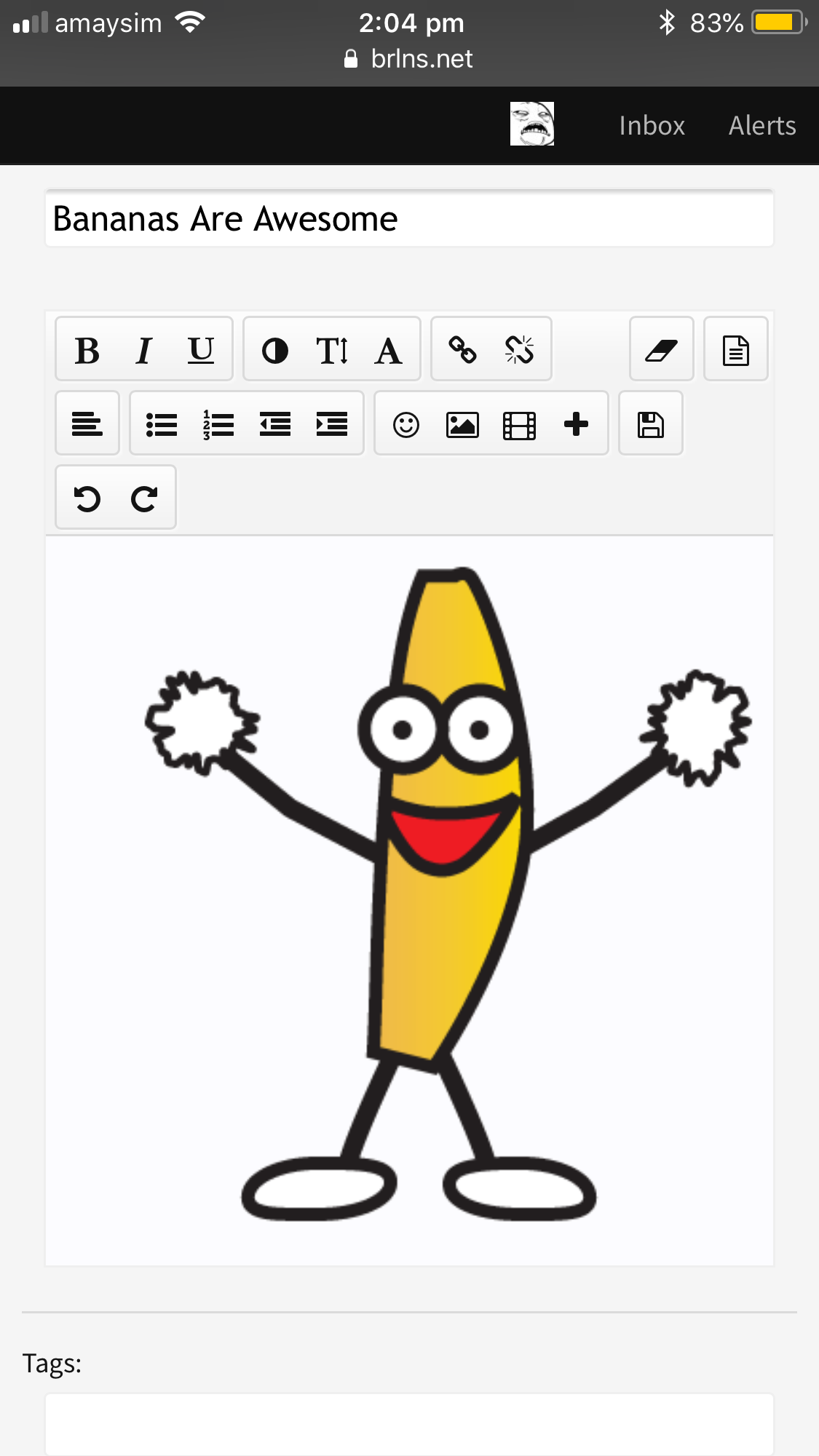
This will take you to your photo library. Select on your chosen gif (a blue tick will appear on it) and press 'Done'. (Don't mind my BTS memes)

And now you have a working gif in your thread!
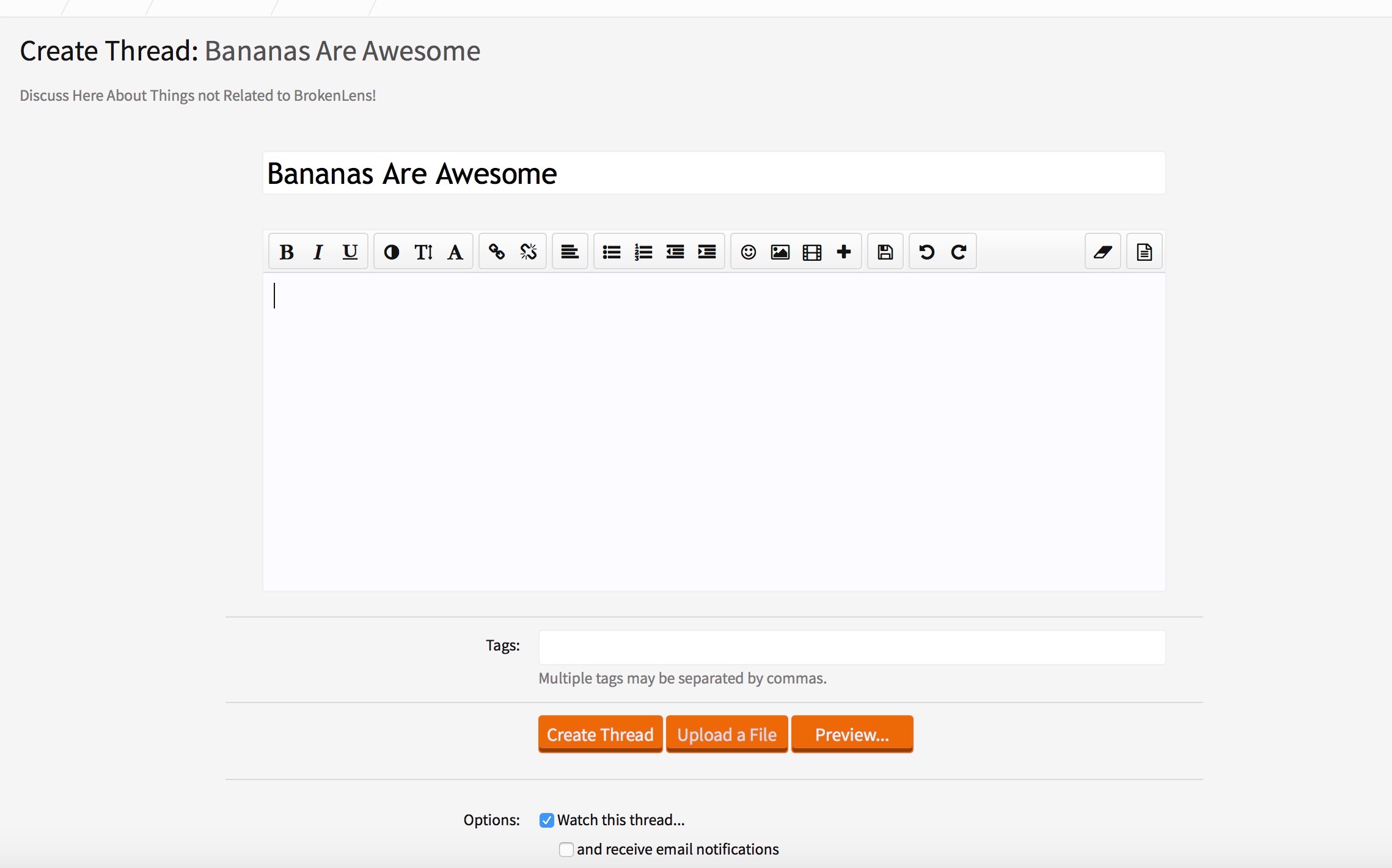
~ Macbook: Click on the 'Upload File' button.
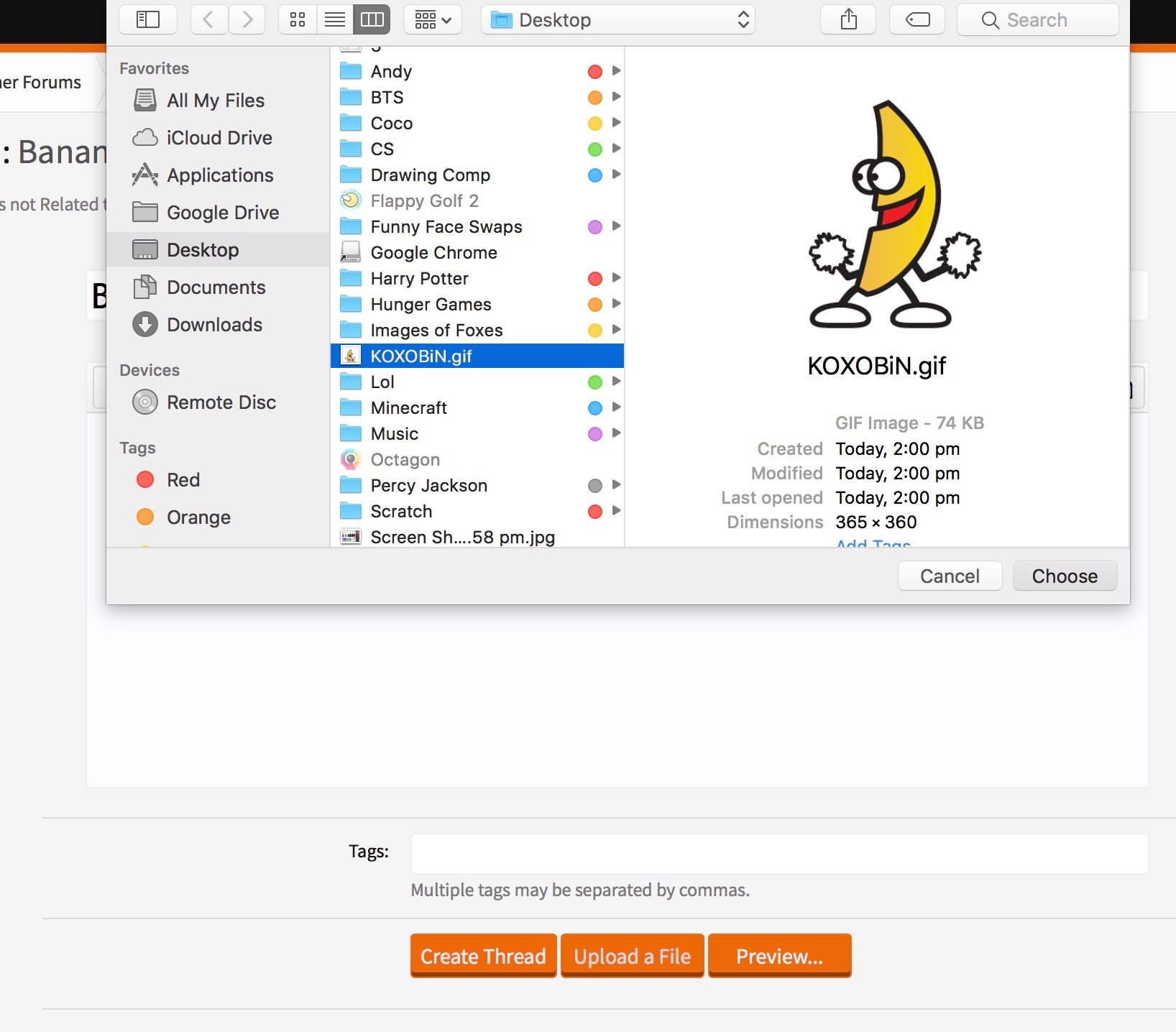
Select your chosen gif from the file that you saved it in.
And you now have a gif in your thread!
How Do I Add a Gif to My Signature?
Adding a gif to your signature can be quite confusing, as you need the gif's url to add it. There is a much simpler way to do this.
1. Find a gif - find a gif that you would like and select it so it comes up like this:

2. Copy Your Gif - Instead of trying to find the gif's url, you can just do the simple option of "Copying the Image". I'll include both iOS and Macbook below.
~ iOS: Press and hold the gif until a selection of options pop up. Select the 'Copy' option.

~ Macbook: Left-Click the gif until a selection of options pop up. Select the 'Copy Image' option.

3. Paste the Gif - I will include both the iOS and Macbook instructions.
~ iOS: In your signature, there's no 'Upload a File' option (not included in the screenshot). So you would want to press the icon that looks like a picture (darkened).
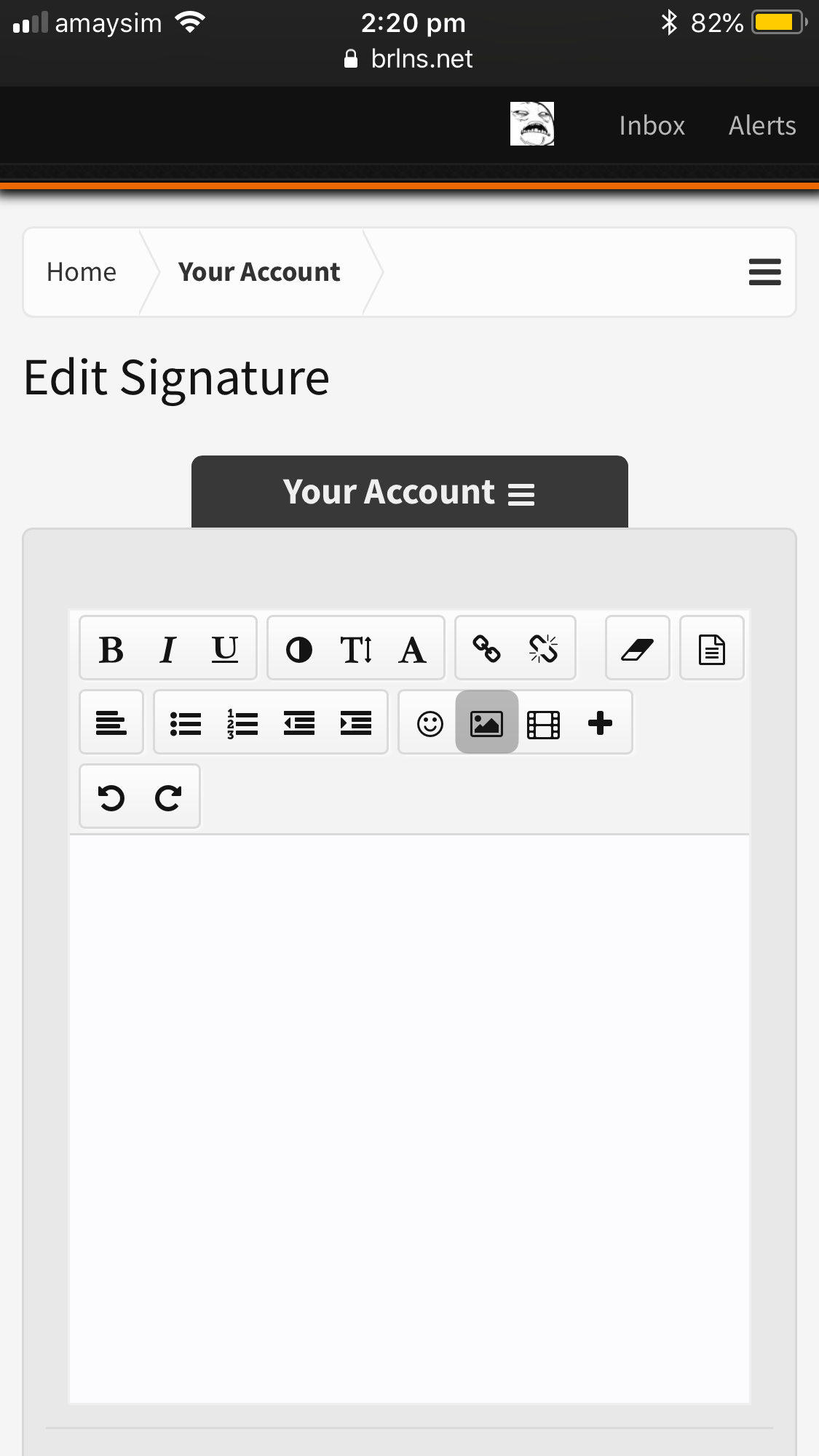
This should pop up. If this didn't pop up, you probably pressed the wrong icon.
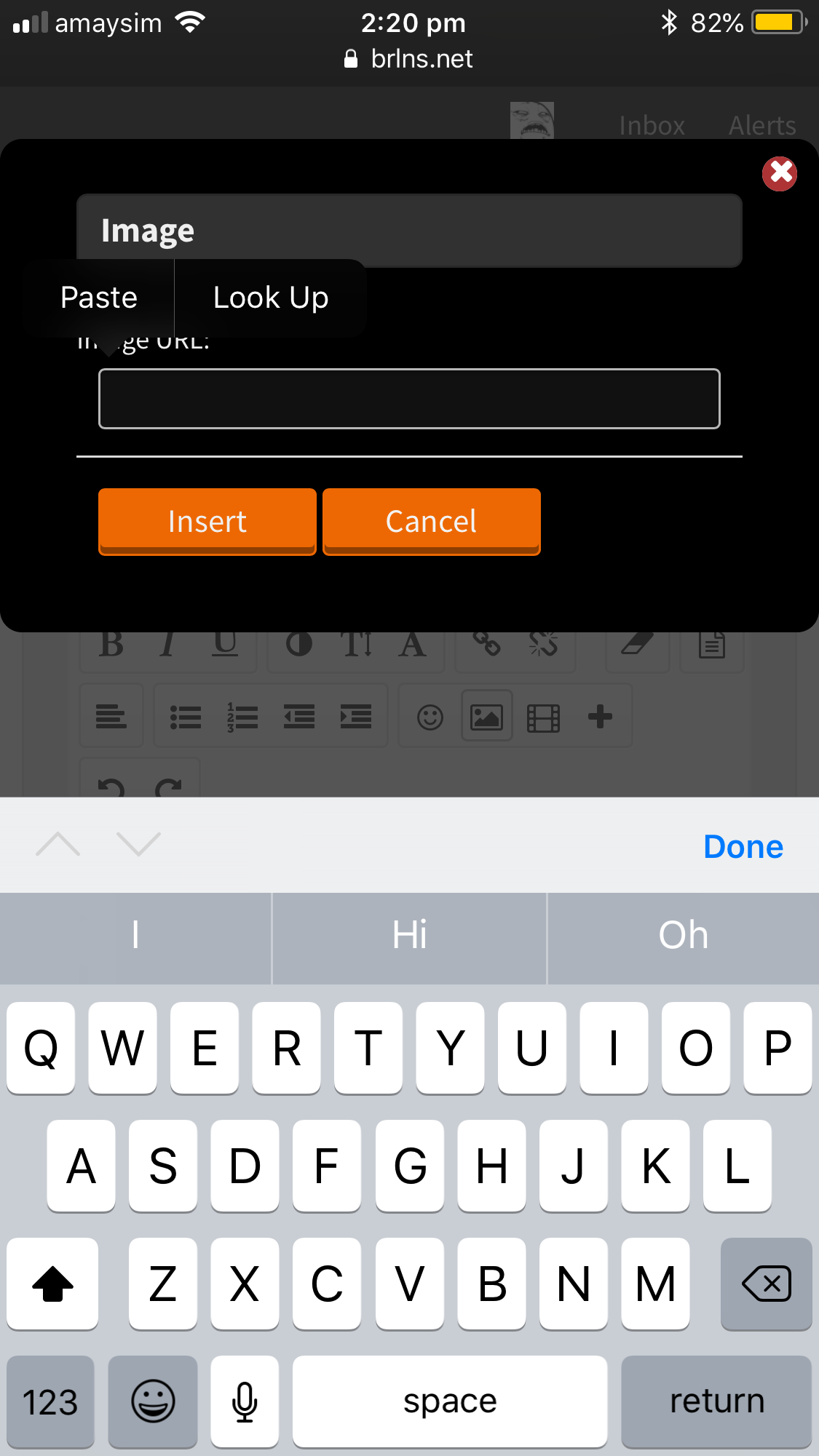
Press and hold the text bar until two options pop up: the 'Paste' and 'Look Up' options.
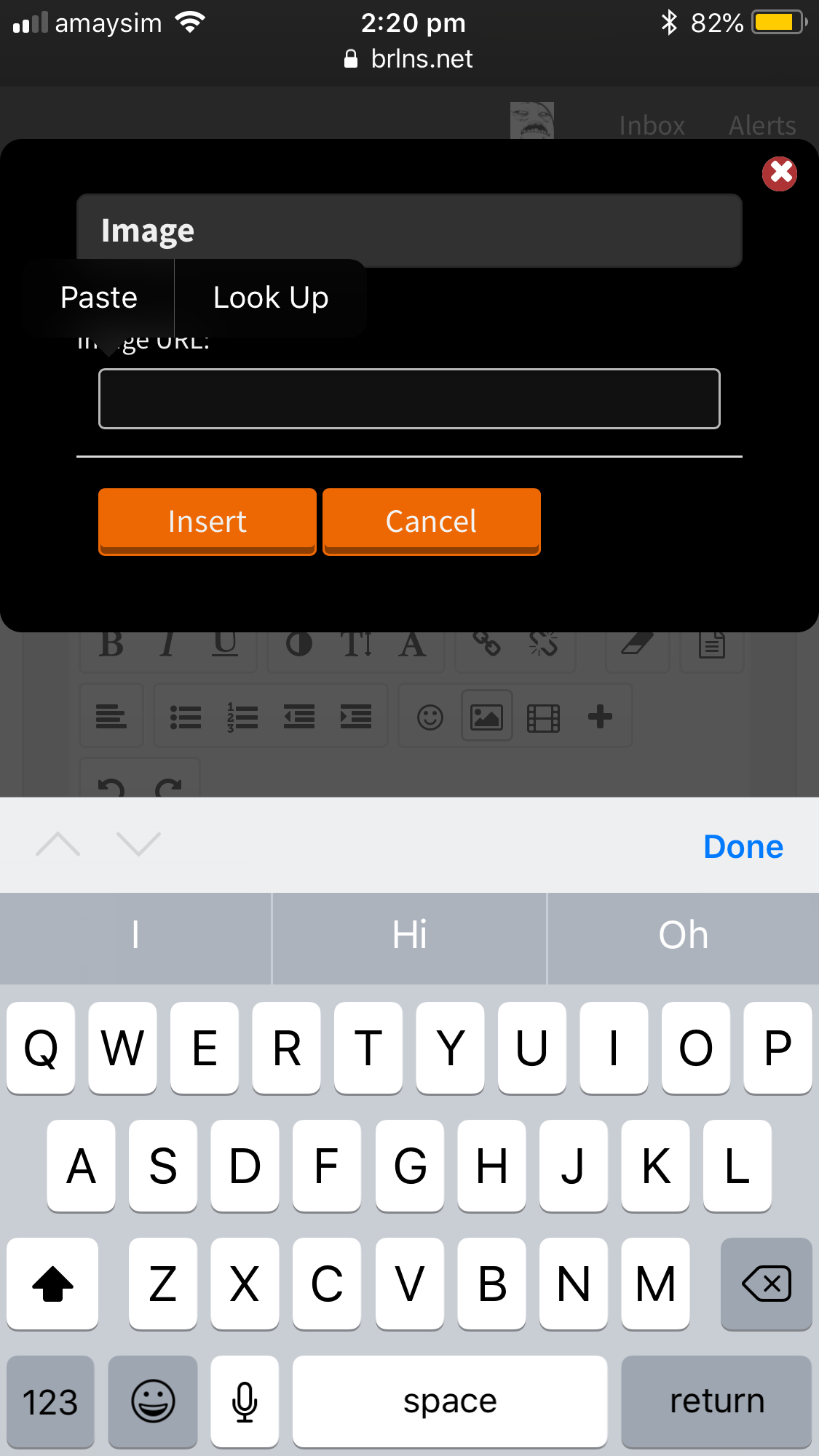
With your gif still copied, press the 'Paste' option and the url would be pasted into the text bar.
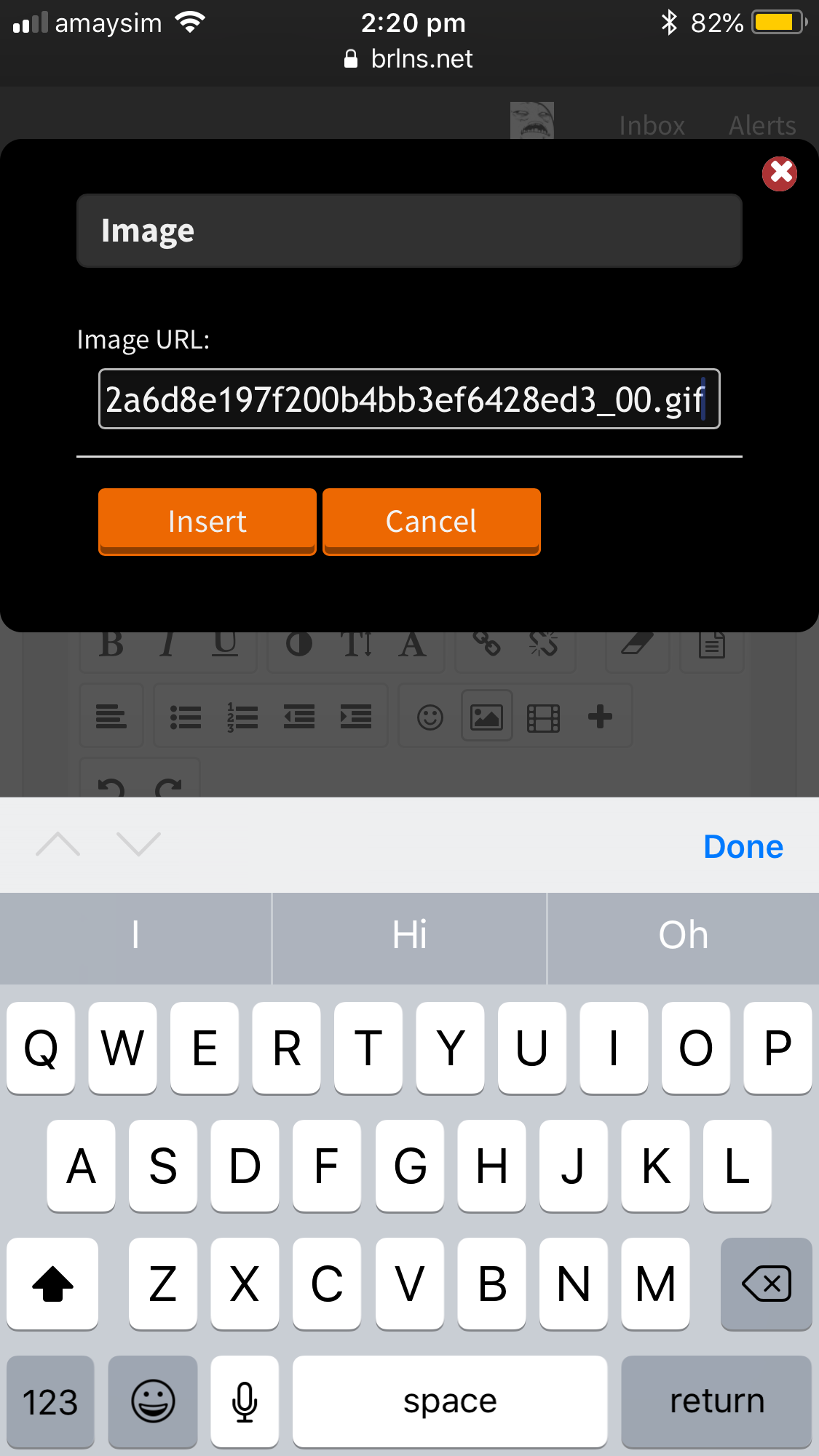
Now your gif is added and working in your signature!

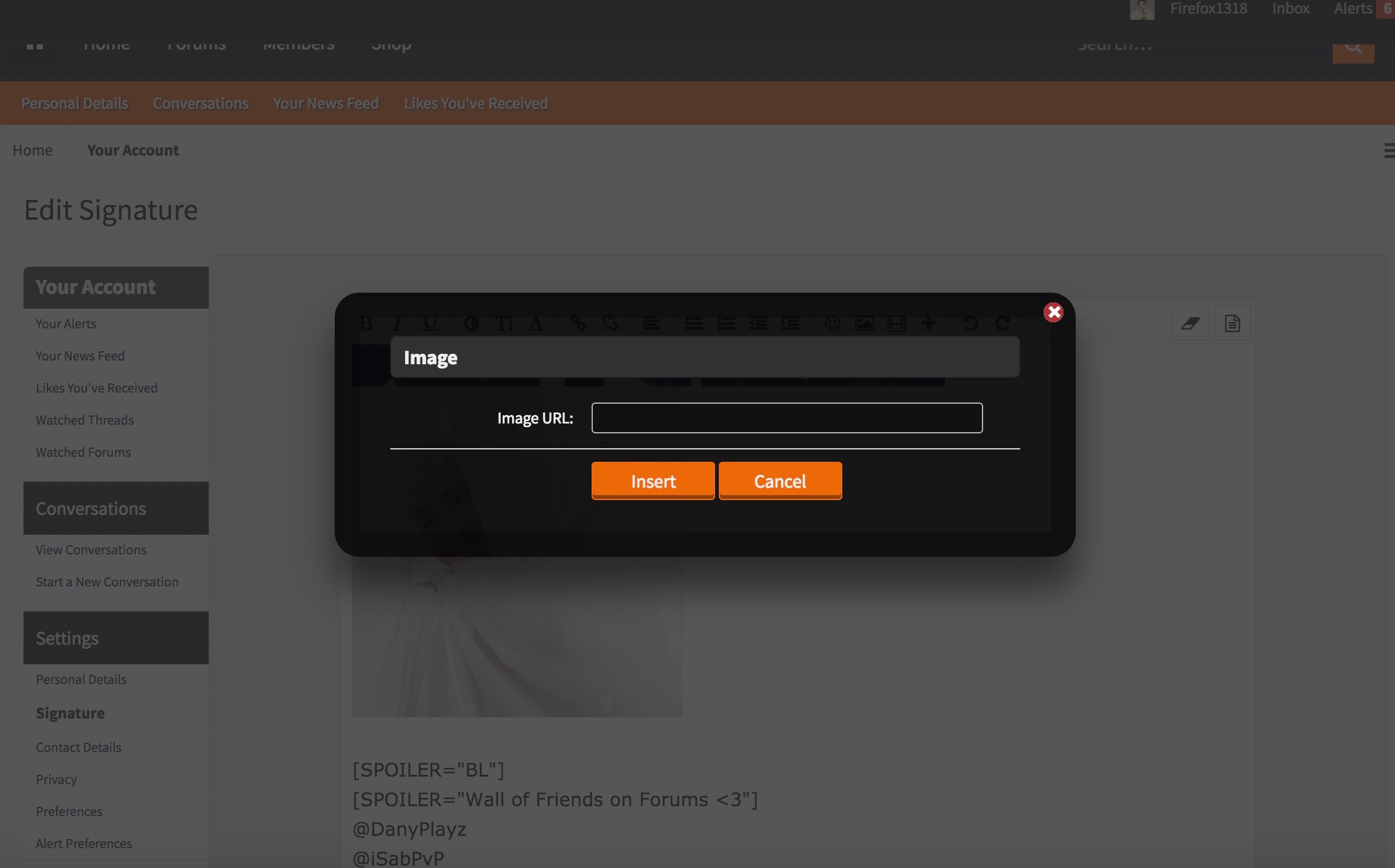
~ Macbook: Click on the picture icon at the top of the signature edit box. This should pop up. If this didn't, you probably clicked on the wrong icon.
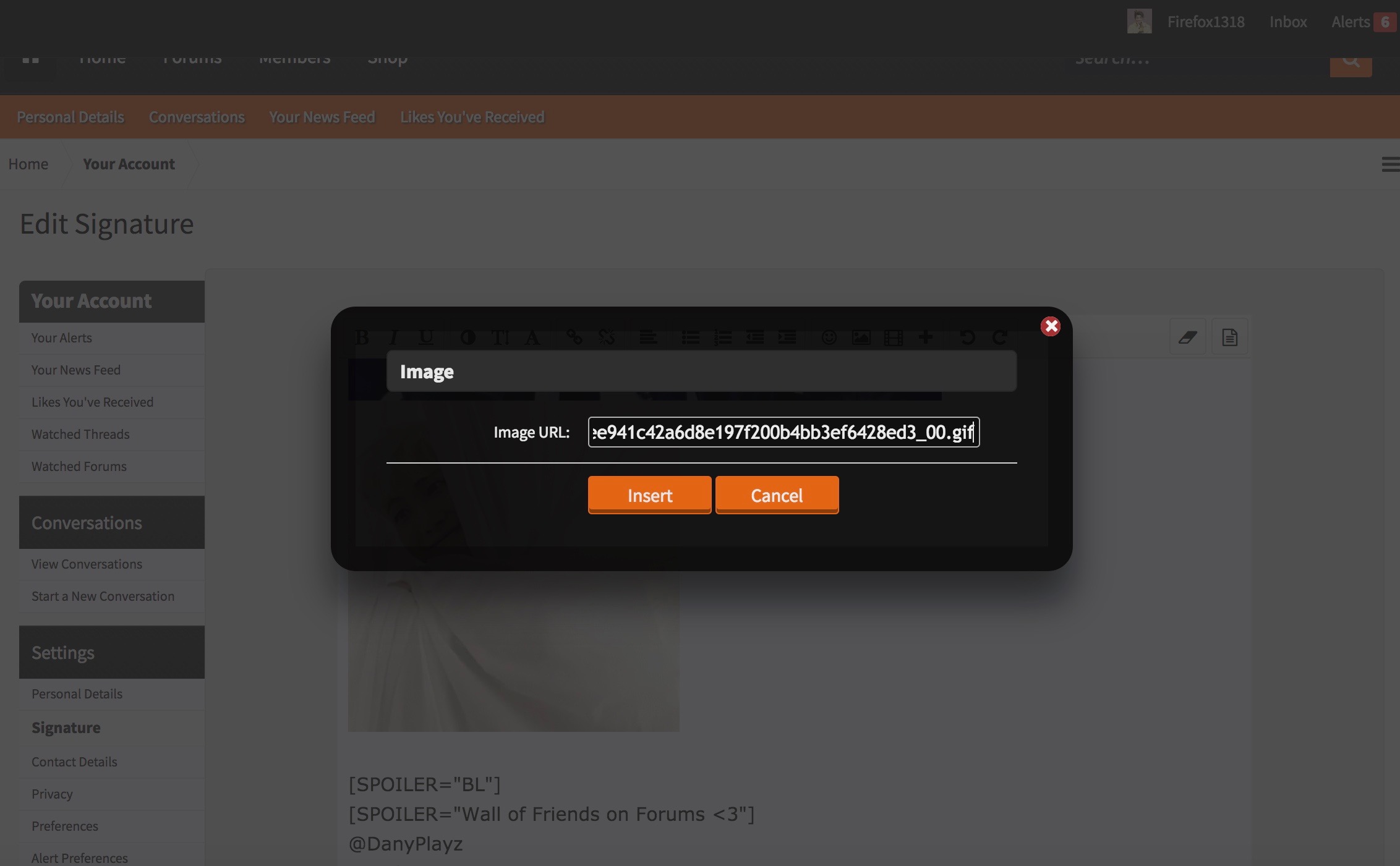
On your keyboard there are the keys 'Command' and 'V'. Those keys are what you press to paste something. Make sure your cursor has clicked the text bar and then press and hold the 'Command' key first before pressing and holding the 'V' key. If you did this the opposite way around, a V would be typed into the text bar. If you did it correctly, the gif's url should be pasted into there like so.
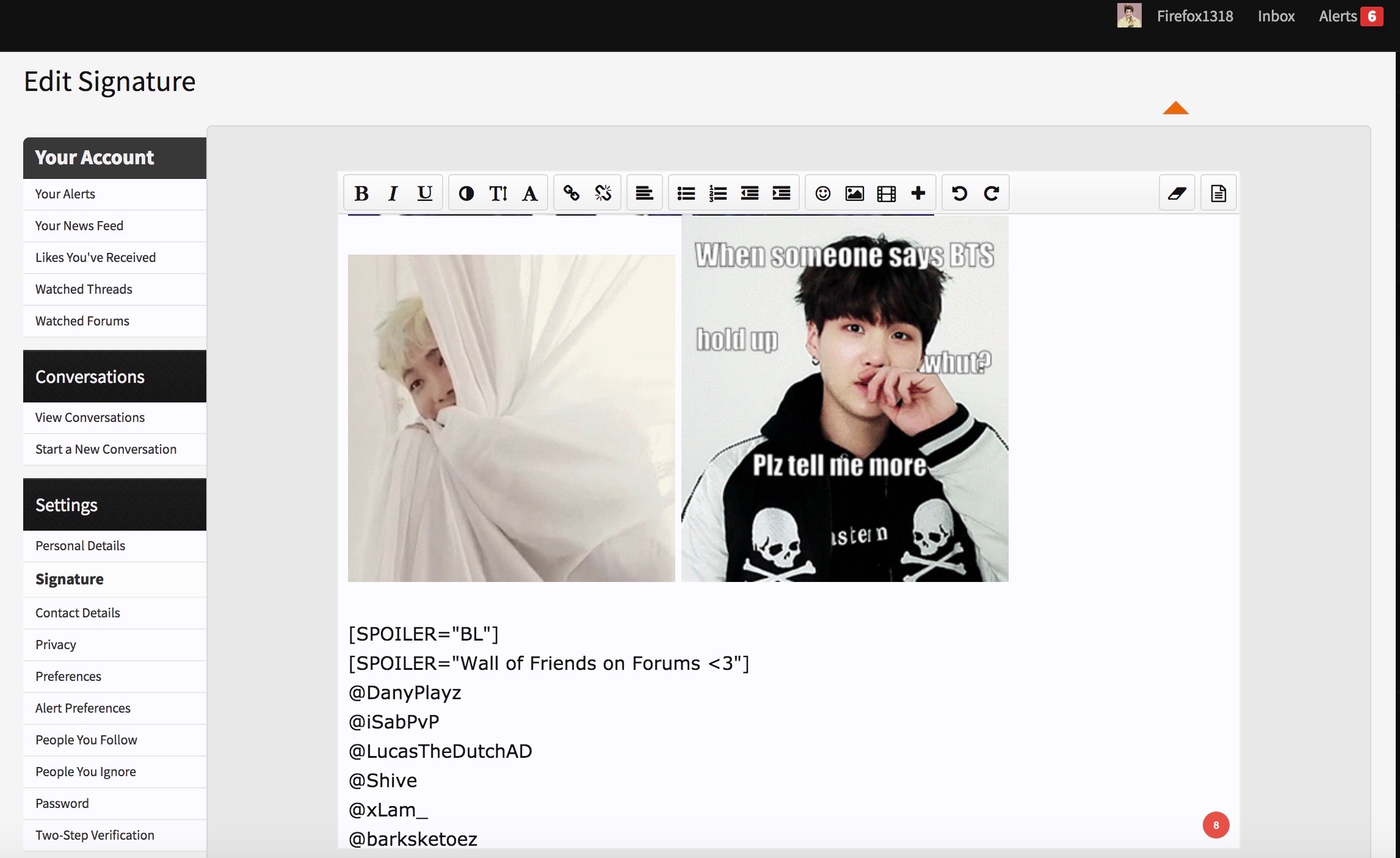
Click on the 'Insert' button, and now you have a gif of Suga in your signature! <3
I hope this has helped you if you were struggling to import a gif, and I hope that the questions above have been answered.
Annyeong!

I'm sorry if a thread about gifs has already been posted - I'm just too lazy to check (^v^)
I also wasn't sure if this was the right section to post this - if not, I'll allow any staff member to move this thread somewhere else.
What is a Gif?
A gif is an image that supports action/movement, yet it's not a video.
For a clearer understanding, the Dictionary's definition is also posted here.
How Do I Add a Gif to My Thread?
There are many ways to add a gif to a thread. So far I know of two ways that both work. I'll explain the other way in the next section of this thread.
1. Find a Gif - search for a gif of your choice and click on it so that this pops up:
2. Downloading the Gif - Next you would want to download or save the gif on your device. I'll include instructions on both iOS and Macbook.
~ iOS: Hold your finger on the image until a bar of options pops up. Click the 'Save Image' option. It should look like this:
~ Macbook: There are two ways to save a gif to your Mac. I'll include both options below.
First Option: Left-Click the gif so that a list of options pops up. Select the 'Save Image As' option.
Save the gif to anywhere you want. I just saved this to my Desktop as an example.
Second Option: Click and hold the gif and drag it to your background/desktop.
It should appear like this:
3. Uploading the Gif - After you downloaded/saved the gif to your device, the next step is to upload it to your thread. I'll also include the iOS and Macbook instructions here.
~ iOS: Select the 'Upload File' option, located below the Tags section.
Once you pressed it, some options will pop up. Select the 'Photo Library' option.
This will take you to your photo library. Select on your chosen gif (a blue tick will appear on it) and press 'Done'. (Don't mind my BTS memes)
And now you have a working gif in your thread!
~ Macbook: Click on the 'Upload File' button.
Select your chosen gif from the file that you saved it in.
And you now have a gif in your thread!
How Do I Add a Gif to My Signature?
Adding a gif to your signature can be quite confusing, as you need the gif's url to add it. There is a much simpler way to do this.
1. Find a gif - find a gif that you would like and select it so it comes up like this:
2. Copy Your Gif - Instead of trying to find the gif's url, you can just do the simple option of "Copying the Image". I'll include both iOS and Macbook below.
~ iOS: Press and hold the gif until a selection of options pop up. Select the 'Copy' option.
~ Macbook: Left-Click the gif until a selection of options pop up. Select the 'Copy Image' option.
3. Paste the Gif - I will include both the iOS and Macbook instructions.
~ iOS: In your signature, there's no 'Upload a File' option (not included in the screenshot). So you would want to press the icon that looks like a picture (darkened).
This should pop up. If this didn't pop up, you probably pressed the wrong icon.
Press and hold the text bar until two options pop up: the 'Paste' and 'Look Up' options.
With your gif still copied, press the 'Paste' option and the url would be pasted into the text bar.
Now your gif is added and working in your signature!
~ Macbook: Click on the picture icon at the top of the signature edit box. This should pop up. If this didn't, you probably clicked on the wrong icon.
On your keyboard there are the keys 'Command' and 'V'. Those keys are what you press to paste something. Make sure your cursor has clicked the text bar and then press and hold the 'Command' key first before pressing and holding the 'V' key. If you did this the opposite way around, a V would be typed into the text bar. If you did it correctly, the gif's url should be pasted into there like so.
Click on the 'Insert' button, and now you have a gif of Suga in your signature! <3
I hope this has helped you if you were struggling to import a gif, and I hope that the questions above have been answered.
Annyeong!


