
How To Record Your Screen Using iOS 11 Screen Recorder

MarcusDaN00B

Notable Member
Emerald Member
Joined
May 16, 2016
Messages
1,100
Reaction score
2,779
So, I don’t know if this thread is necessary or if most people already know this, but I’ll be teaching you how to use the new iOS 11 screen recorder.

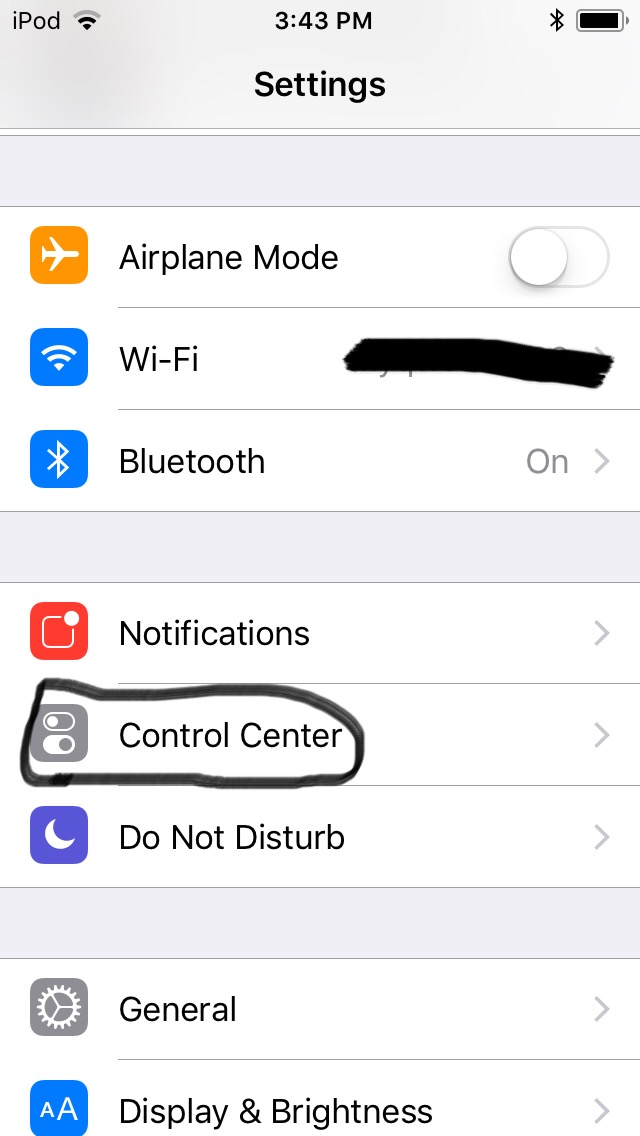
First, go into settings

Then click on Control Center
3688F521-4428-447D-B18B-0C9550DDA045.jpeg

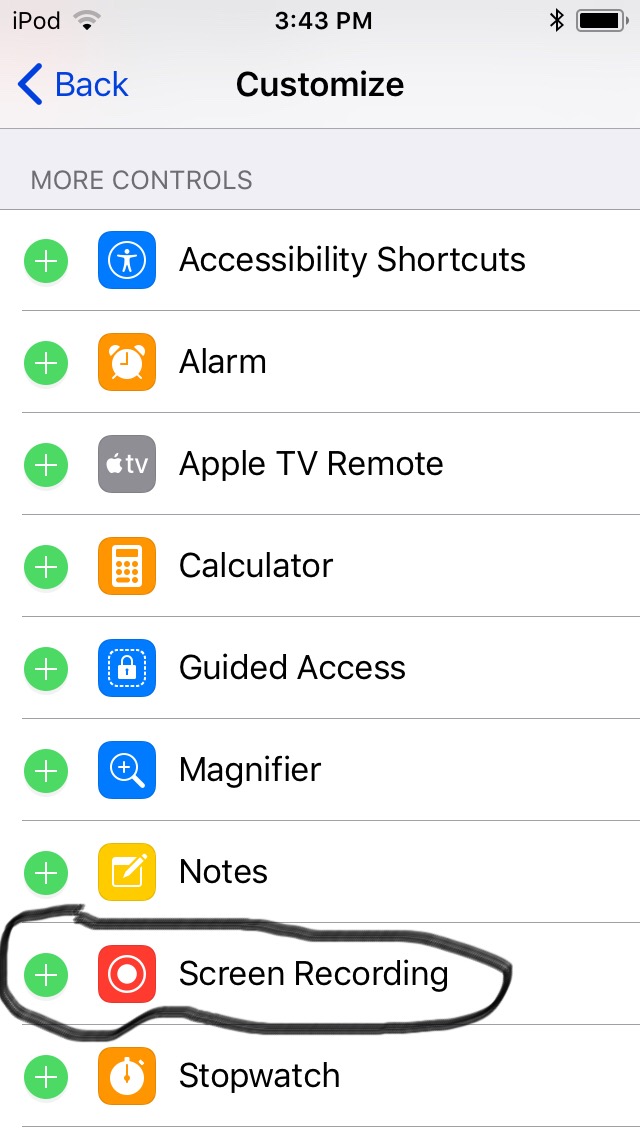
Then click Customize Controls

Scroll down until you see Screen Recording
39383B84-2431-4367-857C-65794F4AF175.jpeg

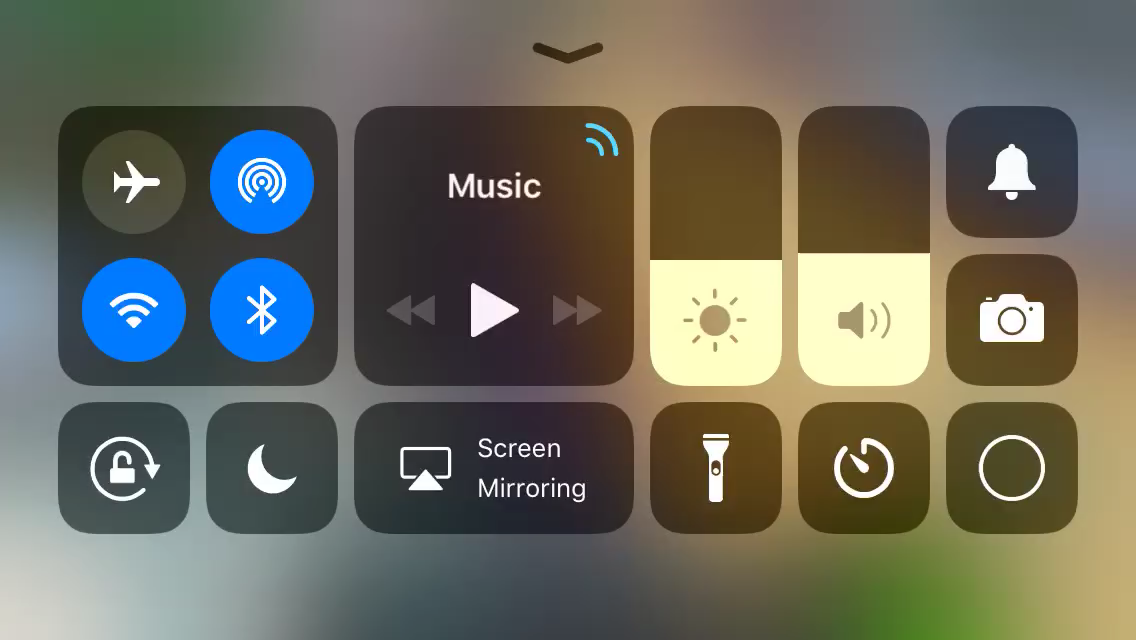
And now you have the ability to use the screen recorder. To use this, swipe up from the bottom of your screen to access the screen recorder.
EC316BE3-1660-454E-A7B5-5DBAF7687B80.png

As you can see in this image, the screen recorder is the circle on the bottom right.

And there you go, you can now use the screen recorder to report hackers or whatever you would want/need it for!

If you want to see the quality of the screen recorder, here’s a video I made using it!
 
So, I don’t know if this thread is necessary or if most people already know this, but I’ll be teaching you how to use the new iOS 11 screen recorder.

First, go into settings

Then click on Control Center
View attachment 45772
Then click Customize Controls

Scroll down until you see Screen Recording
View attachment 45773
And now you have the ability to use the screen recorder. To use this, swipe up from the bottom of your screen to access the screen recorder.
View attachment 45774
As you can see in this image, the screen recorder is the circle on the bottom right.

And there you go, you can now use the screen recorder to report hackers or whatever you would want/need it for!

If you want to see the quality of the screen recorder, here’s a video I made using it!

lastly, make sure u near a charger if you plan to record a long video

;3
View reply.
 
This update sounds awesome :D
But if you read my postings (and stalk me a LOT) you'll see that I haven't gotten the update notice yet. Now I know why:

I use an older generation of iPad (iPad 2) and when I looked on an Apple website, it says that the iOS 11 update is not compatible with older technology, such as iPad 2. This sucks because it comes with all sorts if goodies, especially that screen recorder!
But saddly my iPad has a slower processer and an A5 chip (with one the most recent A10X ._. My iPad is old af), meaning it's not as advanced hardware.

In short I cannot get this update. And even if I did, it would greatly slow down my device. ;-;
View reply.
 
That’s sad. But I haven’t seen a lot of new additions to this update anyway besides the screen recorder. And any time a new iOS comes out, there’s a lot of bugs and it’s just not worth updating. I mean, I haven’t noticed any bugs or problems with the update, but I’m sure other people have
View reply.
 
So, I don’t know if this thread is necessary or if most people already know this, but I’ll be teaching you how to use the new iOS 11 screen recorder.

First, go into settings

Then click on Control Center
View attachment 45772
Then click Customize Controls

Scroll down until you see Screen Recording
View attachment 45773
And now you have the ability to use the screen recorder. To use this, swipe up from the bottom of your screen to access the screen recorder.
View attachment 45774
As you can see in this image, the screen recorder is the circle on the bottom right.

And there you go, you can now use the screen recorder to report hackers or whatever you would want/need it for!

If you want to see the quality of the screen recorder, here’s a video I made using it!

I made a thread about this a long time ago...
View reply.
 
So, I don’t know if this thread is necessary or if most people already know this, but I’ll be teaching you how to use the new iOS 11 screen recorder.

First, go into settings

Then click on Control Center
View attachment 45772
Then click Customize Controls

Scroll down until you see Screen Recording
View attachment 45773
And now you have the ability to use the screen recorder. To use this, swipe up from the bottom of your screen to access the screen recorder.
View attachment 45774
As you can see in this image, the screen recorder is the circle on the bottom right.

And there you go, you can now use the screen recorder to report hackers or whatever you would want/need it for!

If you want to see the quality of the screen recorder, here’s a video I made using it!

My video came sideways ;-;
View reply.
 
I'm on IOS 9.3.5 and I would like to update mine soon but...
I don't know how to and have the things to do it.
My dad claims that he knows how but he never did it yet.
So for now i'll be using the AirShou... ._.
View reply.
 
Last edited:
I thought everyone knew this
View reply.
 
I'm on IOS 9.3.5 and I would like to update mine soon but...
I don't know how to and have the things to do it.
My dad claims that he knows how but he never did it yet.
So for know i'll be using the AirShou... ._.
Settings>General>Software Update
View reply.
 
Also, if you hard tap the recording button, you can enable mic.
View reply.
 

Users Who Are Viewing This Thread (Total: 0, Members: 0, Guests: 0)

Back
Top