

- Jul 4, 2018
- 468
- 29,931
So yesterday I was building a map, and I wanted to know how to copy and paste builds!
Me and my friend Aiden found structure blocks, but didn't really know how to use them.
Basically, a structure block is a beta experimental gameplay feature you can use in worlds and servers to easily copy and paste builds! This saves you from repeating hard builds, or boring ones, like filling out ores in islands.
This is what they look like:
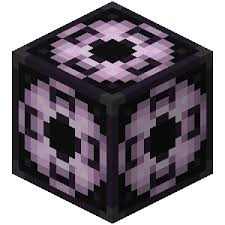
Now onto how to use them! Keep in mind, you need to use your brain a bit to get your build in the correct place xD
1. Turn on 'Experimental Gameplay' in the world you are using- this means you can use the feature.

Keep in mind, be careful with these features- it's still in beta, so don't go spamming things everywhere.
2. Go into your world and do /give @s structure_block
This is the command to give yourself the block- this is the only way to get it, as it is not in the Creative Menu.
3. Get your build and lay out where the structure block needs to go.
The structure block will have an outline around it, like this.
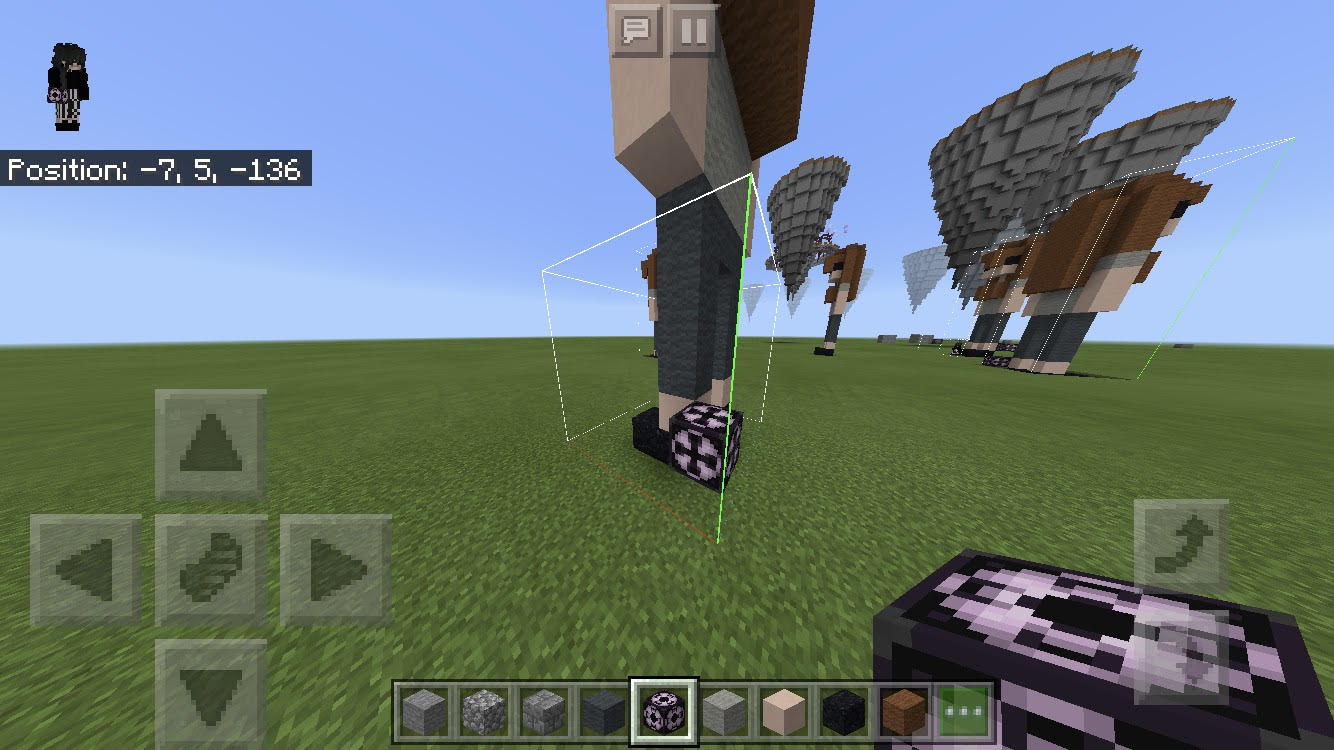
Now the build there is the one we want to copy- but you may notice that the outline does not fit it.
Well, first of all, you have to measure out where to put it.
Make sure it is in the corner of your build, in line with the furthest block on the angle it's facing.
You also have to make sure that it is one block above the floor, as the outline goes one block below the actual block.
Okay, this is going to need a lot of pictures.
Here is my small structure that I want to copy.
 You will notice that the outline goes all the way around, fitting perfectly, with the structure block in the corner, one block above the ground.
Now, to do this, tap on the structure block.
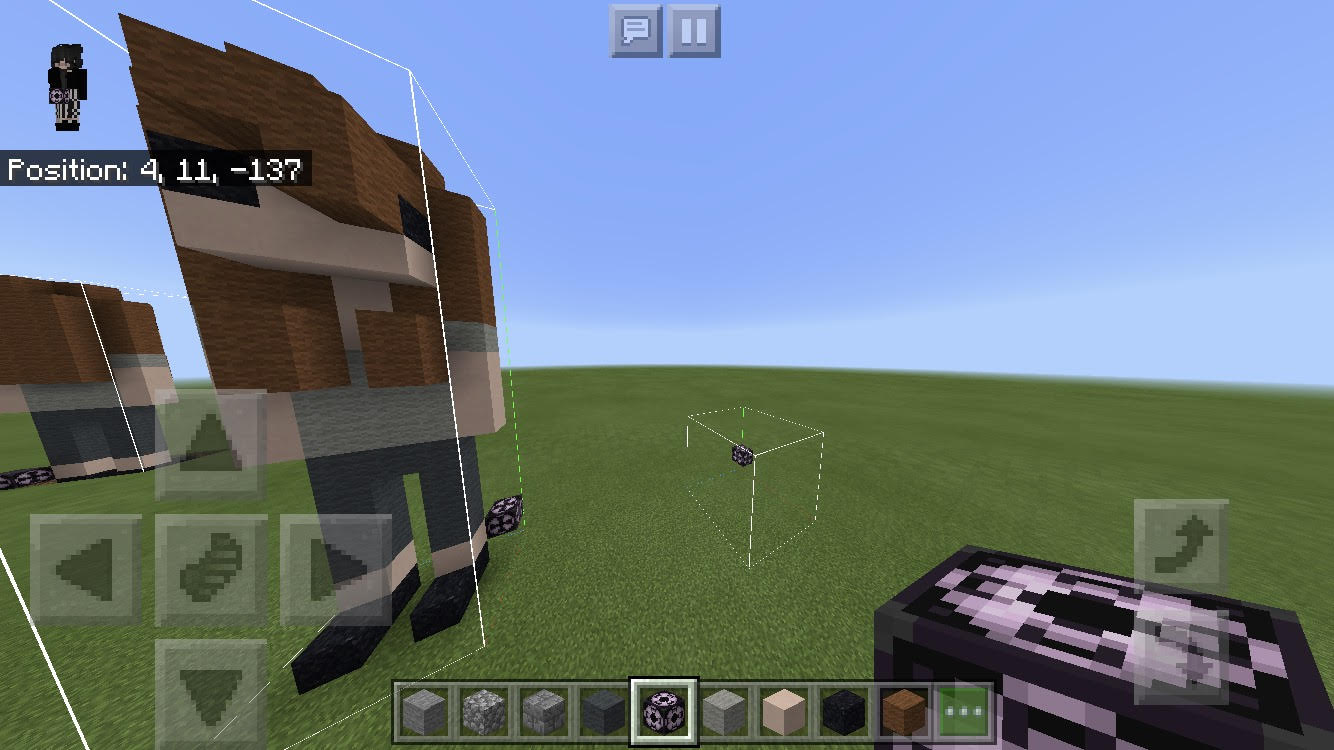
It will come up with a menu like this.
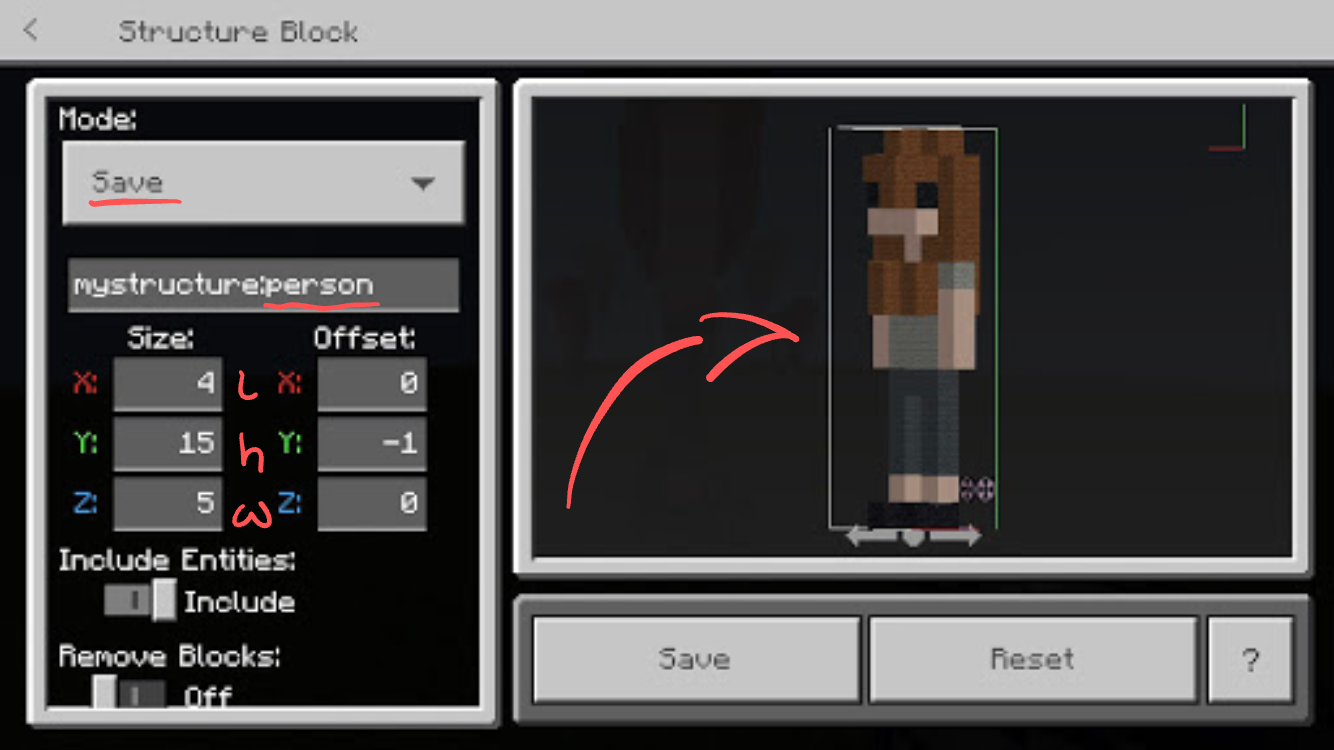
So first, set the block to save mode.
Then add in a title- you don't need to add in the 'mystructure' thing, it does that for you.
Now set the size of your build. This is where the maths comes in. Count how many blocks your build is in length, width and height.
You'll notice that I labelled the coordinates (x= length, y= height, z= width)
As you put in the numbers, your build will show up on the right- this is how you know if you measured right (if you didn't add or subtract a number from the side that's incorrect and see if it looks right).
After this, press save and your build will be saved!
4. Go to your new location
Now you have saved and measured your build, it's time to paste it!
Anyway, place the block one block above ground level again, and tap it to edit.
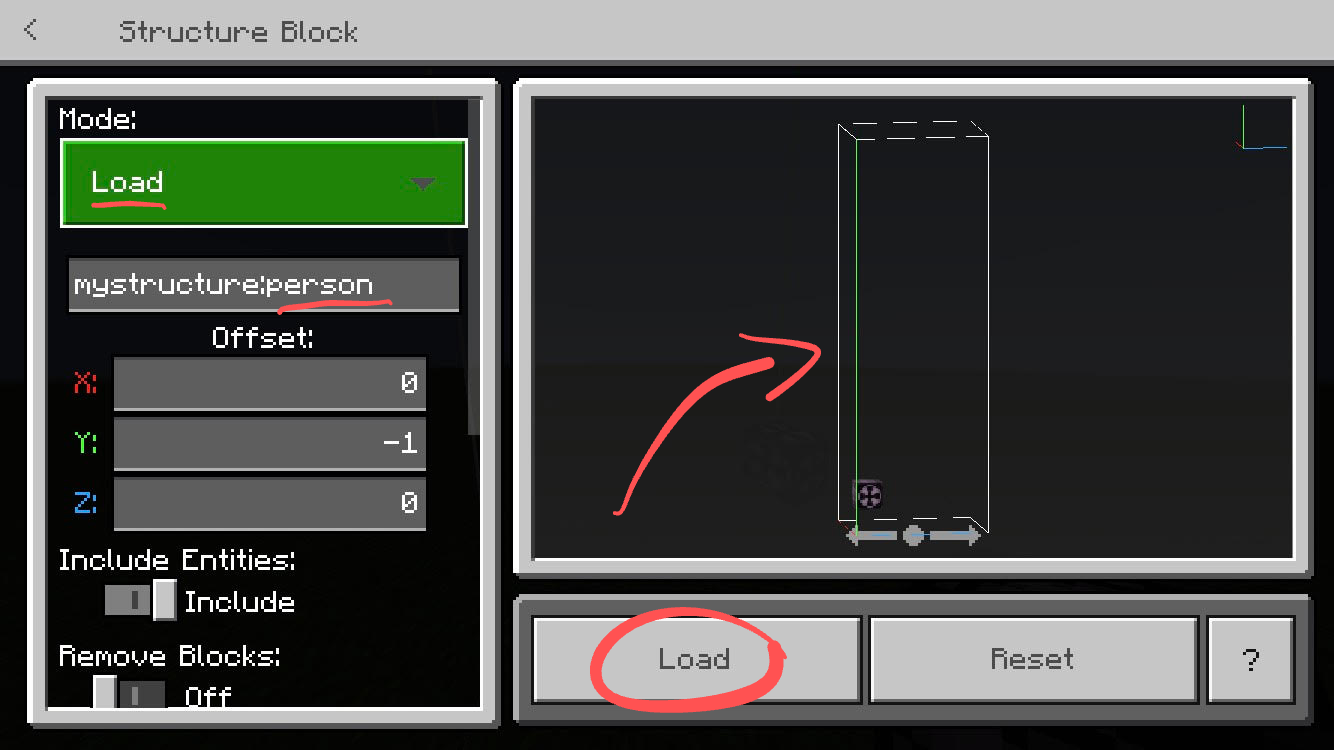
Now, change the mode to 'Load'
Type your title into the title section, and you should see the shape of your build on the right.
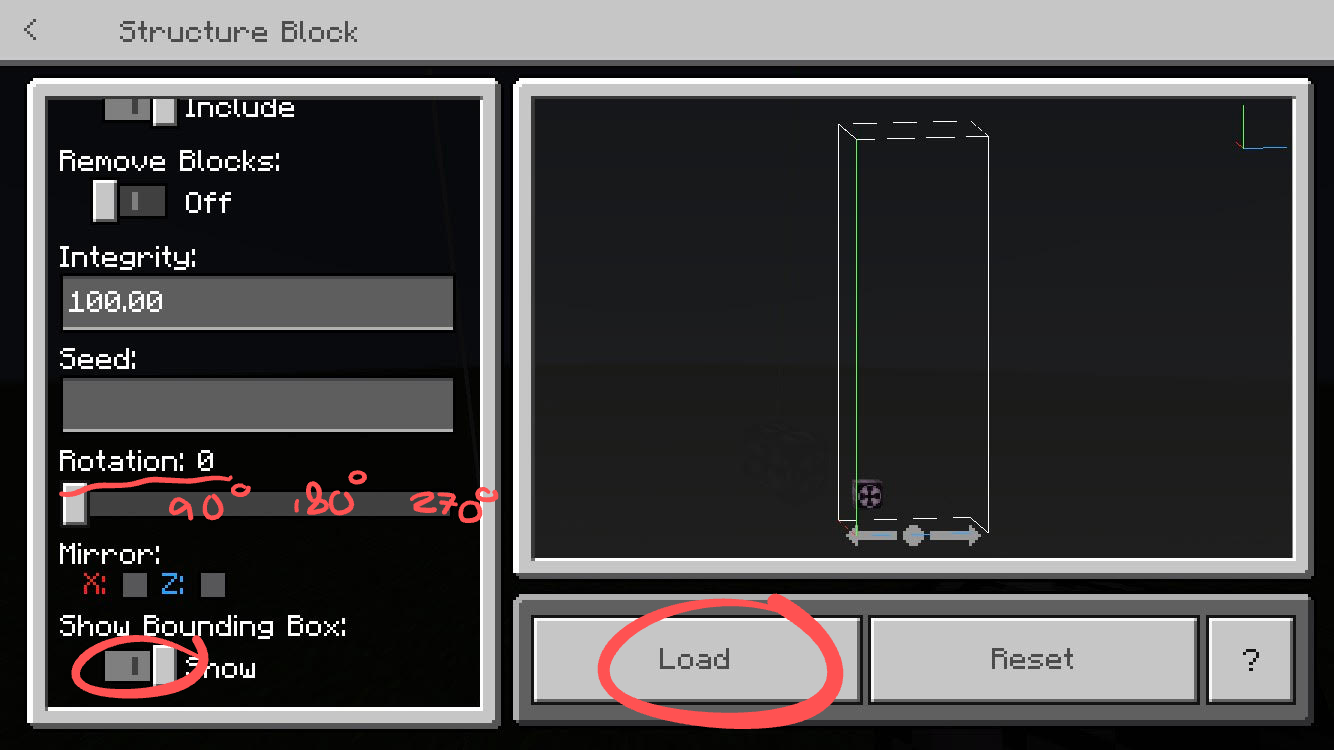
You can also edit the rotation if you'd like. Also, make sure 'Show Bounding Box' is on- this is the outline.
Now press load!
Your new build should be there!
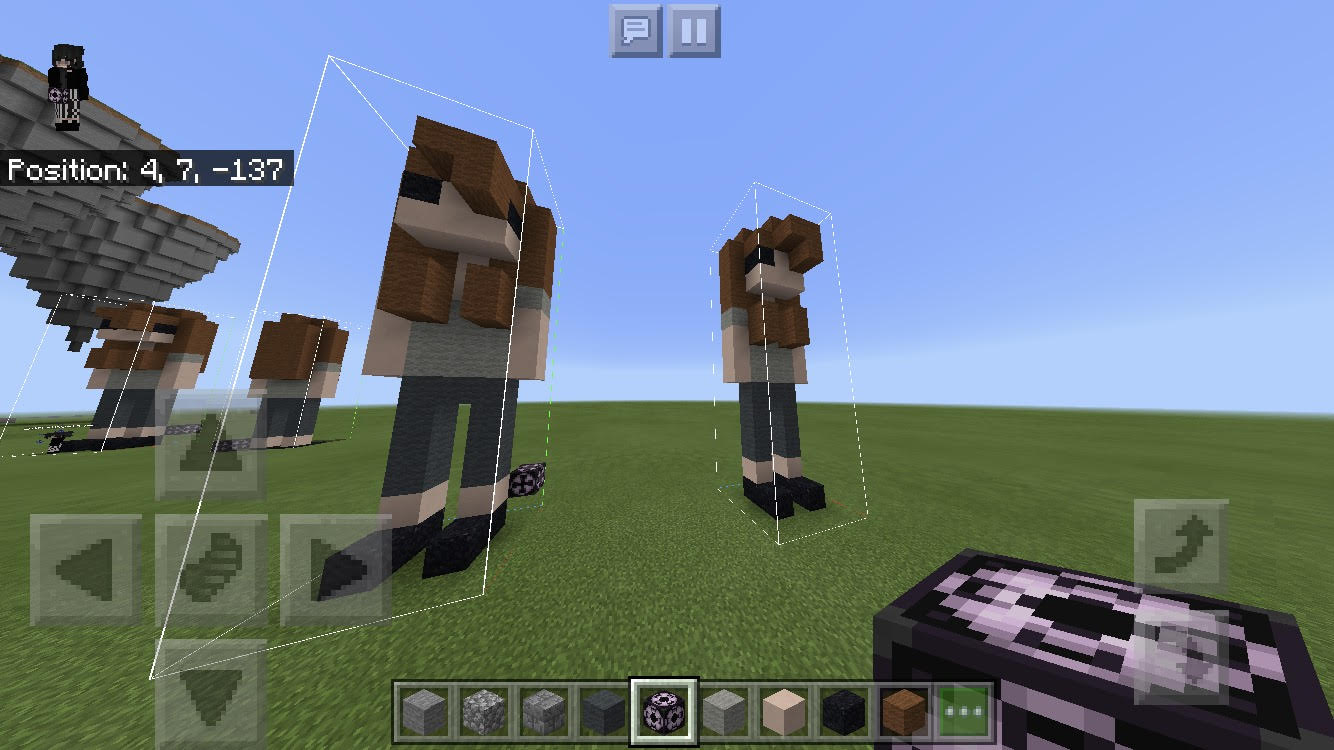
And there we go! I know, reading it seems complicated, but I promise it's a lot simpler once you get the hang of it- before you try it on a big build though, it might be a good idea to practice on smaller ones xD
If you have any questions, feel free to ask! And if you don't quite get it, feel free to add me on xbox, and I can show you on a world.
My Xbox Gamertag is 'dhaysie'.
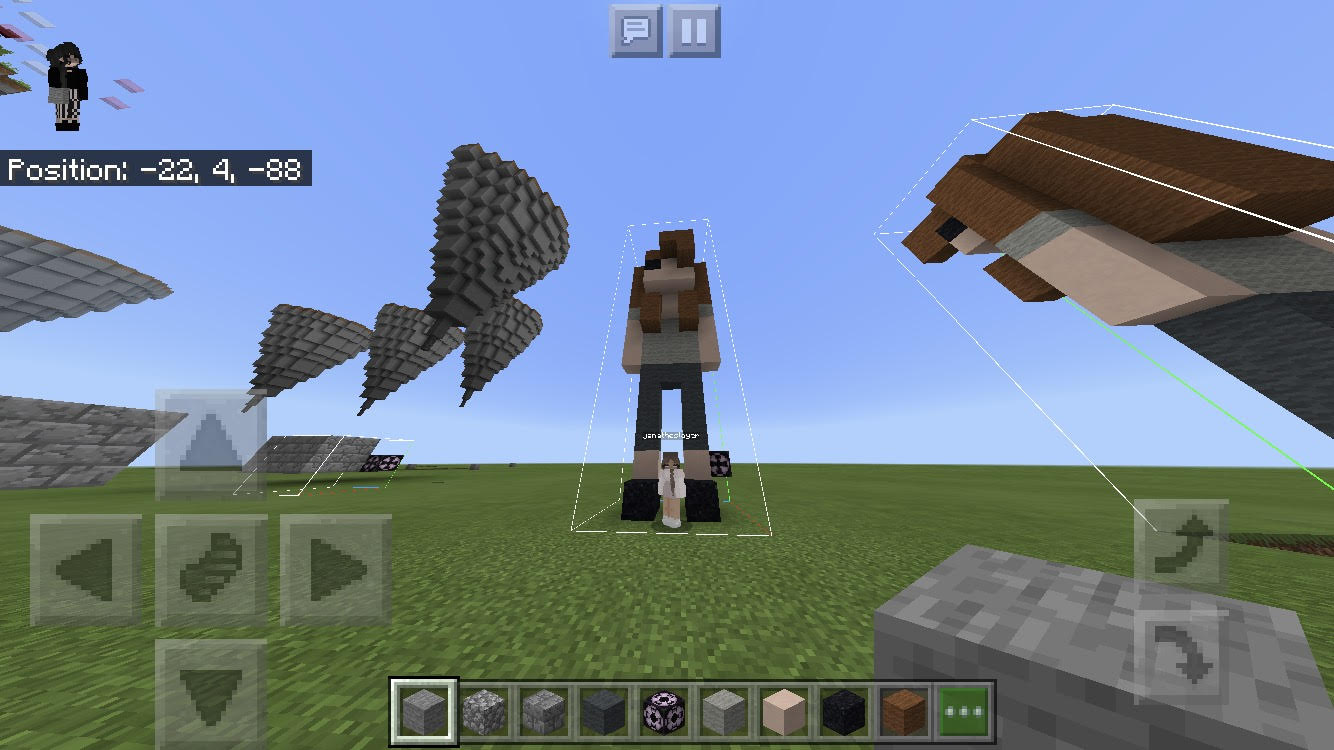
Here's @blackjana
Again, if you feel I didn't explain things clearly enough, ask! I won't bite xD
And trust me, this saves so so so much time when building maps- if you see in the top left corner of the image above, there are some skywars islands- I used the structure blocks for those! It saved me time with the ores and texturing.
Thank you so much for reading, and I hope this helps!
@ssunsett @AllyMac_ @FloofehGuinea @Pufflin @_PineappleDeath_ @WarriorGirl3333
Me and my friend Aiden found structure blocks, but didn't really know how to use them.
Basically, a structure block is a beta experimental gameplay feature you can use in worlds and servers to easily copy and paste builds! This saves you from repeating hard builds, or boring ones, like filling out ores in islands.
This is what they look like:
Now onto how to use them! Keep in mind, you need to use your brain a bit to get your build in the correct place xD
1. Turn on 'Experimental Gameplay' in the world you are using- this means you can use the feature.
Keep in mind, be careful with these features- it's still in beta, so don't go spamming things everywhere.
2. Go into your world and do /give @s structure_block
This is the command to give yourself the block- this is the only way to get it, as it is not in the Creative Menu.
3. Get your build and lay out where the structure block needs to go.
The structure block will have an outline around it, like this.
Now the build there is the one we want to copy- but you may notice that the outline does not fit it.
Well, first of all, you have to measure out where to put it.
Make sure it is in the corner of your build, in line with the furthest block on the angle it's facing.
You also have to make sure that it is one block above the floor, as the outline goes one block below the actual block.
Okay, this is going to need a lot of pictures.
Here is my small structure that I want to copy.
Now, to do this, tap on the structure block.
It will come up with a menu like this.
So first, set the block to save mode.
Then add in a title- you don't need to add in the 'mystructure' thing, it does that for you.
Now set the size of your build. This is where the maths comes in. Count how many blocks your build is in length, width and height.
You'll notice that I labelled the coordinates (x= length, y= height, z= width)
As you put in the numbers, your build will show up on the right- this is how you know if you measured right (if you didn't add or subtract a number from the side that's incorrect and see if it looks right).
After this, press save and your build will be saved!
4. Go to your new location
Now you have saved and measured your build, it's time to paste it!
Anyway, place the block one block above ground level again, and tap it to edit.
Now, change the mode to 'Load'
Type your title into the title section, and you should see the shape of your build on the right.
You can also edit the rotation if you'd like. Also, make sure 'Show Bounding Box' is on- this is the outline.
Now press load!
Your new build should be there!
And there we go! I know, reading it seems complicated, but I promise it's a lot simpler once you get the hang of it- before you try it on a big build though, it might be a good idea to practice on smaller ones xD
If you have any questions, feel free to ask! And if you don't quite get it, feel free to add me on xbox, and I can show you on a world.
My Xbox Gamertag is 'dhaysie'.
Here's @blackjana
Again, if you feel I didn't explain things clearly enough, ask! I won't bite xD
And trust me, this saves so so so much time when building maps- if you see in the top left corner of the image above, there are some skywars islands- I used the structure blocks for those! It saved me time with the ores and texturing.
Thank you so much for reading, and I hope this helps!
@ssunsett @AllyMac_ @FloofehGuinea @Pufflin @_PineappleDeath_ @WarriorGirl3333
Last edited:


 I knew about them when they came out but never really used them! yw


