
Navigation
Install the app
How to install the app on iOS
Follow along with the video below to see how to install our site as a web app on your home screen.
Note: This feature may not be available in some browsers.
More options
Style variation
You are using an out of date browser. It may not display this or other websites correctly.
You should upgrade or use an alternative browser.
You should upgrade or use an alternative browser.
1st one
- Thread starter Ama
- Start date

- Nov 25, 2016
- 6,425
- 25,754
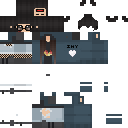
Omg how even do u make emm this looks WONDERFULL loving the glasses!!View attachment 122809
This is my first HD ever created. I’m just posting it for fun. Also if people think the creation is good. They can send me a skin that I’ll edit ^^ doe I don’t wanna get spammed with them. Hehe.
aa teach mee
TheEnderJack54
New Member
- Sep 19, 2018
- 4
- 1
Hey
View reply.

Ama
Active Member
- Jul 6, 2018
- 90
- 68
- Thread starter
- #5
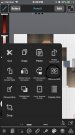

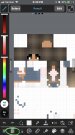
1 get in MediBang
2 click new canvas
3 browse and choose
4 choose the skin you’d like.
5 click the file thing at the bottom shown on one of these pictures
6 set the length and height both to 128
7 edit you’re skin
8 export it to the file or whatever shows on the picture again xD
9 save the edit to your photos
10 YOUR DONE!!
- Nov 25, 2016
- 6,425
- 25,754
OK ILL TRYView attachment 123050 View attachment 123051 View attachment 123049
1 get in MediBang
2 click new canvas
3 browse and choose
4 choose the skin you’d like.
5 click the file thing at the bottom shown on one of these pictures
6 set the length and height both to 128
7 edit you’re skin
8 export it to the file or whatever shows on the picture again xD
9 save the edit to your photos
10 YOUR DONE!!

Lanima
Notable Member
- Oct 13, 2017
- 5,824
- 31,073
PANDEEOK ILL TRY
YOU CAN DO THIS ON IBIS
- Import skin
- Increase Canvas size from 64x64 to any number that's a multiple of it
- Transform by whatever number you used (if doubled resolution [128x128] increase size to 200% with Interpolation off)
- Do the editing
- Nov 25, 2016
- 6,425
- 25,754
WOT?PANDEE
YOU CAN DO THIS ON IBIS
- Import skin
- Increase Canvas size from 64x64 to any number that's a multiple of it
- Transform by whatever number you used (if doubled resolution [128x128] increase size to 200% with Interpolation off)
- Do the editing
confusele
ILL TRY SENSEIII
- Nov 25, 2016
- 6,425
- 25,754
yeah i have 0 idea of what ur talkin about sensei iuiWOT?
confusele
ILL TRY SENSEIII
Lanima
Notable Member
- Oct 13, 2017
- 5,824
- 31,073
Hold on, I'll make a detailed explanation with picturesyeah i have 0 idea of what ur talkin about sensei iui
Lanima
Notable Member
- Oct 13, 2017
- 5,824
- 31,073
- Creating the artwork
Minecraft skins are layed out in a 1:1 pixel ratio format, usually being 64x64 pixels. For double resolution, you're gonna have to change the numbers from 64 to 128. Assuming you inserted the skin first, you need to
Canvas>Change Canvas Size>Edit Width and Length to 128
2. Resizing the Skin
Now your skin is still the same size but the canvas is bigger. You want the skin to fit into the canvas, but how? Transform of course! Make sure that "Interpolation On Zoom In" is off or you'll have a difficult time getting the pixels right. Now, use the Transform tool and increase the size of the skin to 200%
We have come across a problem, it's blurry! We can fix that by turning another Interpolation setting off. When you went into Transform, did you notice that Interpolation was turned on? Turn that off if it is, else it wont be hard pixels like it should be. Make sure it fits right into the canvas.
3. Editing
Use the Digital Pen
I cannot help you with this unless you directly ask me to do it for you. If you're going for a simple white dot on the eye, that isn't supposed to be a problem since you just have to place two pixels. If somehow you want to go for something extreme like what I do with every skin, you're gonna need to know how to do pixel art right to not mess up.
That's the best I can help you with, hope you don't have a bad time doing this
- Nov 25, 2016
- 6,425
- 25,754
gasp i did it TY SENSEIIIThis depends on what resolution you want the original to be multiplied by. I usually use double resolution so I'll use it as an example.
- Creating the artwork
Minecraft skins are layed out in a 1:1 pixel ratio format, usually being 64x64 pixels. For double resolution, you're gonna have to change the numbers from 64 to 128. Assuming you inserted the skin first, you need to
Canvas>Change Canvas Size>Edit Width and Length to 128
2. Resizing the Skin
Now your skin is still the same size but the canvas is bigger. You want the skin to fit into the canvas, but how? Transform of course! Make sure that "Interpolation On Zoom In" is off or you'll have a difficult time getting the pixels right. Now, use the Transform tool and increase the size of the skin to 200%
View attachment 123068
We have come across a problem, it's blurry! We can fix that by turning another Interpolation setting off. When you went into Transform, did you notice that Interpolation was turned on? Turn that off if it is, else it wont be hard pixels like it should be. Make sure it fits right into the canvas.
3. Editing
Use the Digital Pen
I cannot help you with this unless you directly ask me to do it for you. If you're going for a simple white dot on the eye, that isn't supposed to be a problem since you just have to place two pixels. If somehow you want to go for something extreme like what I do with every skin, you're gonna need to know how to do pixel art right to not mess up.
That's the best I can help you with, hope you don't have a bad time doing this

