How to install Add-ons 0.16.0 iOS .MCWorld, .MCPack:
Some add-ons are .mcworld or .mcpack files. If it’s a .mcpack file then a notification will appear letting you know if the pack has been successfully imported to your game. If it’s a .mcworld file then Minecraft Pocket Edition will be automatically launched and a world with the add-ons automatically opened.
.ZIP, .RAR:
If it is a .ZIP or .RAR then please use the following tutorial to install the add-on:
The tutorial is complete as it is, but we’ll make sure to add some more images and a video soon as well.
1. Download and install iFunbox which is a free file manager software available for both Mac and PCs.
2. Plugin your iOS device into your computer using a data connection cord. It’s a standard iOS cable which usually comes with the device.
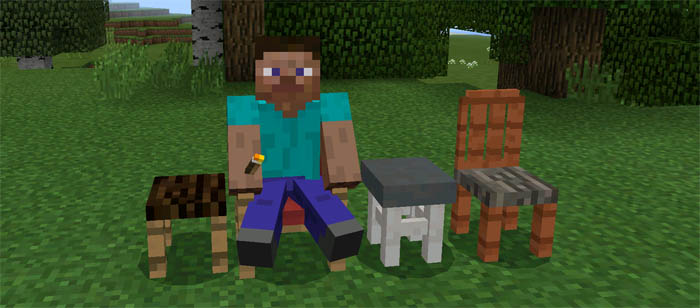
3. Browse our section for add-ons using your computer and find one to download. For this example, we are going to use the More Chairs Add-on.
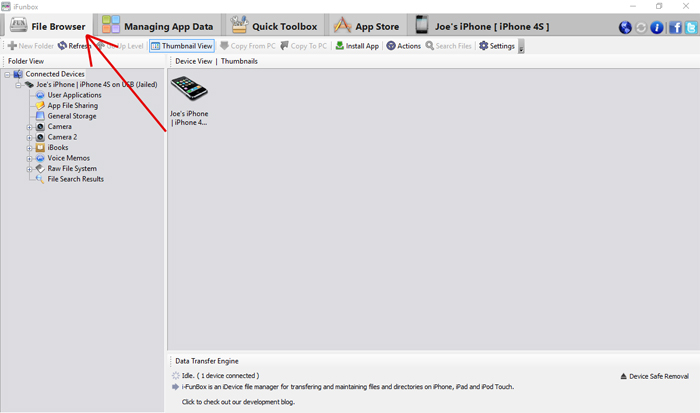
4. Open iFunbox and click the “File Browser” tab in the top left corner.
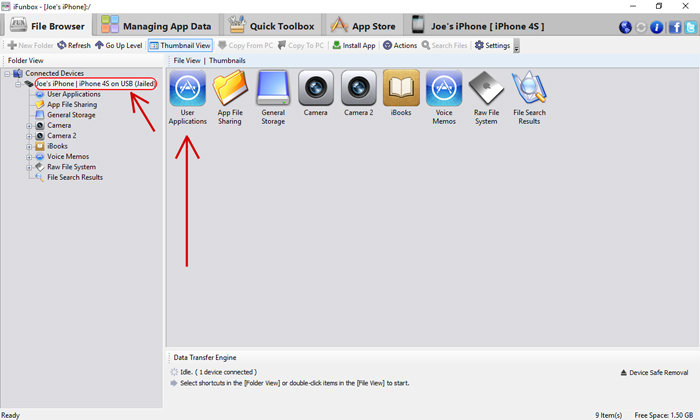
5. Find your device in the left sidebar. You might need to expand the available items by clicking the plus symbol for “Connected Devices”.
Then click on the “User Applications” icon.
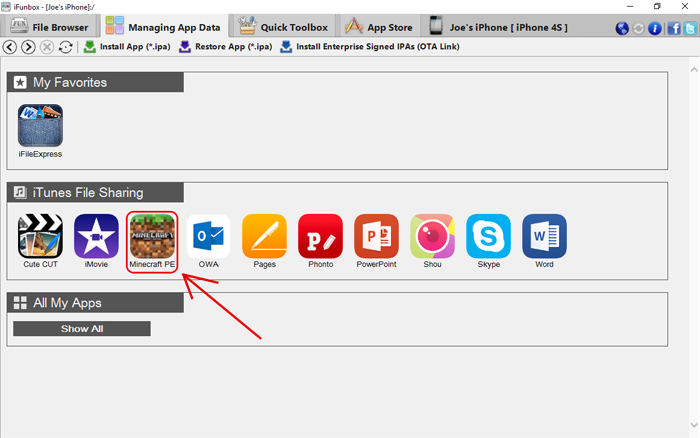
7. Next you should see a bunch of different icons. Click the Minecraft PE icon.
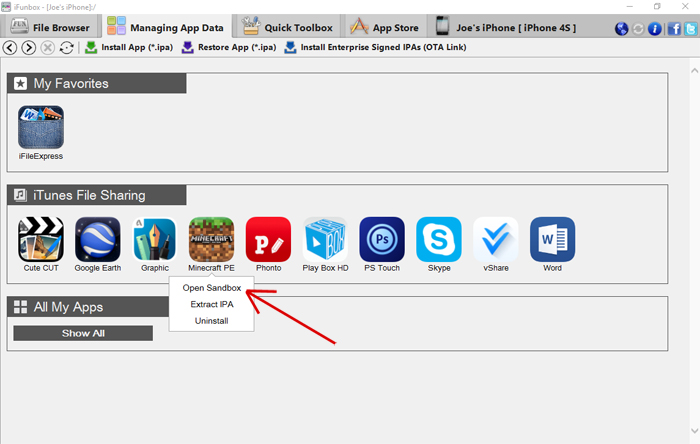
8. Then a dropdown menu should appear. Click Open Sandbox.
9. Open the games folder and then open the com.mojang folder (still using iFunbox).
10. In this folder you should be able to see the following folders:
behavior_packs (other addon related files)
minecraftpe
minecraftWorlds
resource_packs (usually for textures)
snooper
It’s the highlighted ones (behavior_packs and resource_packs) which are of interest when installing addons.
An addon zip file usually includes two folder. One which you need to add to the behavior_packs folder and another which you need to add to the resource_packs folder.
11. If you are using a Mac computer you can open the zip file which you previously downloaded for the addon simply by clicking the zip file. If you are using Windows then you will need 7-Zip (which by the way is a free software).
Extract the zip file to get two different folders. Sometimes an addon includes just one folder and sometimes multiple. But in the case of the More Chairs Add-on it will include two.
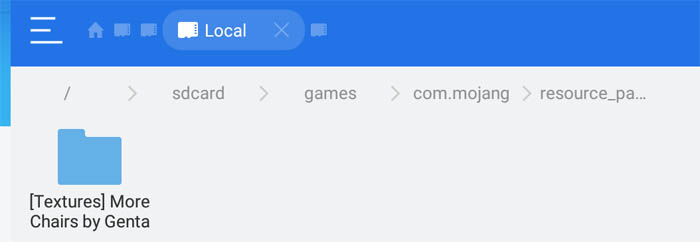
12. Copy the [Textures] More Chairs by Genta folder and paste it in the behavior_packsfolder (/games/com.mojang/resource_packs).
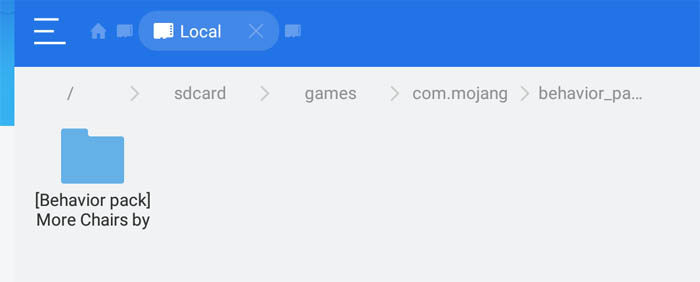
13. Then copy the [Behavior pack] More Chairs by Genta folder and paste it in the resource_packs folder (/games/com.mojang/resource_packs).
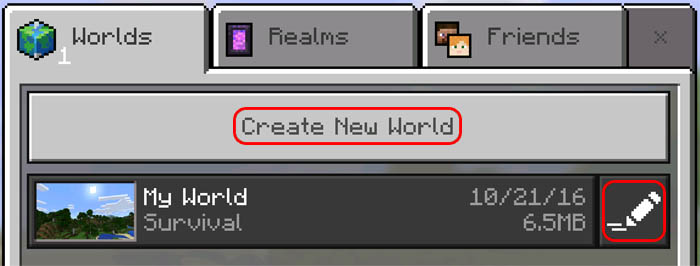
14. Open Minecraft Pocket Edition. Create a new world or edit an existing one.
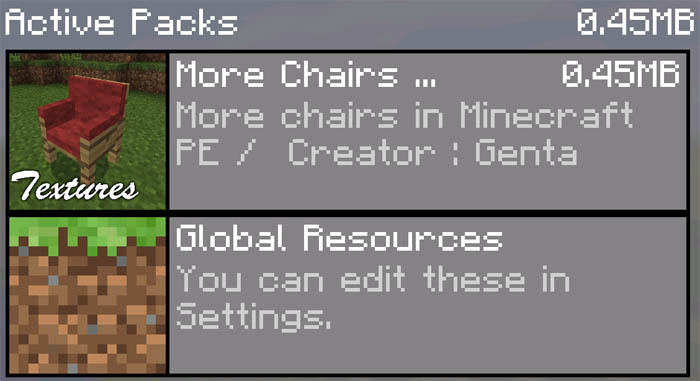
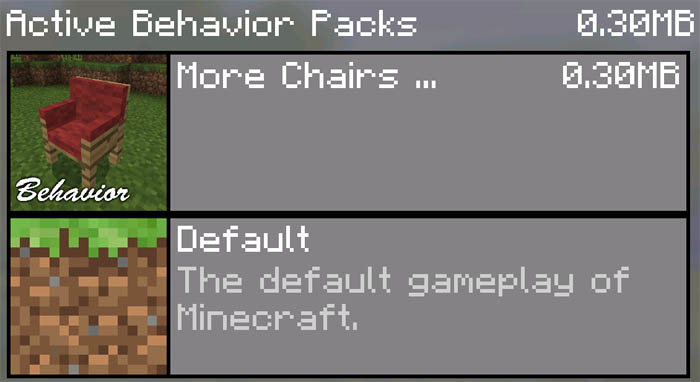
15. Scroll down in the left sidebar. There you will see two new tabs. Press the Resource Packstab and apply the More Chairs Add-on.
Then press the Behavior Packs tab and apply the More Chairs Add-on.
16. Enter the world and enjoy the add-on! A video on how to install Add-on on iOS.
ANDROID
.MCPack, .MCWorld:
Some add-ons are downloaded as a .mcpack / .mcworld file. These new file types automate the process of installing add-ons and maps.
First make sure you’ve got the latest versions of ES File Explorer!
Open the ES File Explorer app once you’ve downloaded an .mcpack or .mcworld file.
Go to your Downloads folder.
Find the .mcpack or .mcworld file and click it to import it to Minecraft Pocket Edition. The screen might go black for a while but just wait for it to load!
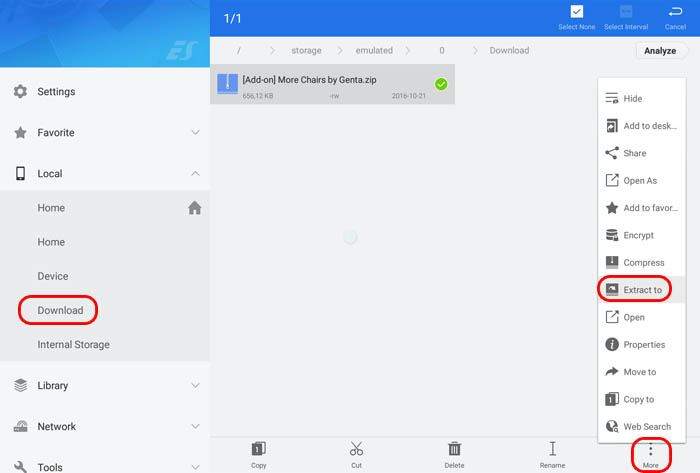
3. Next you will need ES File Explorer (or any other file manager app) to extract the downloaded zip file. You can find all your downloaded files in your Downloads folder.
Long-tap on the zip file to select it. Then press the “More” button in the bottom right corner. And then press “Extract to”.
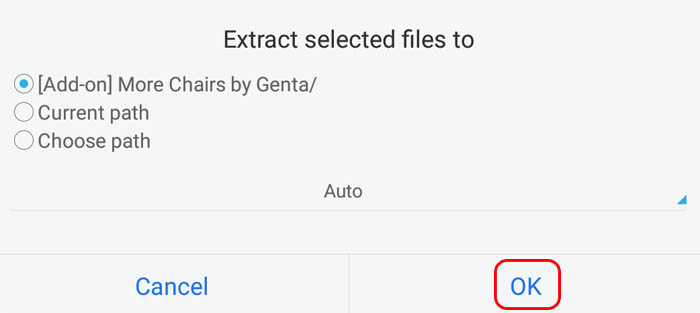
A window should now pop up. Press “OK”.
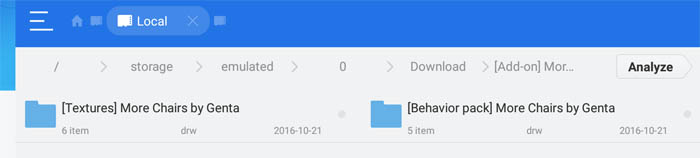
4. Open the new folder which was created when you extracted the zip file.
5. Sometimes an add-on includes just one folder. But most of the time they will include two folders as it did in the case of the More Chairs Add-on.
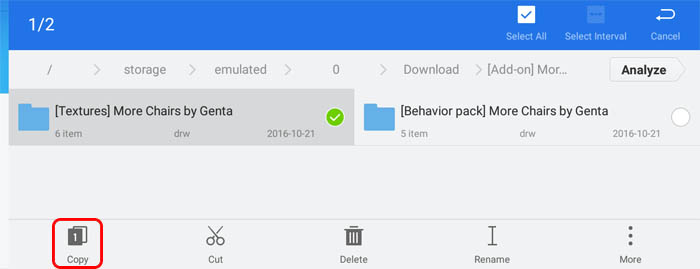
Copy the [Textures] More Chairs by Genta folder. To do that long-tap on the folder and then press Copy.
6. Go to the following location: /games/com.mojang/. You can get there by going to “Internal Storage” in ES File Explorer and then open the games folder, and then the com.mojang folder and there you will find the game files for Minecraft Pocket Edition. Let’s have a look at the folders here to get a better understanding what they are used for:
How to install Add-ons 0.16.0 iOS .MCWorld, .MCPack:
Some add-ons are .mcworld or .mcpack files. If it’s a .mcpack file then a notification will appear letting you know if the pack has been successfully imported to your game. If it’s a .mcworld file then Minecraft Pocket Edition will be automatically launched and a world with the add-ons automatically opened.
.ZIP, .RAR:
If it is a .ZIP or .RAR then please use the following tutorial to install the add-on:
The tutorial is complete as it is, but we’ll make sure to add some more images and a video soon as well.
1. Download and install iFunbox which is a free file manager software available for both Mac and PCs.
2. Plugin your iOS device into your computer using a data connection cord. It’s a standard iOS cable which usually comes with the device.
3. Browse our section for add-ons using your computer and find one to download. For this example, we are going to use the More Chairs Add-on.
4. Open iFunbox and click the “File Browser” tab in the top left corner.
5. Find your device in the left sidebar. You might need to expand the available items by clicking the plus symbol for “Connected Devices”.
Then click on the “User Applications” icon.
7. Next you should see a bunch of different icons. Click the Minecraft PE icon.
8. Then a dropdown menu should appear. Click Open Sandbox.
9. Open the games folder and then open the com.mojang folder (still using iFunbox).
10. In this folder you should be able to see the following folders:
behavior_packs (other addon related files)
minecraftpe
minecraftWorlds
resource_packs (usually for textures)
snooper
It’s the highlighted ones (behavior_packs and resource_packs) which are of interest when installing addons.
An addon zip file usually includes two folder. One which you need to add to the behavior_packs folder and another which you need to add to the resource_packs folder.
11. If you are using a Mac computer you can open the zip file which you previously downloaded for the addon simply by clicking the zip file. If you are using Windows then you will need 7-Zip (which by the way is a free software).
Extract the zip file to get two different folders. Sometimes an addon includes just one folder and sometimes multiple. But in the case of the More Chairs Add-on it will include two.
12. Copy the [Textures] More Chairs by Genta folder and paste it in the behavior_packsfolder (/games/com.mojang/resource_packs).
13. Then copy the [Behavior pack] More Chairs by Genta folder and paste it in the resource_packs folder (/games/com.mojang/resource_packs).
14. Open Minecraft Pocket Edition. Create a new world or edit an existing one.
15. Scroll down in the left sidebar. There you will see two new tabs. Press the Resource Packstab and apply the More Chairs Add-on.
Then press the Behavior Packs tab and apply the More Chairs Add-on.
16. Enter the world and enjoy the add-on! A video on how to install Add-on on iOS.
ANDROID
.MCPack, .MCWorld:
Some add-ons are downloaded as a .mcpack / .mcworld file. These new file types automate the process of installing add-ons and maps.
First make sure you’ve got the latest versions of ES File Explorer!
Open the ES File Explorer app once you’ve downloaded an .mcpack or .mcworld file.
Go to your Downloads folder.
Find the .mcpack or .mcworld file and click it to import it to Minecraft Pocket Edition. The screen might go black for a while but just wait for it to load!
3. Next you will need ES File Explorer (or any other file manager app) to extract the downloaded zip file. You can find all your downloaded files in your Downloads folder.
Long-tap on the zip file to select it. Then press the “More” button in the bottom right corner. And then press “Extract to”.
A window should now pop up. Press “OK”.
4. Open the new folder which was created when you extracted the zip file.
5. Sometimes an add-on includes just one folder. But most of the time they will include two folders as it did in the case of the More Chairs Add-on.
Copy the [Textures] More Chairs by Genta folder. To do that long-tap on the folder and then press Copy.
6. Go to the following location: /games/com.mojang/. You can get there by going to “Internal Storage” in ES File Explorer and then open the games folder, and then the com.mojang folder and there you will find the game files for Minecraft Pocket Edition. Let’s have a look at the folders here to get a better understanding what they are used for:
How to install Add-ons 0.16.0 iOS .MCWorld, .MCPack:
Some add-ons are .mcworld or .mcpack files. If it’s a .mcpack file then a notification will appear letting you know if the pack has been successfully imported to your game. If it’s a .mcworld file then Minecraft Pocket Edition will be automatically launched and a world with the add-ons automatically opened.
.ZIP, .RAR:
If it is a .ZIP or .RAR then please use the following tutorial to install the add-on:
The tutorial is complete as it is, but we’ll make sure to add some more images and a video soon as well.
1. Download and install iFunbox which is a free file manager software available for both Mac and PCs.
2. Plugin your iOS device into your computer using a data connection cord. It’s a standard iOS cable which usually comes with the device.
3. Browse our section for add-ons using your computer and find one to download. For this example, we are going to use the More Chairs Add-on.
4. Open iFunbox and click the “File Browser” tab in the top left corner.
5. Find your device in the left sidebar. You might need to expand the available items by clicking the plus symbol for “Connected Devices”.
Then click on the “User Applications” icon.
7. Next you should see a bunch of different icons. Click the Minecraft PE icon.
8. Then a dropdown menu should appear. Click Open Sandbox.
9. Open the games folder and then open the com.mojang folder (still using iFunbox).
10. In this folder you should be able to see the following folders:
behavior_packs (other addon related files)
minecraftpe
minecraftWorlds
resource_packs (usually for textures)
snooper
It’s the highlighted ones (behavior_packs and resource_packs) which are of interest when installing addons.
An addon zip file usually includes two folder. One which you need to add to the behavior_packs folder and another which you need to add to the resource_packs folder.
11. If you are using a Mac computer you can open the zip file which you previously downloaded for the addon simply by clicking the zip file. If you are using Windows then you will need 7-Zip (which by the way is a free software).
Extract the zip file to get two different folders. Sometimes an addon includes just one folder and sometimes multiple. But in the case of the More Chairs Add-on it will include two.
12. Copy the [Textures] More Chairs by Genta folder and paste it in the behavior_packsfolder (/games/com.mojang/resource_packs).
13. Then copy the [Behavior pack] More Chairs by Genta folder and paste it in the resource_packs folder (/games/com.mojang/resource_packs).
14. Open Minecraft Pocket Edition. Create a new world or edit an existing one.
15. Scroll down in the left sidebar. There you will see two new tabs. Press the Resource Packstab and apply the More Chairs Add-on.
Then press the Behavior Packs tab and apply the More Chairs Add-on.
16. Enter the world and enjoy the add-on! A video on how to install Add-on on iOS.
ANDROID
.MCPack, .MCWorld:
Some add-ons are downloaded as a .mcpack / .mcworld file. These new file types automate the process of installing add-ons and maps.
First make sure you’ve got the latest versions of ES File Explorer!
Open the ES File Explorer app once you’ve downloaded an .mcpack or .mcworld file.
Go to your Downloads folder.
Find the .mcpack or .mcworld file and click it to import it to Minecraft Pocket Edition. The screen might go black for a while but just wait for it to load!
3. Next you will need ES File Explorer (or any other file manager app) to extract the downloaded zip file. You can find all your downloaded files in your Downloads folder.
Long-tap on the zip file to select it. Then press the “More” button in the bottom right corner. And then press “Extract to”.
A window should now pop up. Press “OK”.
4. Open the new folder which was created when you extracted the zip file.
5. Sometimes an add-on includes just one folder. But most of the time they will include two folders as it did in the case of the More Chairs Add-on.
Copy the [Textures] More Chairs by Genta folder. To do that long-tap on the folder and then press Copy.
6. Go to the following location: /games/com.mojang/. You can get there by going to “Internal Storage” in ES File Explorer and then open the games folder, and then the com.mojang folder and there you will find the game files for Minecraft Pocket Edition. Let’s have a look at the folders here to get a better understanding what they are used for:
How to install Add-ons 0.16.0 iOS .MCWorld, .MCPack:
Some add-ons are .mcworld or .mcpack files. If it’s a .mcpack file then a notification will appear letting you know if the pack has been successfully imported to your game. If it’s a .mcworld file then Minecraft Pocket Edition will be automatically launched and a world with the add-ons automatically opened.
.ZIP, .RAR:
If it is a .ZIP or .RAR then please use the following tutorial to install the add-on:
The tutorial is complete as it is, but we’ll make sure to add some more images and a video soon as well.
1. Download and install iFunbox which is a free file manager software available for both Mac and PCs.
2. Plugin your iOS device into your computer using a data connection cord. It’s a standard iOS cable which usually comes with the device.
3. Browse our section for add-ons using your computer and find one to download. For this example, we are going to use the More Chairs Add-on.
4. Open iFunbox and click the “File Browser” tab in the top left corner.
5. Find your device in the left sidebar. You might need to expand the available items by clicking the plus symbol for “Connected Devices”.
Then click on the “User Applications” icon.
7. Next you should see a bunch of different icons. Click the Minecraft PE icon.
8. Then a dropdown menu should appear. Click Open Sandbox.
9. Open the games folder and then open the com.mojang folder (still using iFunbox).
10. In this folder you should be able to see the following folders:
behavior_packs (other addon related files)
minecraftpe
minecraftWorlds
resource_packs (usually for textures)
snooper
It’s the highlighted ones (behavior_packs and resource_packs) which are of interest when installing addons.
An addon zip file usually includes two folder. One which you need to add to the behavior_packs folder and another which you need to add to the resource_packs folder.
11. If you are using a Mac computer you can open the zip file which you previously downloaded for the addon simply by clicking the zip file. If you are using Windows then you will need 7-Zip (which by the way is a free software).
Extract the zip file to get two different folders. Sometimes an addon includes just one folder and sometimes multiple. But in the case of the More Chairs Add-on it will include two.
12. Copy the [Textures] More Chairs by Genta folder and paste it in the behavior_packsfolder (/games/com.mojang/resource_packs).
13. Then copy the [Behavior pack] More Chairs by Genta folder and paste it in the resource_packs folder (/games/com.mojang/resource_packs).
14. Open Minecraft Pocket Edition. Create a new world or edit an existing one.
15. Scroll down in the left sidebar. There you will see two new tabs. Press the Resource Packstab and apply the More Chairs Add-on.
Then press the Behavior Packs tab and apply the More Chairs Add-on.
16. Enter the world and enjoy the add-on! A video on how to install Add-on on iOS.
ANDROID
.MCPack, .MCWorld:
Some add-ons are downloaded as a .mcpack / .mcworld file. These new file types automate the process of installing add-ons and maps.
First make sure you’ve got the latest versions of ES File Explorer!
Open the ES File Explorer app once you’ve downloaded an .mcpack or .mcworld file.
Go to your Downloads folder.
Find the .mcpack or .mcworld file and click it to import it to Minecraft Pocket Edition. The screen might go black for a while but just wait for it to load!
3. Next you will need ES File Explorer (or any other file manager app) to extract the downloaded zip file. You can find all your downloaded files in your Downloads folder.
Long-tap on the zip file to select it. Then press the “More” button in the bottom right corner. And then press “Extract to”.
A window should now pop up. Press “OK”.
4. Open the new folder which was created when you extracted the zip file.
5. Sometimes an add-on includes just one folder. But most of the time they will include two folders as it did in the case of the More Chairs Add-on.
Copy the [Textures] More Chairs by Genta folder. To do that long-tap on the folder and then press Copy.
6. Go to the following location: /games/com.mojang/. You can get there by going to “Internal Storage” in ES File Explorer and then open the games folder, and then the com.mojang folder and there you will find the game files for Minecraft Pocket Edition. Let’s have a look at the folders here to get a better understanding what they are used for:
This site uses cookies to help personalise content, tailor your experience and to keep you logged in if you register.
By continuing to use this site, you are consenting to our use of cookies.