
How to Make a Map .mcworld
_________________________
[Requirements: Documents 6 app, IOS Device]
TO DOWNLOAD APP CLICK THIS LINK BELOW!
https://appsto.re/us/Vw_Vv.i
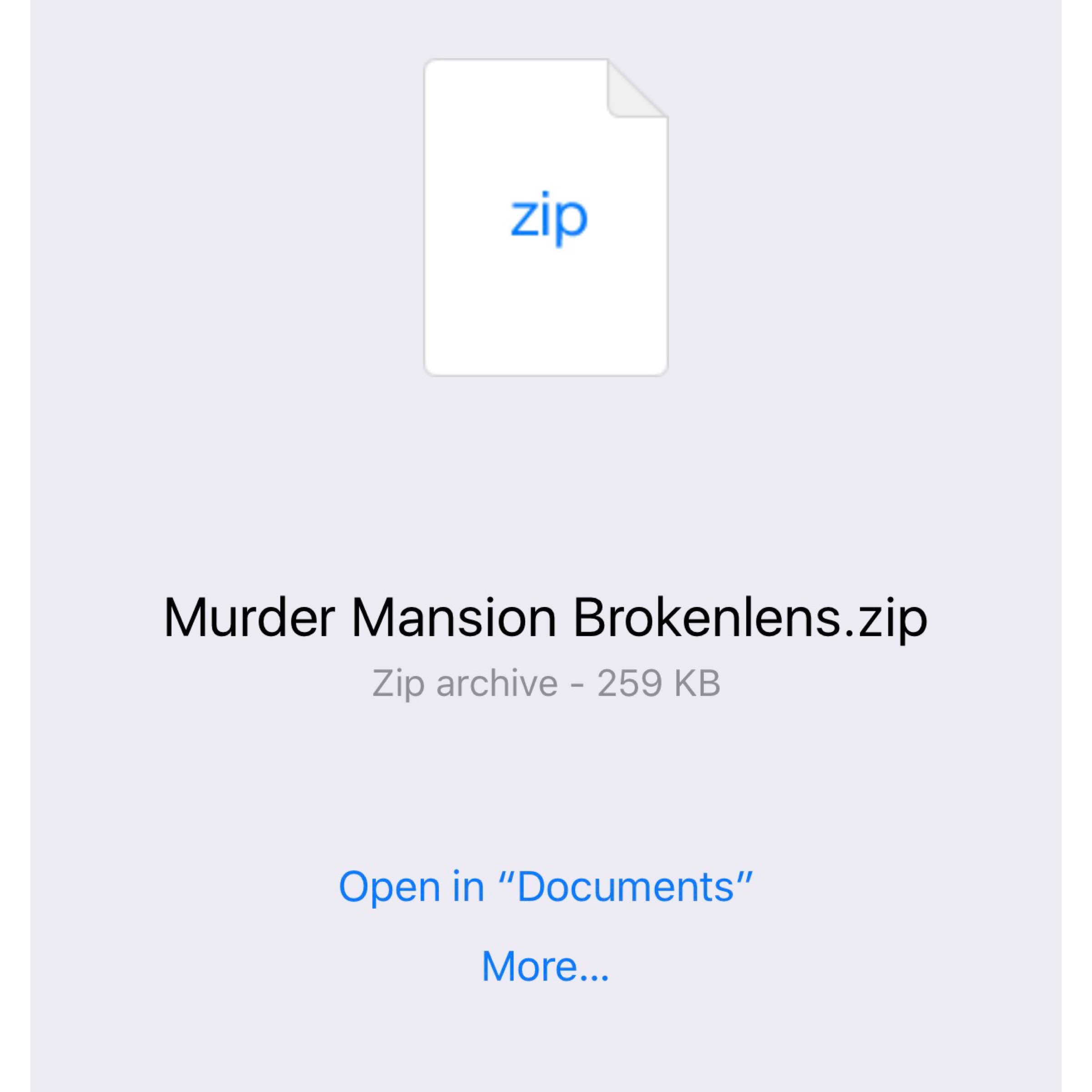
1.) Find the Link to the Map that you're trying to download that isn't .mcworld.
Should look like this:
 _______________________________
2.) Click on "Open in Documents"
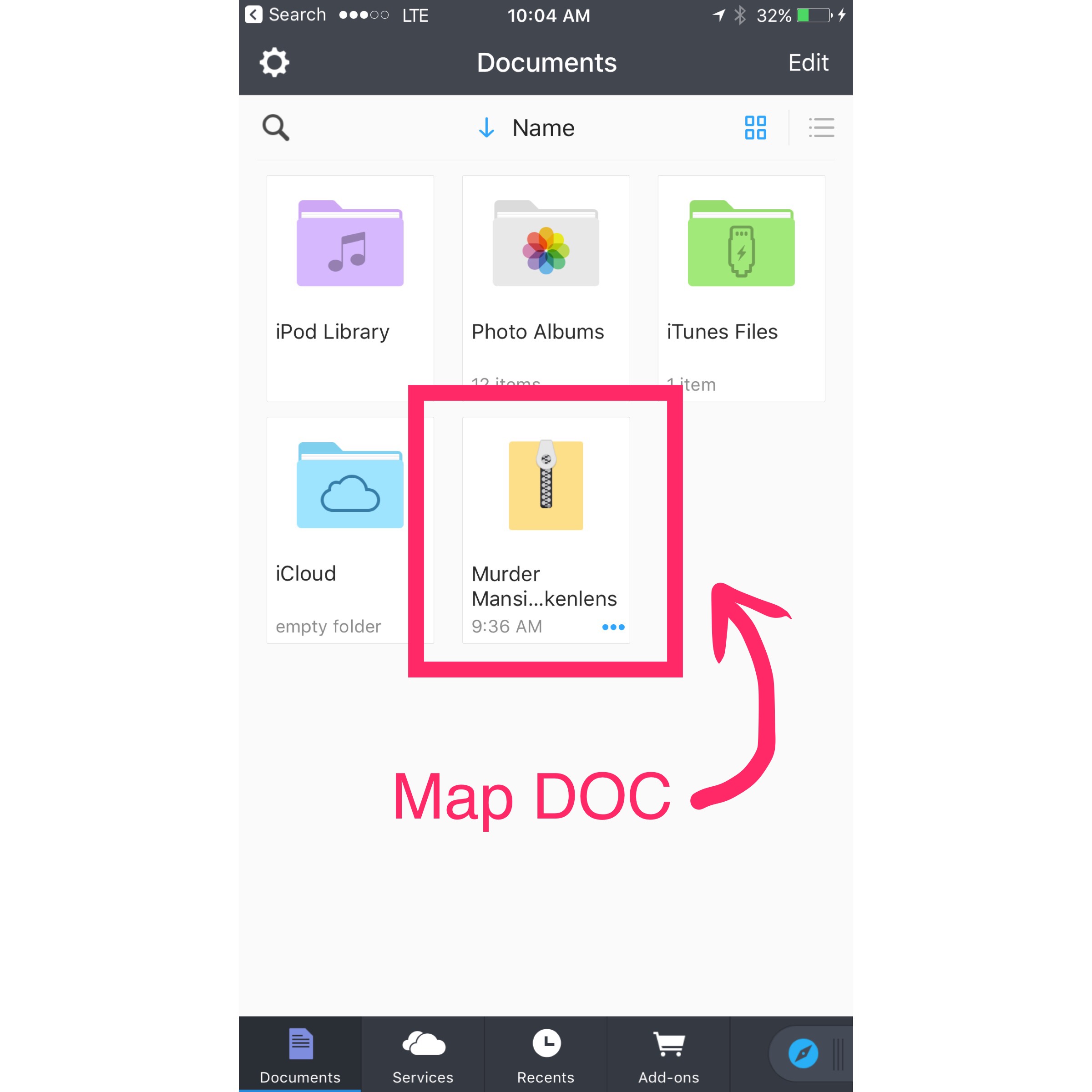 _______________________________
3.) Click On the Map Document and it should duplicate An other file.
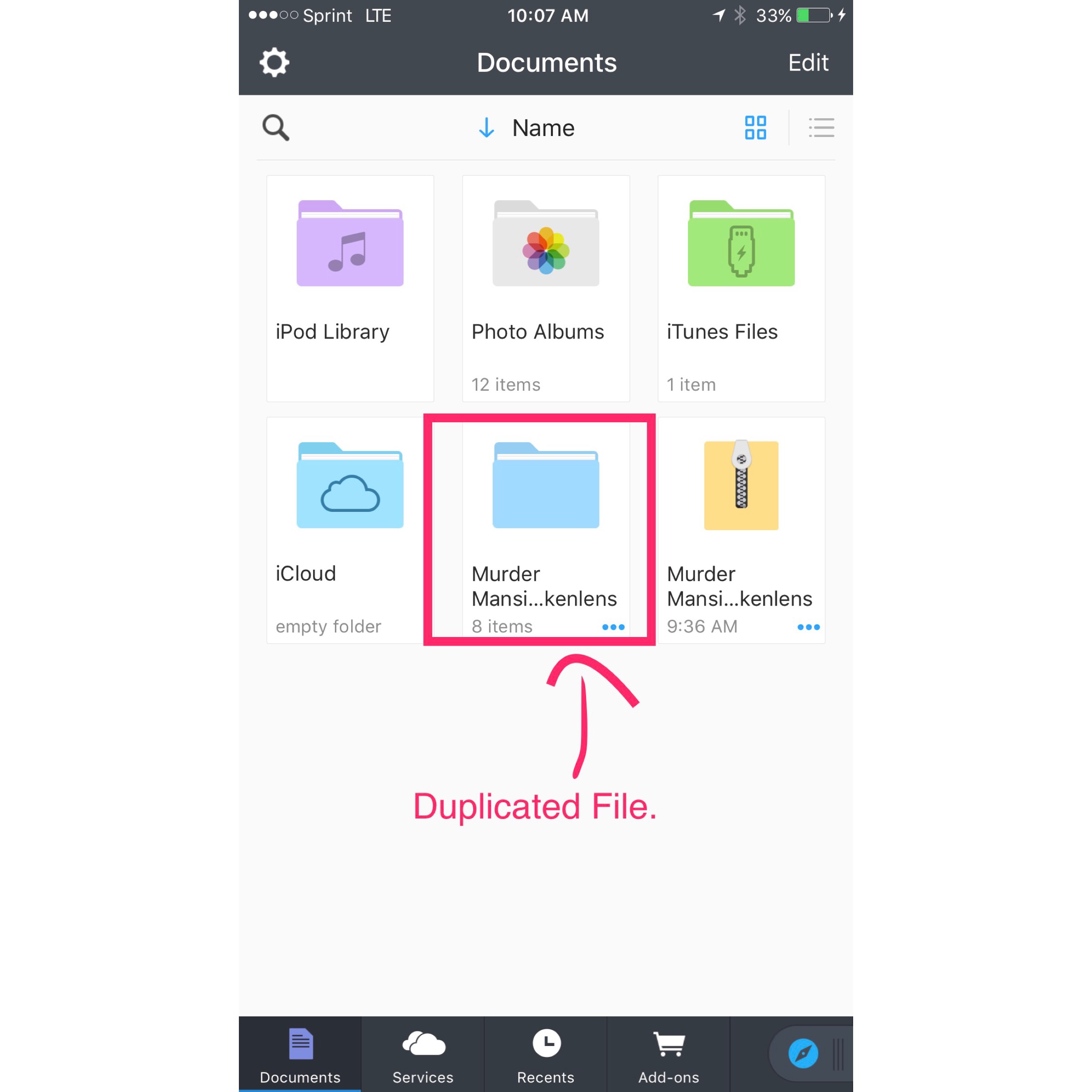 _______________________________
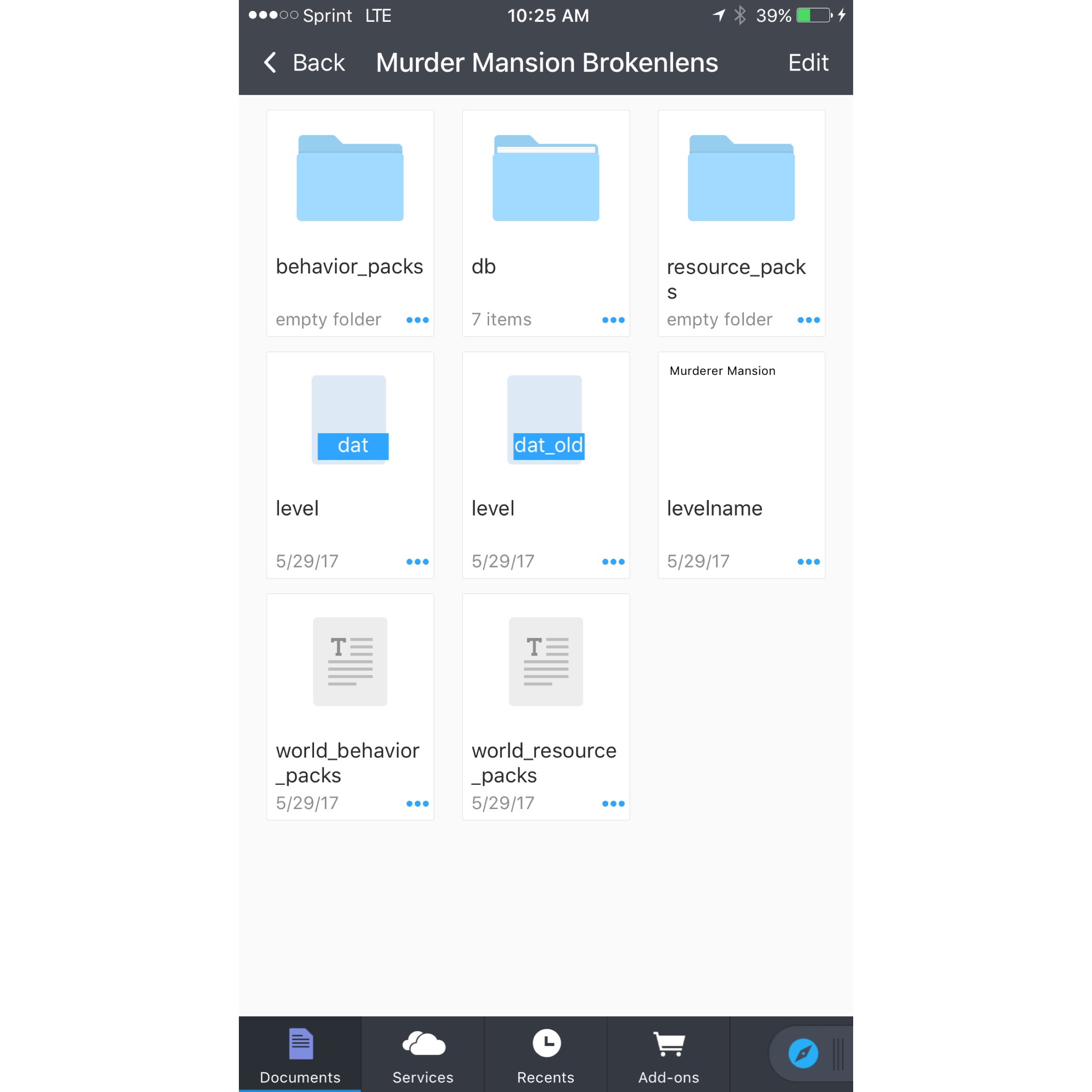
4.) Click On The duplicated File.
_______________________________
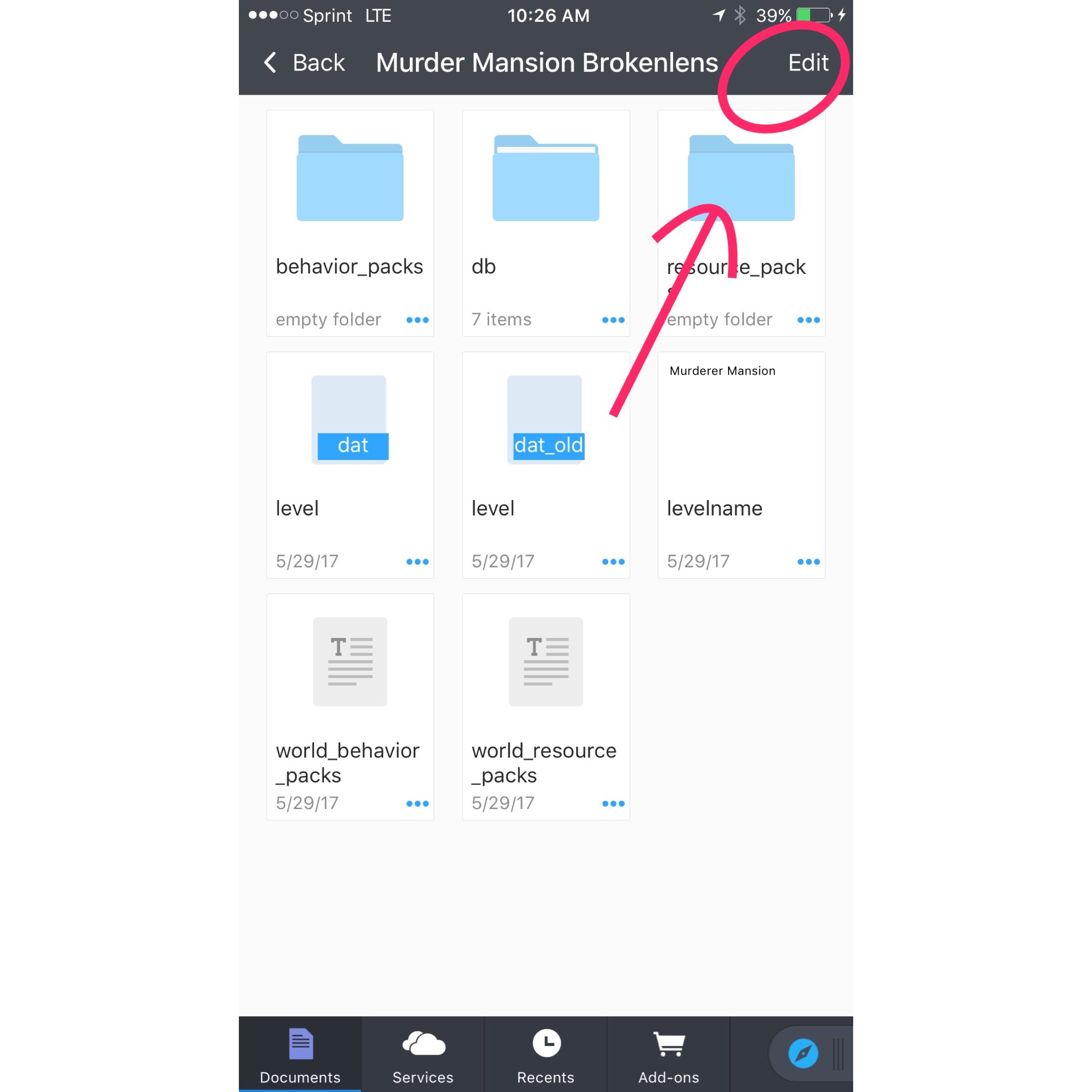
5.) Click "Edit".
_______________________________
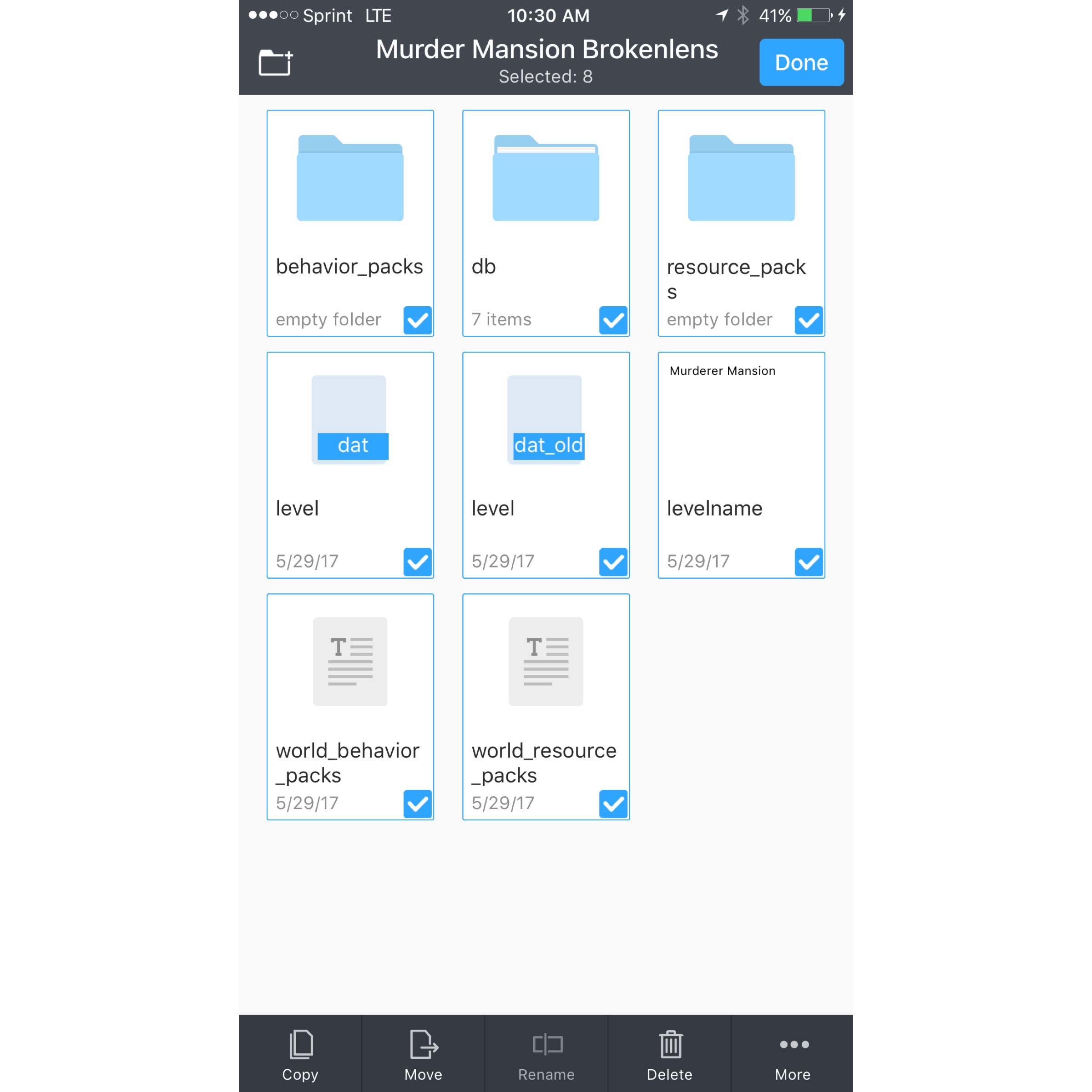
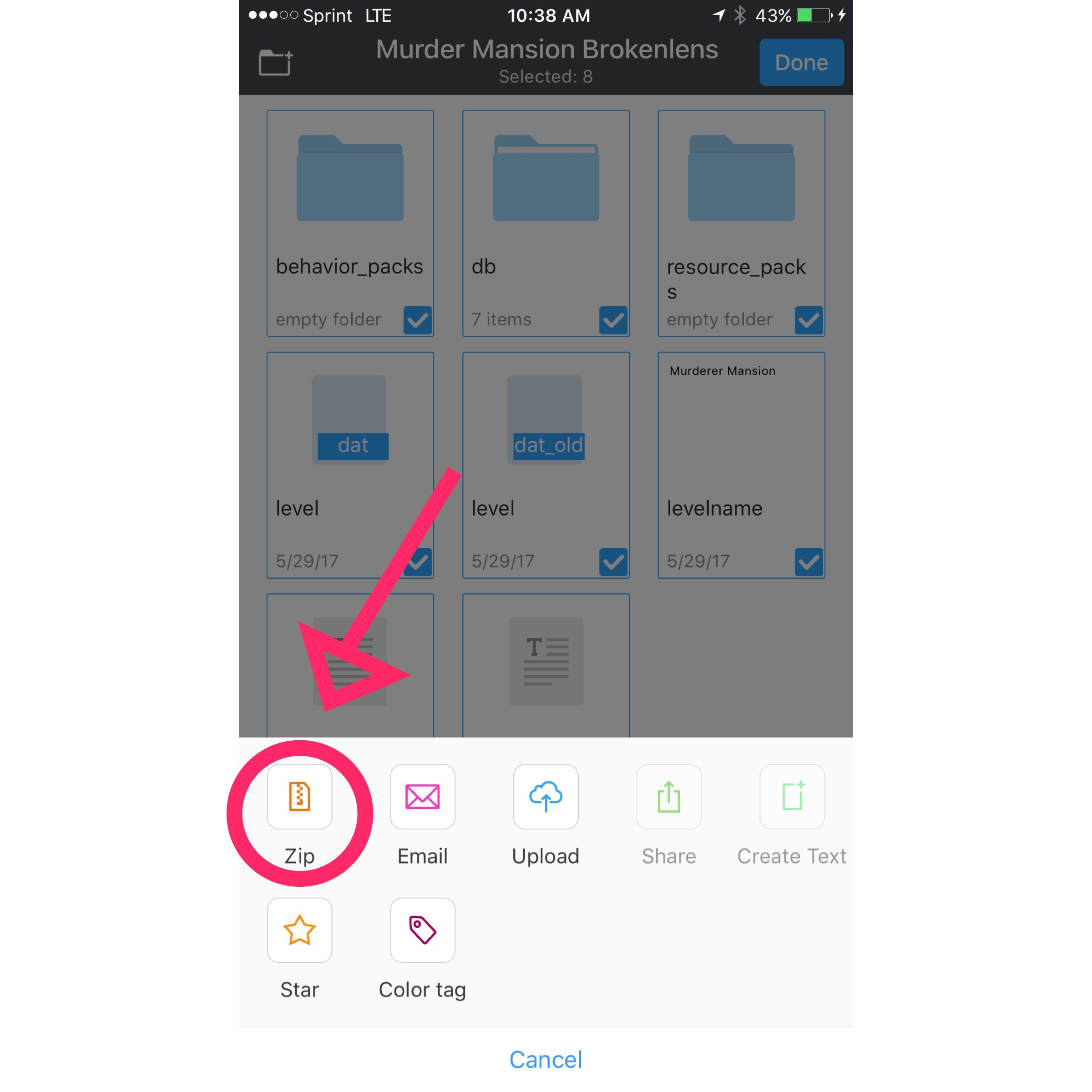
6.) Click On all the files Once till there's a check on all of them.
_______________________________
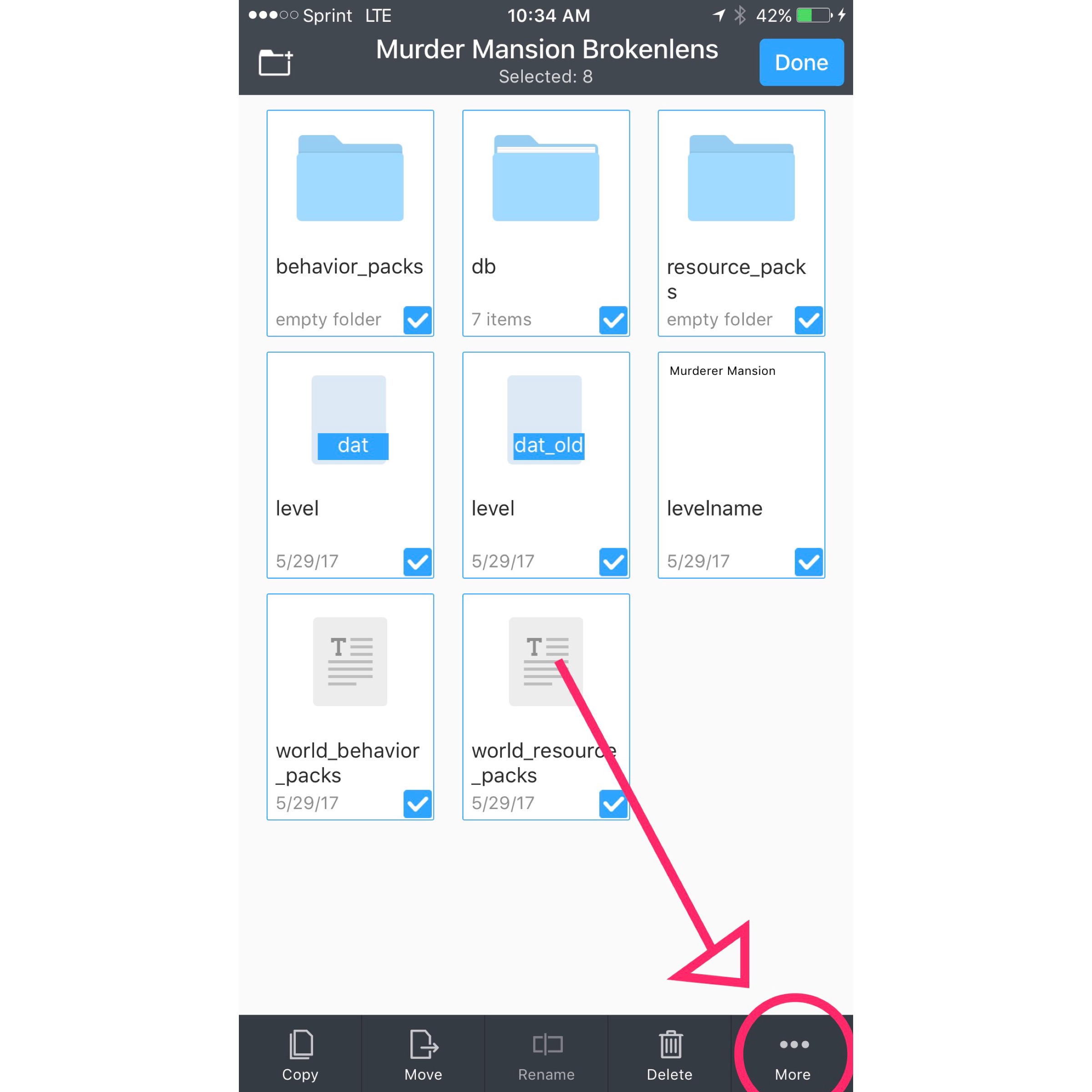
7.) Click On More down at the bottom.
_______________________________
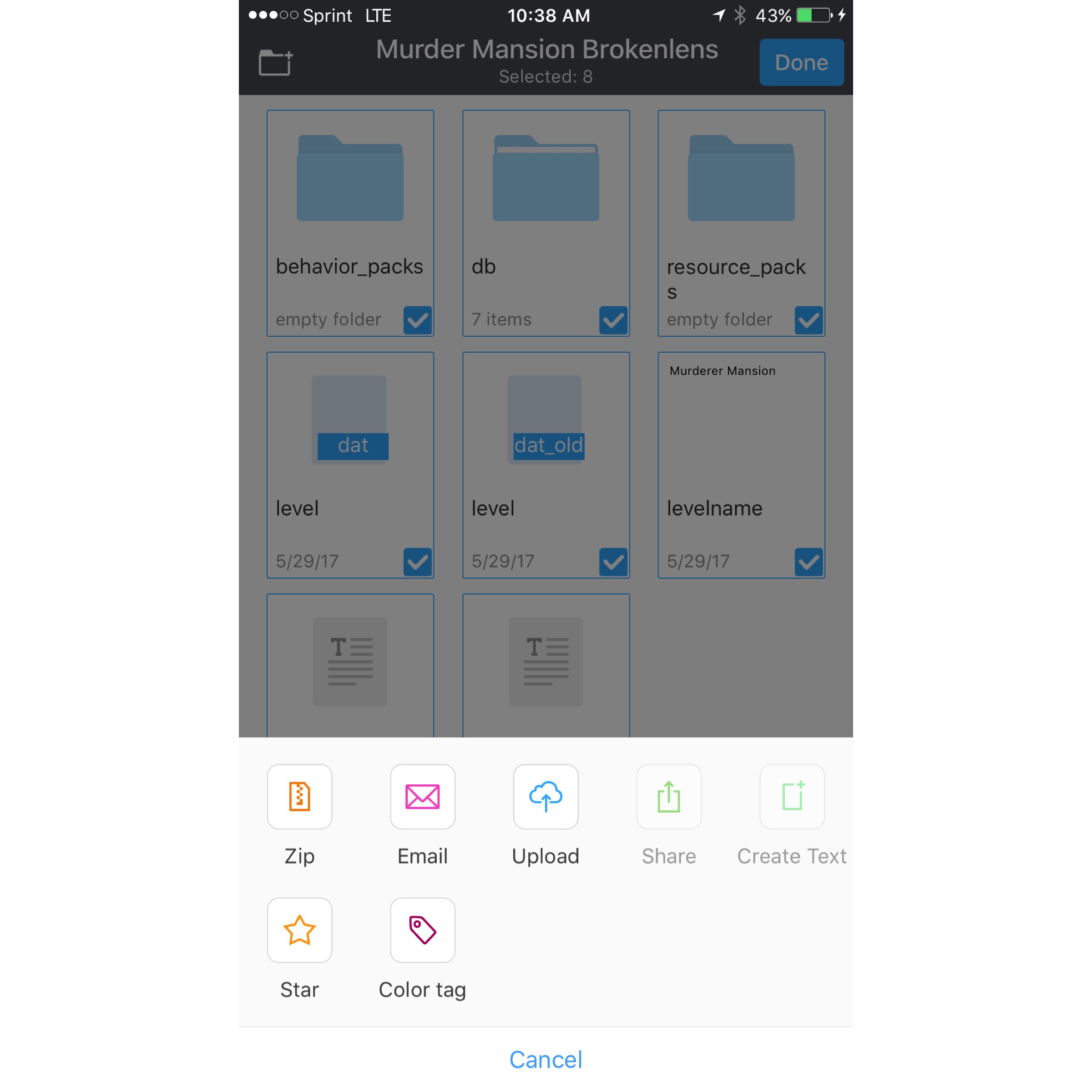
8.) Click On "Zip" Button.
_____________________________
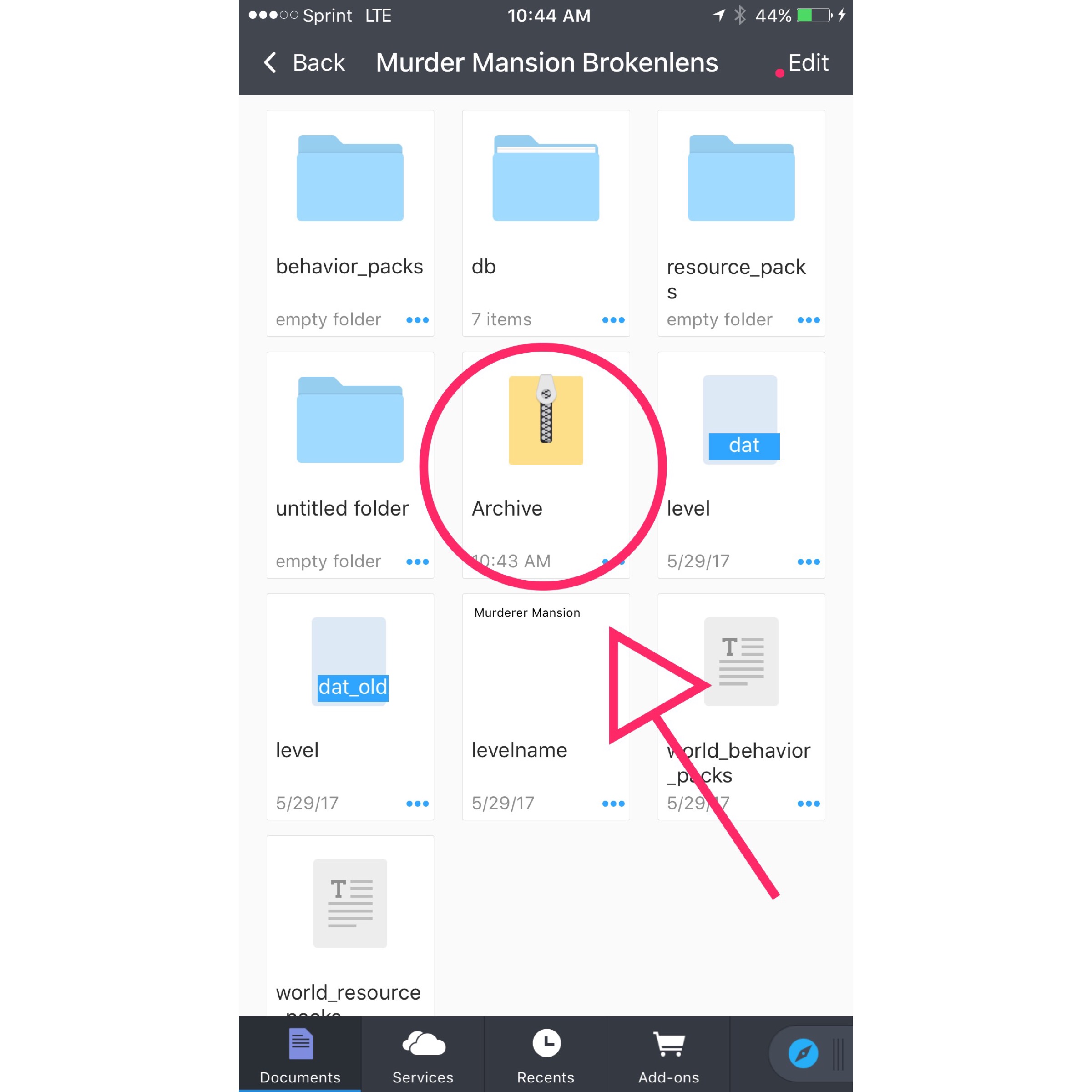
9.) Click On the name "Archive" Not the Folder just the name and change the name from "Archive.Zip" to "Archive.mcworld"
And click "done" then Click "use .mcworld"
_______________________________
10.) Click the "edit" Button Again, then this time only click on The Archive file you just recently changed to "archive.mcworld" then click On The "More" Button at the bottom, then Click "share" and then "Copy To Minecraft PE"
And now you're done! Enjoy!
-Kylie
_________________________
[Requirements: Documents 6 app, IOS Device]
TO DOWNLOAD APP CLICK THIS LINK BELOW!
https://appsto.re/us/Vw_Vv.i
1.) Find the Link to the Map that you're trying to download that isn't .mcworld.
Should look like this:
2.) Click on "Open in Documents"
3.) Click On the Map Document and it should duplicate An other file.
4.) Click On The duplicated File.
_______________________________
5.) Click "Edit".
_______________________________
6.) Click On all the files Once till there's a check on all of them.
_______________________________
7.) Click On More down at the bottom.
_______________________________
8.) Click On "Zip" Button.
_____________________________
9.) Click On the name "Archive" Not the Folder just the name and change the name from "Archive.Zip" to "Archive.mcworld"
And click "done" then Click "use .mcworld"
_______________________________
10.) Click the "edit" Button Again, then this time only click on The Archive file you just recently changed to "archive.mcworld" then click On The "More" Button at the bottom, then Click "share" and then "Copy To Minecraft PE"
And now you're done! Enjoy!
-Kylie
Last edited:


