Navigation
Install the app
How to install the app on iOS
Follow along with the video below to see how to install our site as a web app on your home screen.
Note: This feature may not be available in some browsers.
More options
Style variation
You are using an out of date browser. It may not display this or other websites correctly.
You should upgrade or use an alternative browser.
You should upgrade or use an alternative browser.
How to gather proof of a hacker! [mobile/PE]
- Thread starter arwaffles
- Start date


- Jan 26, 2020
- 2,214
- 65,861
PC and Xbox:
So there’s a built in screen recorder and screenshot software for both PC and xbox, its called Xbox Gamebar.
On PC, You press Windows+G and a window will pop up, showing you everything you can do.
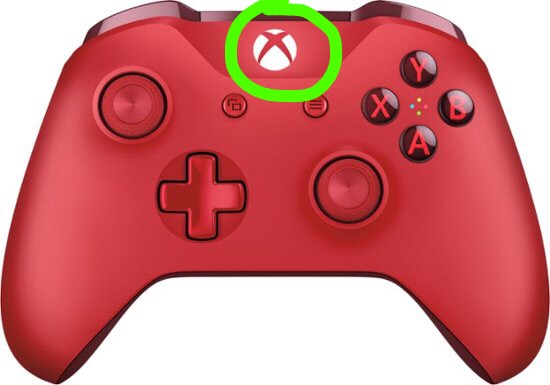
On Xbox, you can just press the xbox symbol on your controller.
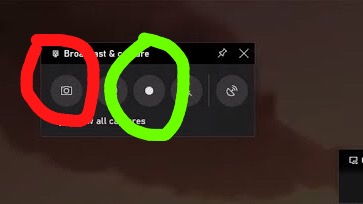
The pop up should look like this, on the top left of your screen! you can record and screenshot your gameplay!!
Green = record
Red = Screenshot
I also love xbox gamebar because it works on low-end pcs and laptops!! <3
If for some reason you don’t get xbox gamebar automatically just go to the Microsoft store and download the app! It’s free!
View reply.
So there’s a built in screen recorder and screenshot software for both PC and xbox, its called Xbox Gamebar.
On PC, You press Windows+G and a window will pop up, showing you everything you can do.
On Xbox, you can just press the xbox symbol on your controller.
The pop up should look like this, on the top left of your screen! you can record and screenshot your gameplay!!
Green = record
Red = Screenshot
I also love xbox gamebar because it works on low-end pcs and laptops!! <3
If for some reason you don’t get xbox gamebar automatically just go to the Microsoft store and download the app!
It’s free!
Last edited:

- Apr 4, 2018
- 2,486
- 143,203
hey everyone!
i'm aarwa, or arwaffles! and in this thread, i'm going to explain how to gather proof of a hacker! specifically, on pe or mobile devices!
this thread will explain how to get a video of a hacker, or even a screenshot!
keep in mind that this may be different for people on pe, as they may have different devices! i'll explain how to figure out how your device works later on!
i'll be explaining in steps, and i hope this thread helps you catch those bad guys!
SCREENSHOT:
STEP 1: figure out what device you own!this is a VERY IMPORTANT step, as i'm sure gathering proof varies from each device! i have a samsung tablet, so this may be different in, let's say, taking screenshots than an apple tablet!
STEP 2: figure out how to take a screenshot!
screenshots are VERY NECESSARY! otherwise, how would you catch the bad guy?
if you already know how to take a screenshot on your device, then perfect! you can move on to step 3!
if not, here are some ways! first, you can try experimenting, maybe clicking some side buttons on your device, or just fiddle around! if this doesn't work, search up the name of your device! i'll have some pictures down below on how to do that!
first, well, search the name of your device! the name of my device is "Samsung Galaxy Tab A". it's the 2016 model!
View attachment 238604now that i know the name of my device, i will search up "how to take a screenshot on samsung galaxy tab a 2016!"
as you can see, i already have many results and videos telling me how to take a screenshot! for me, i have to hold down the power and volume button at the same time! this can vary between devices, however, so make sure you know how your device works!!
STEP 3: well, capture the hacker!
now that you know how to screenshot and gather proof, you need to actually, well, get the proof!
this should be quite obvious, but if you don't know, i'll explain!
first, you need to find a hacker! i really hope you don't have the inconvenience of running into one, but if you do, you'll be ready!
so, let's say you find a jump hacker! all you need to do is take a screenshot, maybe one like this!
View attachment 238607 overall, it doesn't matter how the screenshot looks! as long as you have proof that they're hacking, you'll be set!
VIDEO:
hmm.. but what if you don't have a device that can take videos in game? or, what if you don't know how? what if there's a speed hacker? don't worry fellow mobile players! i got you! ;D
APPLE:
NOTE: if you already have the screen recording icon in your control center, skip steps 1 and 2.
STEP 1: bring down your control center!
so, i'm sure apple users know this, but you can pull down a tab, which shows your settings!
unfortunately, i am not an apple user, but i can show you a video on how to do it! the link will be below!
. (he starts the video at 56 seconds!)
STEP 2: add the screen recording to your control center!
as the video says, you have to add the screen recording icon! go to your settings and hit "Control Center". there, you can add the screen recording icon! just click the green icon with the white cross! now, you'll have it into your control center!
STEP 3: start recording! ;D
the screen recorder can record multiple applications, one of which i think is minecraft! just click that and go back to minecraft, you should be good to go!
ANDROID/ANY OTHER DEVICE WITH NO SCREENRECORD IN IT:
what if for some reason, your screenrecord doesn't work? or, you're an android user, and you don't have screenrecord built in? not to worry!
STEP 1: go to your app store!
like in any device, you have an app store! click on that and search "screen recorder"!
View attachment 238616
now, click on that and search "screen recorder"!
View attachment 238618
as you can see, there are multiple apps i can choose from!
STEP 2: pick one and download!
there are loads of apps compatible with your device! you can just choose one, and then download. i chose mobizen, as i am familiar with it and it works well with my device!
View attachment 238619
next, click install!
View attachment 238620
STEP 3: start recording!
once you've clicked install, you can start screen recording!
on the app mobizen, it lists instructions on how to use the app, but if you're still not sure or you don't understand, i can edit this thread and ahow you how!
and, that's all!
i really hope this helped you just a little bit, and i know that the staff are very thankful for your help! make sure to stay safe, and have a great day!
oh oh! if you have any suggestions on what to add or how to make this better, i would greatly appreciate it!!
ok, NOW that's all!


GOOD JOB WITH THIS THREAD LOVE

- Apr 4, 2018
- 3,794
- 43,077
hey everyone!
i'm aarwa, or arwaffles! and in this thread, i'm going to explain how to gather proof of a hacker! specifically, on pe or mobile devices!
this thread will explain how to get a video of a hacker, or even a screenshot!
keep in mind that this may be different for people on pe, as they may have different devices! i'll explain how to figure out how your device works later on!
i'll be explaining in steps, and i hope this thread helps you catch those bad guys!
SCREENSHOT:
STEP 1: figure out what device you own!this is a VERY IMPORTANT step, as i'm sure gathering proof varies from each device! i have a samsung tablet, so this may be different in, let's say, taking screenshots than an apple tablet!
STEP 2: figure out how to take a screenshot!Very helpful and VERY detailed! Great job, and as everyone has stated, awesome job on the pin =D
screenshots are VERY NECESSARY! otherwise, how would you catch the bad guy?
if you already know how to take a screenshot on your device, then perfect! you can move on to step 3!
if not, here are some ways! first, you can try experimenting, maybe clicking some side buttons on your device, or just fiddle around! if this doesn't work, search up the name of your device! i'll have some pictures down below on how to do that!
first, well, search the name of your device! the name of my device is "Samsung Galaxy Tab A". it's the 2016 model!
View attachment 238604
now that i know the name of my device, i will search up "how to take a screenshot on samsung galaxy tab a 2016!"
as you can see, i already have many results and videos telling me how to take a screenshot! for me, i have to hold down the power and volume button at the same time! this can vary between devices, however, so make sure you know how your device works!!
STEP 3: well, capture the hacker!
now that you know how to screenshot and gather proof, you need to actually, well, get the proof!
this should be quite obvious, but if you don't know, i'll explain!
first, you need to find a hacker! i really hope you don't have the inconvenience of running into one, but if you do, you'll be ready!
so, let's say you find a jump hacker! all you need to do is take a screenshot, maybe one like this!
View attachment 238607 overall, it doesn't matter how the screenshot looks! as long as you have proof that they're hacking, you'll be set!
VIDEO:
hmm.. but what if you don't have a device that can take videos in game? or, what if you don't know how? what if there's a speed hacker? don't worry fellow mobile players! i got you! ;D
APPLE:
NOTE: if you already have the screen recording icon in your control center, skip steps 1 and 2.
STEP 1: bring down your control center!
so, i'm sure apple users know this, but you can pull down a tab, which shows your settings!
unfortunately, i am not an apple user, but i can show you a video on how to do it! the link will be below!
. (he starts the video at 56 seconds!)
STEP 2: add the screen recording to your control center!
as the video says, you have to add the screen recording icon! go to your settings and hit "Control Center". there, you can add the screen recording icon! just click the green icon with the white cross! now, you'll have it into your control center!
STEP 3: start recording! ;D
the screen recorder can record multiple applications, one of which i think is minecraft! just click that and go back to minecraft, you should be good to go!
ANDROID/ANY OTHER DEVICE WITH NO SCREENRECORD IN IT:
what if for some reason, your screenrecord doesn't work? or, you're an android user, and you don't have screenrecord built in? not to worry!
STEP 1: go to your app store!
like in any device, you have an app store! click on that and search "screen recorder"!
View attachment 238616
now, click on that and search "screen recorder"!
View attachment 238618
as you can see, there are multiple apps i can choose from!
STEP 2: pick one and download!
there are loads of apps compatible with your device! you can just choose one, and then download. i chose mobizen, as i am familiar with it and it works well with my device!
View attachment 238619
next, click install!
View attachment 238620
STEP 3: start recording!
once you've clicked install, you can start screen recording!
on the app mobizen, it lists instructions on how to use the app, but if you're still not sure or you don't understand, i can edit this thread and ahow you how!
and, that's all!
i really hope this helped you just a little bit, and i know that the staff are very thankful for your help! make sure to stay safe, and have a great day!
oh oh! if you have any suggestions on what to add or how to make this better, i would greatly appreciate it!!
ok, NOW that's all!
*oof I typed something and it doesn't even work*
Great and VERY detailed thread, and congrats on the pin!!


- Jan 3, 2020
- 1,902
- 79,920
- Thread starter
- #27
THANK YOU AIDENETTE NOOB ;(Congrass arwa!
THANK YOU SO MUCH SANIA!! ;DGreat thread Arwa!! Congrats on the pin
OOO THANK YOU SO MUCH!!PC and Xbox:
So there’s a built in screen recorder and screenshot software for both PC and xbox, its called Xbox Gamebar.
On PC, You press Windows+G and a window will pop up, showing you everything you can do.
On Xbox, you can just press the xbox symbol on your controller.
View attachment 238764
The pop up should look like this, on the top left of your screen! you can record and screenshot your gameplay!!
Green = record
Red = Screenshot
View attachment 238762
I also love xbox gamebar because it works on low-end pcs and laptops!! <3
If for some reason you don’t get xbox gamebar automatically just go to the Microsoft store and download the app!
UGHHH STOP BEING SO NICE JEONKIE ;(GOOD JOB WITH THIS THREAD LOVE
THANK YOU SO MUCH HAROLD CUTIEE*oof I typed something and it doesn't even work*
Great and VERY detailed thread, and congrats on the pin!!
AHH THANK YOU BEN ;DDNice thread and congrats on the pin!

- Mar 30, 2020
- 1,849
- 14,049
Congrats on the Pin!!!! This is a very informational thread and this is good for players, new and old!! :3
View reply.
- Jan 3, 2020
- 1,902
- 79,920
- Thread starter
- #29
ERIKA YOU'RE SO NICE THANK YOU SOSOOS MUCH ;(((Congrats on the Pin!!!! This is a very informational thread and this is good for players, new and old!! :3


dhia ben salah
Notable Member
- Apr 26, 2018
- 392
- 2,360
great thread bro it help a lotttt good job
View reply.


Ironthanosemoji
Active Member
- Jul 10, 2020
- 132
- 743